Get started with the Cloider Terraform provider
This tutorial takes you from nothing to a running Kubernetes cluster and a PostgreSQL database on Cloider, created with Terraform (or OpenTofu). You install the tool, give the Cloider provider an API token, write a small configuration, then run terraform init, plan and apply, use the outputs, change the database, and delete everything with terraform destroy. It takes about ten minutes, most of it waiting for the cluster.
Before you begin
- A Cloider account. See Create an account. The configuration on this page creates one cluster and one database, which fits in the free trial.
- A way to give Terraform an API token: either the
cloiderCLI, logged in withcloider login, or a Read & Write API token from Access Control, API Tokens in the dashboard. - A terminal.
kubectlis optional, for the step that connects to the cluster (see Connect with kubectl).
Step 1: Install Terraform or OpenTofu
The provider works with Terraform 1.0 or later and OpenTofu 1.6 or later. Any of those versions can follow this tutorial, but installing the newest release is recommended (import blocks, used in Import existing resources, need Terraform 1.5 or later).
- macOS
- Linux
- Windows
With Homebrew:
# Terraform
brew tap hashicorp/tap
brew install hashicorp/tap/terraform

# or OpenTofu
brew install opentofu
On Debian or Ubuntu, from HashiCorp's apt repository:
wget -O - https://apt.releases.hashicorp.com/gpg | sudo gpg --dearmor -o /usr/share/keyrings/hashicorp-archive-keyring.gpg
echo "deb [signed-by=/usr/share/keyrings/hashicorp-archive-keyring.gpg] https://apt.releases.hashicorp.com $(lsb_release -cs) main" | sudo tee /etc/apt/sources.list.d/hashicorp.list
sudo apt update && sudo apt install terraform
For other distributions, and for OpenTofu, follow the official instructions: Install Terraform or Install OpenTofu.
With winget:
# Terraform
winget install --exact --id Hashicorp.Terraform

# or OpenTofu
winget install --exact --id OpenTofu.Tofu
Or download the zip from Install Terraform and put terraform.exe on your PATH.
Check that it works. The command prints the installed version and your platform:
terraform version # or: tofu version
Every command on this page works with OpenTofu: type tofu where it says terraform, for example tofu init and tofu apply. The configuration files are the same.
Step 2: Give the provider an API token
The provider needs a Cloider API token to act on your account. Pick one of these:
- cloider login
- Environment variable
If you use the cloider CLI, log in once. The provider reads the token the CLI saved, so you don't have to handle it at all:
cloider login
The browser opens a page where you choose the account and Read & Write access. See CLI authentication for details.
Create a Read & Write token in the dashboard under Access Control, API Tokens:
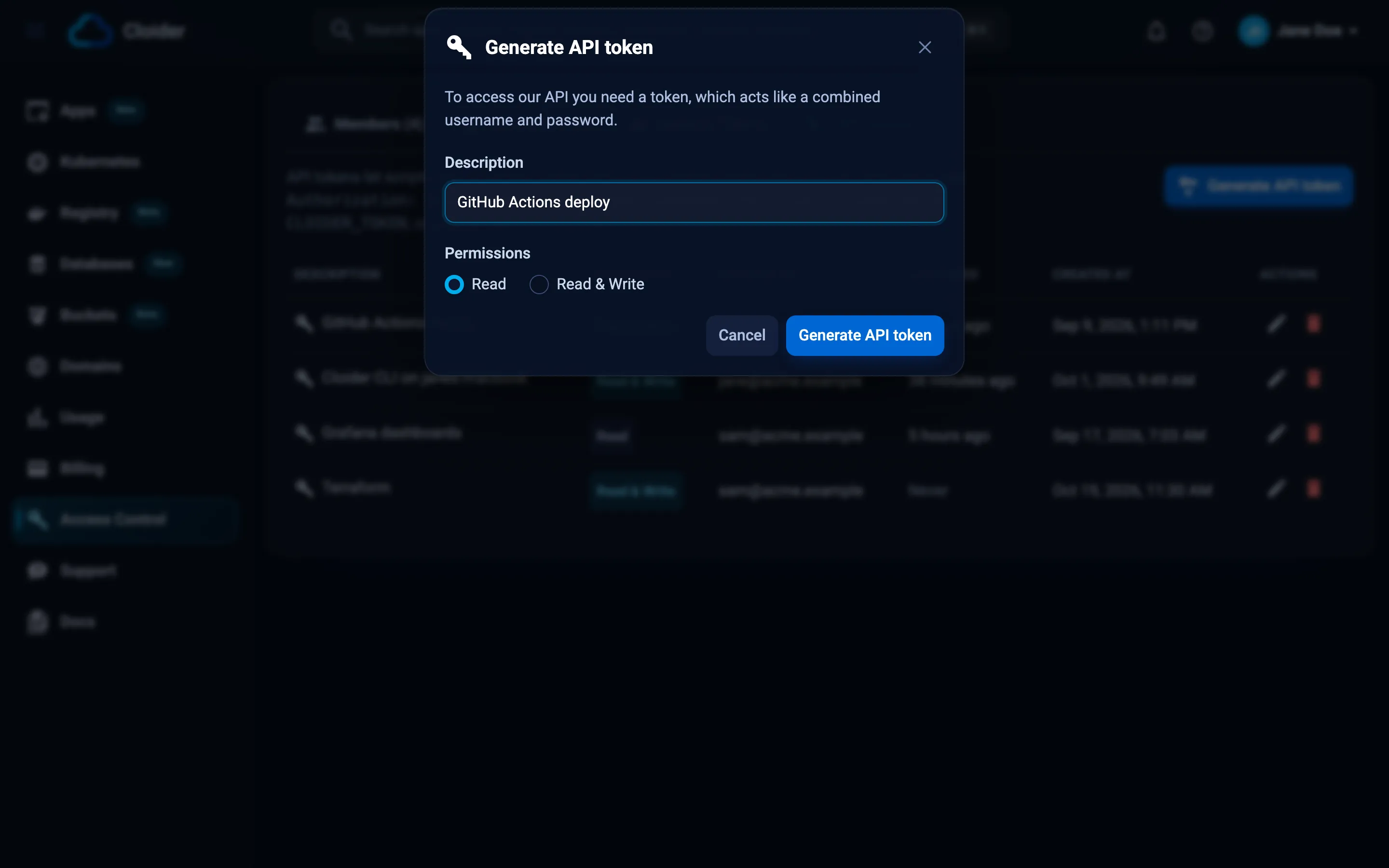
Then export it in the terminal you run Terraform from:
export CLOIDER_TOKEN="cldr_xxxxxxxxxxxxxxxxxxxxxxxx"
This is also how you give the provider a token in CI. See CI/CD with Terraform.
A token in a configuration file ends up in git and in every copy of the code. Use cloider login, an environment variable or a token file instead. All the options are on Provider configuration.
Step 3: Write the configuration
Create an empty folder for the project and three files in it. Terraform reads every .tf file in the folder, so how you split them is up to you. This split is a common convention.
mkdir cloider-staging && cd cloider-staging
versions.tf says which provider to download:
terraform {
  required_version = ">= 1.0"

  required_providers {
    cloider = {
      source  = "cloider/cloider"
      version = "~> 0.1"
    }
  }
}
main.tf declares the provider and the resources. The cluster is called staging, and the database orders-db only accepts connections from that cluster:
# Takes the token from CLOIDER_TOKEN, or from `cloider login`
provider "cloider" {}

# A serverless Kubernetes cluster
resource "cloider_cluster" "staging" {
  name = "staging"
}

# A PostgreSQL database that only the cluster may connect to
resource "cloider_database" "orders" {
  name            = "orders-db"
  engine          = "postgresql"
  plan            = "hobby"
  trusted_sources = ["cluster:${cloider_cluster.staging.id}"]
}
outputs.tf prints what you need to connect. Values marked sensitive are hidden in the terminal and shown only when you ask for them by name:
output "kubeconfig" {
  description = "terraform output -raw kubeconfig > kubeconfig.yaml"
  value       = cloider_cluster.staging.kube_config.raw
  sensitive   = true
}

output "database_host" {
  description = "The host the cluster reaches the database at"
  value       = cloider_database.orders.private_host
}

output "database_port" {
  value = cloider_database.orders.port
}

output "database_user" {
  value = cloider_database.orders.user
}

output "database_password" {
  value     = cloider_database.orders.password
  sensitive = true
}
A few things to notice:
cloider_cluster.staging.idrefers to the cluster's id, which only exists after the cluster is created. Terraform sees that reference and creates the cluster before the database.trusted_sourceswould default to["*"](anywhere). Here it lists only the cluster. See Trusted sources.private_hostis the host for clients running inside Cloider, such as pods in the cluster. Your laptop useshostinstead. See Connect to a database.
Step 4: Initialize the folder
terraform init downloads the Cloider provider from the registry into .terraform/ and writes .terraform.lock.hcl:
terraform init
Initializing the backend...
Initializing provider plugins...
- Finding cloider/cloider versions matching "~> 0.1"...
- Installing cloider/cloider v0.1.x...
- Installed cloider/cloider v0.1.x (self-signed, key ID XXXXXXXXXXXXXXXX)

Terraform has created a lock file .terraform.lock.hcl to record the provider
selections it made above. Include this file in your version control repository
so that Terraform can guarantee to make the same selections by default when
you run "terraform init" in the future.

Terraform has been successfully initialized!
v0.1.x is the newest 0.1 release on the day you run it. Commit .terraform.lock.hcl with your .tf files, and add .terraform/ and *.tfstate* to .gitignore.
Step 5: Preview the changes
terraform plan checks the token, reads your account and shows what it would do, without changing anything:
terraform plan
Terraform used the selected providers to generate the following execution
plan. Resource actions are indicated with the following symbols:
  + create

Terraform will perform the following actions:

  # cloider_cluster.staging will be created
  + resource "cloider_cluster" "staging" {
      + created_at  = (known after apply)
      + id          = (known after apply)
      + kube_config = (sensitive value)
      + label       = (known after apply)
      + name        = "staging"
      + paused      = false
      + status      = (known after apply)
      + version     = (known after apply)
    }

  # cloider_database.orders will be created
  + resource "cloider_database" "orders" {
      + ca_certificate  = (sensitive value)
      + created_at      = (known after apply)
      + engine          = "postgresql"
      + host            = (known after apply)
      + id              = (known after apply)
      + label           = (known after apply)
      + name            = "orders-db"
      + password        = (sensitive value)
      + paused          = false
      + plan            = "hobby"
      + port            = (known after apply)
      + private_host    = (known after apply)
      + ssl             = (known after apply)
      + status          = (known after apply)
      + trusted_sources = [
          + (known after apply),
        ]
      + user            = (known after apply)
      + version         = (known after apply)
    }

Plan: 2 to add, 0 to change, 0 to destroy.

Changes to Outputs:
  + database_host     = (known after apply)
  + database_password = (sensitive value)
  + database_port     = (known after apply)
  + database_user     = (known after apply)
  + kubeconfig        = (sensitive value)
(known after apply) marks values that Cloider decides when it creates the resource: the id, the host names, the password, and defaults such as the newest Kubernetes and PostgreSQL versions.
Step 6: Create the resources
terraform apply shows the same plan and asks for confirmation. Type yes:
terraform apply
...
Plan: 2 to add, 0 to change, 0 to destroy.

Do you want to perform these actions?
  Terraform will perform the actions described above.
  Only 'yes' will be accepted to approve.

  Enter a value: yes

cloider_cluster.staging: Creating...
cloider_cluster.staging: Still creating... [10s elapsed]
cloider_cluster.staging: Still creating... [20s elapsed]
...
cloider_cluster.staging: Creation complete after 2m41s [id=x8f2kq]
cloider_database.orders: Creating...
cloider_database.orders: Still creating... [10s elapsed]
...
cloider_database.orders: Creation complete after 1m37s [id=p0q9zm]

Apply complete! Resources: 2 added, 0 changed, 0 destroyed.

Outputs:

database_host = "orders-db-p0q9zm.db.cloider.internal"
database_password = <sensitive>
database_port = 20417
database_user = "orders_db_user"
kubeconfig = <sensitive>
The provider creates the cluster and waits until its status is Ready, then does the same for the database. Each wait is limited to 20 minutes, see timeouts.
Terraform has now written terraform.tfstate in the folder. It records the ids of what it created, and also the database password and the cluster's kubeconfig, so treat it like a password. For anything beyond a test, keep state in a remote backend such as a Cloider bucket.
Step 7: Use the outputs
Print every output, or one by name. -raw prints a string without quotes, which is what you want for files and scripts:
terraform output
terraform output -raw database_password
Save the kubeconfig and talk to the cluster with kubectl:
terraform output -raw kubeconfig > kubeconfig.yaml
chmod 600 kubeconfig.yaml
KUBECONFIG=./kubeconfig.yaml kubectl get namespaces
NAME              STATUS   AGE
default           Active   4m
kube-node-lease   Active   4m
kube-public       Active   4m
kube-system       Active   4m
The resources are ordinary Cloider resources, so you also see them in the dashboard and the CLI:
cloider cluster list
cloider db get orders-db
From here, a common next step is to deploy into the cluster from the same configuration with the kubernetes and helm providers, passing the database credentials as a Kubernetes Secret. The Kubernetes and Helm guide shows how.
Step 8: Change something
Terraform's job is to keep your account matching the configuration. Change the database's plan from hobby to starter in main.tf:
resource "cloider_database" "orders" {
  name            = "orders-db"
  engine          = "postgresql"
  plan            = "starter"
  trusted_sources = ["cluster:${cloider_cluster.staging.id}"]
}
terraform plan
cloider_cluster.staging: Refreshing state... [id=x8f2kq]
cloider_database.orders: Refreshing state... [id=p0q9zm]

Terraform used the selected providers to generate the following execution
plan. Resource actions are indicated with the following symbols:
  ~ update in-place

Terraform will perform the following actions:

  # cloider_database.orders will be updated in-place
  ~ resource "cloider_database" "orders" {
      ~ ca_certificate  = (sensitive value)
        id              = "p0q9zm"
        name            = "orders-db"
      ~ plan            = "hobby" -> "starter"
      ~ status          = "Ready" -> (known after apply)
        # (13 unchanged attributes hidden)
    }

Plan: 0 to add, 1 to change, 0 to destroy.
update in-place means the database is resized and keeps its data. It restarts once, and terraform apply waits until it is Ready again. Some changes can't be made in place and replace the resource instead (delete it and create a new one): for example a smaller plan, another engine version, or a new name. Terraform marks those -/+ destroy and then create replacement and adds # forces replacement next to the attribute. Always read the plan before typing yes. Every resource page lists which attributes force a replacement, for example cloider_database.
Apply the change with terraform apply, or put plan back to hobby and skip it.
Step 9: Destroy everything
When you are done, delete what the configuration created:
terraform destroy
cloider_cluster.staging: Refreshing state... [id=x8f2kq]
cloider_database.orders: Refreshing state... [id=p0q9zm]

Terraform will perform the following actions:

  # cloider_cluster.staging will be destroyed
  - resource "cloider_cluster" "staging" {
      - id          = "x8f2kq" -> null
      - name        = "staging" -> null
        # (6 unchanged attributes hidden)
    }

  # cloider_database.orders will be destroyed
  - resource "cloider_database" "orders" {
      - engine          = "postgresql" -> null
      - id              = "p0q9zm" -> null
      - name            = "orders-db" -> null
        # (14 unchanged attributes hidden)
    }

Plan: 0 to add, 0 to change, 2 to destroy.

Do you really want to destroy all resources?
  Terraform will destroy all your managed infrastructure, as shown above.
  There is no undo. Only 'yes' will be accepted to confirm.

  Enter a value: yes

cloider_database.orders: Destroying... [id=p0q9zm]
cloider_database.orders: Still destroying... [id=p0q9zm, 10s elapsed]
cloider_database.orders: Destruction complete after 24s
cloider_cluster.staging: Destroying... [id=x8f2kq]
cloider_cluster.staging: Still destroying... [id=x8f2kq, 10s elapsed]
...
cloider_cluster.staging: Destruction complete after 1m3s

Destroy complete! Resources: 2 destroyed.
Terraform deletes the database first, because it depends on the cluster, and waits for each to be gone. Deleting is permanent: the database's data and everything in the cluster are deleted with them. Billing stops when the resources are deleted.
Verify
terraform applyends withApply complete! Resources: 2 added.cloider cluster listandcloider db listshowstagingandorders-dbwith the statusReady, as does the dashboard.KUBECONFIG=./kubeconfig.yaml kubectl get namespaceslists the cluster's namespaces.- A second
terraform planright after the apply saysNo changes. Your infrastructure matches the configuration.
Troubleshooting
| Error | Cause | Fix |
|---|---|---|
No Cloider API token with no API token: set token or CLOIDER_TOKEN, or run 'cloider login' | The provider found no token in any of its sources | Run cloider login, or export CLOIDER_TOKEN=... in the same terminal |
Cloider refused the API token | The token is mistyped, revoked or expired | Create a new token, or run cloider login again |
Can't create the cluster with Free plan users can not create more than one cluster. UPGRADE NOW! | The trial allows one cluster, database, bucket and registry project at a time | Delete the other one, or upgrade. See Limits and quotas |
This API token is read only! when applying, while plan works | The token is a Read token | Use a Read & Write token for apply and destroy |
Cluster staging didn't become ready with gave up waiting, raise the timeout with a timeouts block | The cluster took longer than the 20 minute default | Add timeouts = { create = "40m" }. The cluster stays in state as tainted, so the next apply replaces it, or run terraform untaint cloider_cluster.staging once it is Ready |
Failed to query available provider packages during init | Typo in source, or no access to the registry | Use source = "cloider/cloider" and check that the machine can reach registry.terraform.io (or registry.opentofu.org with OpenTofu) |
Next steps
- Provider configuration: tokens, profiles and several accounts
cloider_clusterandcloider_database: every argument and attribute- Kubernetes and Helm: deploy into the cluster from Terraform
- Store state in a bucket: keep
terraform.tfstateout of your laptop
Frequently asked questions
How long does terraform apply take for a Cloider cluster?
A few minutes. The provider creates the cluster and waits until its status is Ready, checking every 5 seconds, for up to 20 minutes by default. A database usually takes a minute or two.
Can I follow this tutorial on the free trial?
Yes. It creates one Kubernetes cluster and one database, which is what the trial allows at a time. Destroy them before creating others.
Where does Terraform keep the database password?
In the state file, terraform.tfstate, together with the cluster's kubeconfig. Outputs marked sensitive are hidden in the terminal but stored in plain text in the state. Keep the state private, ideally in a remote backend such as a Cloider bucket.
Does terraform destroy delete my data?
Yes. Destroying a cloider_database deletes the database and its data, and destroying a cloider_cluster deletes everything running in it. Use lifecycle { prevent_destroy = true } on resources that must never be deleted by Terraform.
Do I need the cloider CLI to use the Terraform provider?
No. The provider only needs an API token, for example in the CLOIDER_TOKEN environment variable. The CLI is a convenience: after cloider login the provider can use the token the CLI saved.