Cloider dashboard tour, sidebar, search and menus
The Cloider dashboard at cloider.com/dashboard is the web interface for everything in your account: apps, Kubernetes clusters, databases, buckets, registry projects, domains, usage, billing, support and access control. This page walks through its layout so you know where everything is.
At a glance
| Part | Where | What it does |
|---|---|---|
| Sidebar | Left edge | One entry per product and account page |
| Search | Top bar, center | Finds pages and resources by name. Shortcut: ⌘ K on macOS, Ctrl K elsewhere |
| Notifications | Bell icon, top right | Opens the Notifications page |
| Help | Question mark icon, top right | Opens Support |
| Account menu | Your account's picture and name, top right | Switch account and Logout |
| Trial banner | Top of the page | Shows the trial end date while the account is on the trial |
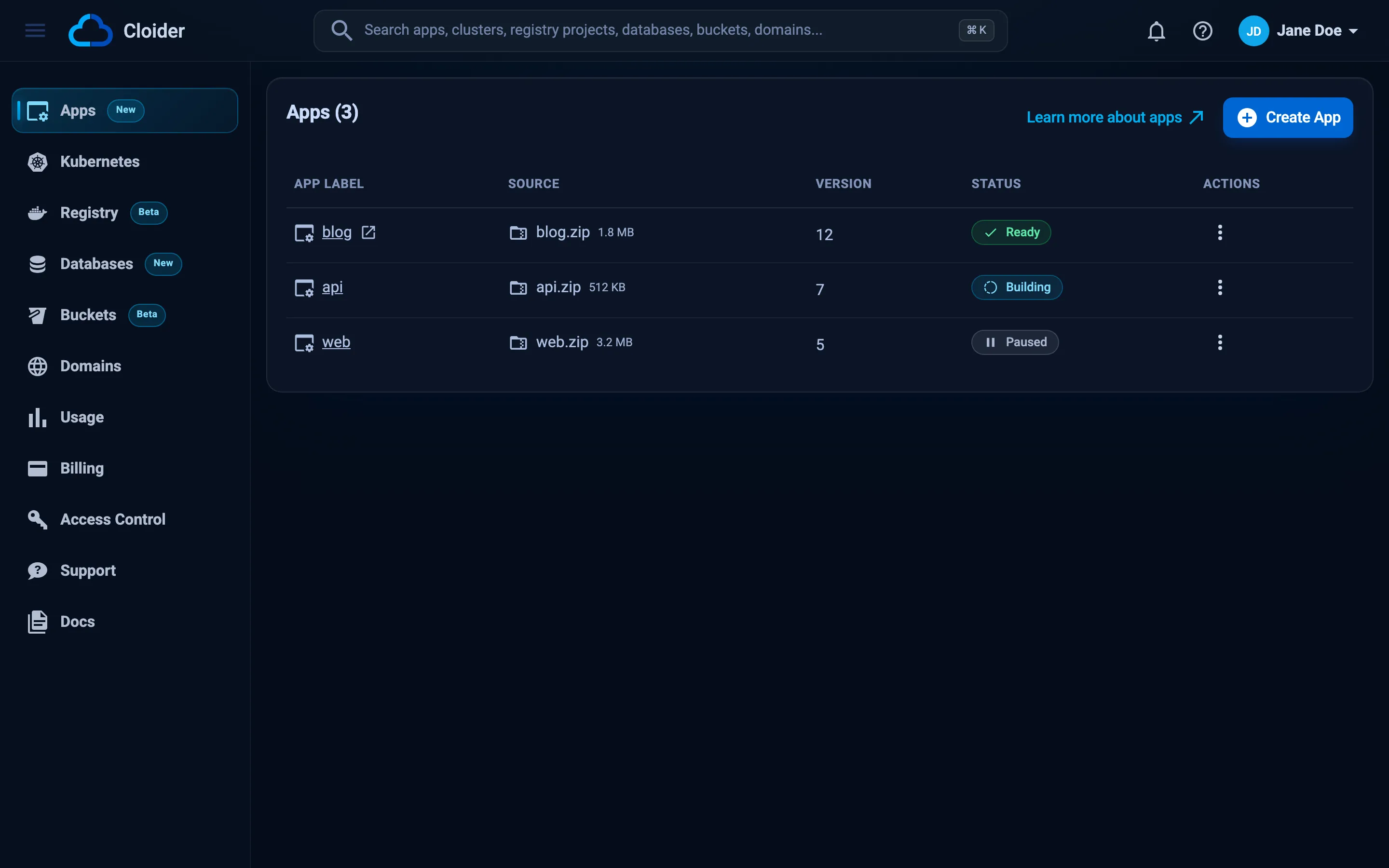
The landing page
When you open the dashboard, it shows the Apps page, the first entry in the sidebar. The Cloider logo in the top left corner always brings you back there.
The sidebar
The sidebar lists every part of the dashboard, in this order:
| Entry | Page | What you manage there | Docs |
|---|---|---|---|
| Apps | /dashboard/apps | Deployed applications, their builds, logs and environment | Apps |
| Kubernetes | /dashboard/clusters | Serverless Kubernetes clusters | Kubernetes |
| Registry | /dashboard/registry | Container registry projects and images | Container Registry |
| Databases | /dashboard/databases | PostgreSQL, MySQL, MongoDB and Redis | Databases |
| Buckets | /dashboard/buckets | S3 compatible object storage | Object Storage |
| Domains | /dashboard/domains | Free subdomains, custom domains, DNS records and targets | Domains and DNS |
| Usage | /dashboard/usage | This month's usage and cost per resource | Usage |
| Billing | /dashboard/billing | Monthly invoices. Shown to the account Owner only | Billing |
| Support | /dashboard/support | Support requests to the Cloider team | Support |
| Access Control | /dashboard/access-control | Members, API tokens, S3 credentials and registry tokens | Access control |
Some entries carry a small badge such as New or Beta, which marks a recently added product.
On a narrow screen, the hamburger button at the left end of the top bar (Toggle menu) collapses and expands the sidebar.
Search
The search box in the top bar finds dashboard pages and your resources by name. Click it, or press ⌘ K (macOS) or Ctrl K (Windows and Linux), and start typing.
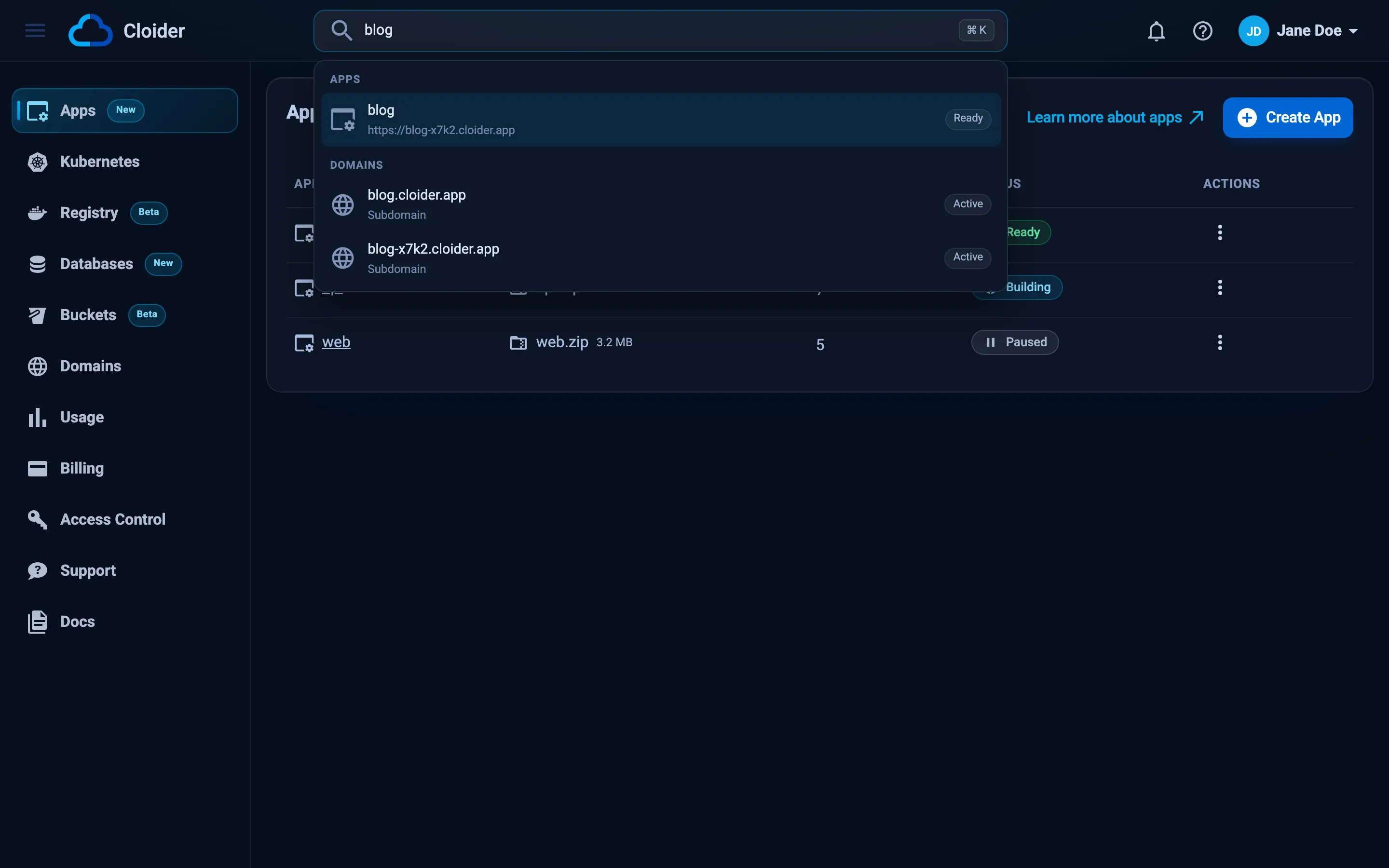
Results are grouped in this order: Pages, Apps, Clusters, Registry Projects, Databases, Buckets and Domains. Use the arrow keys to move between results, Enter to open one and Escape to close the results.
Search understands common words for each page, not only its title. For example:
| You type | You find |
|---|---|
k8s, kubectl or kubeconfig | Kubernetes |
postgres, mysql, redis or mongo | Databases |
s3, files or access keys | Buckets and S3 credentials |
invoices or credit card | Billing (Owner only) |
api keys or bearer | API tokens |
docker login or pull secret | Registry tokens |
new cluster, create database, new bucket | The matching create form |
ticket or help | Support and New support request |
Resource results match the resource's name, so typing orders finds a database called orders-db. Results appear as you type, and a resource you created in the last half minute may not be listed yet.
The account menu
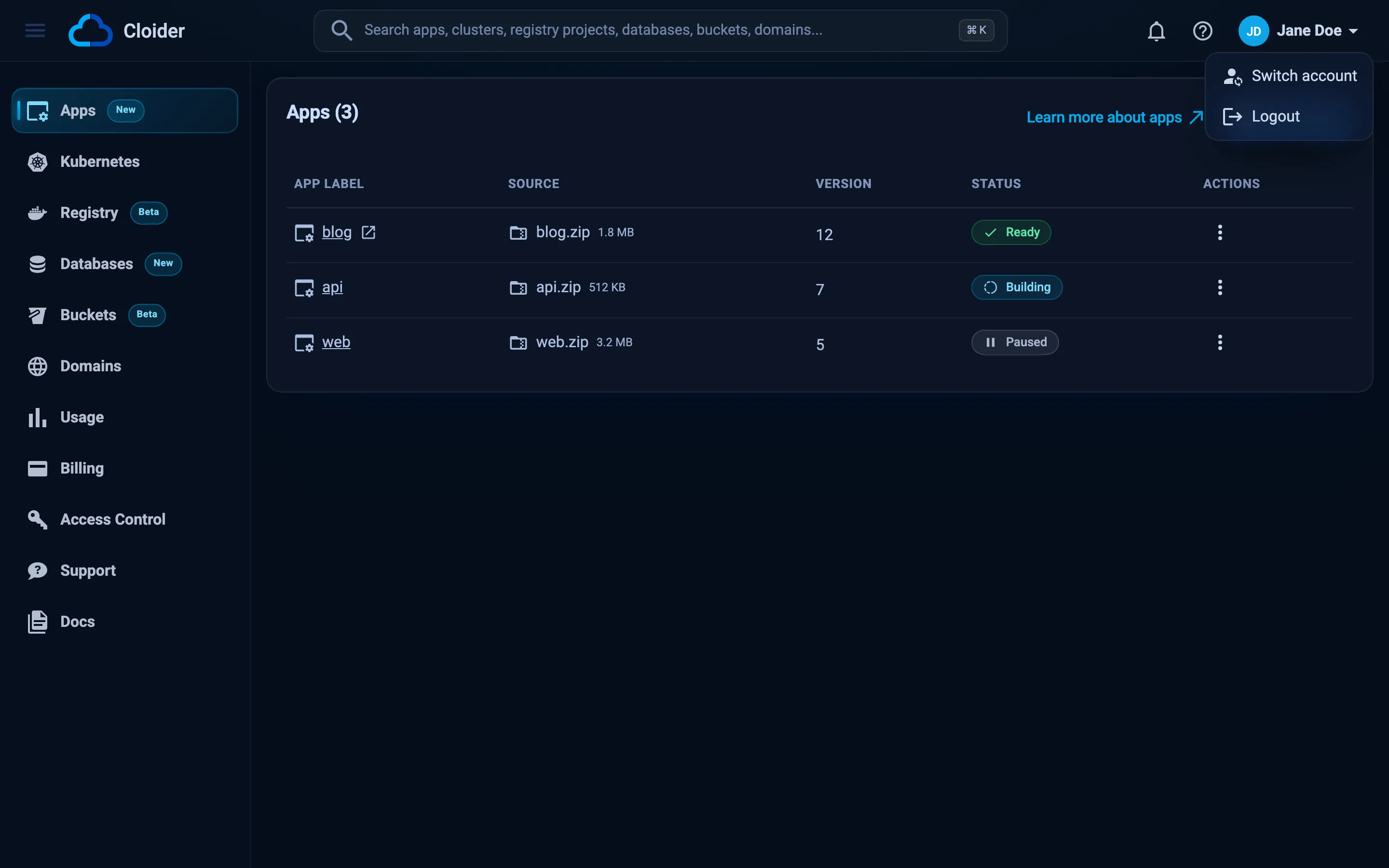
The button in the top right corner shows the picture and name of the account you are working in, which is not always your own. Click it to open the account menu:
- Switch account appears when you are a member of at least one other account. It takes you to the Select an account screen. See Switch accounts.
- Logout signs you out of the dashboard.
Notifications
The bell icon opens the Notifications page. Notifications are announcements from Cloider: new features, offers, and warnings such as a budget that is about to be exceeded. When there is nothing new, the page says You don't have any new notifications!. Read Notifications for the emails Cloider sends.
The trial banner
While the account is on the free trial, a banner across the top of every page says that you are on the limited trial period and when it ends. For the account owner it includes an UPGRADE NOW! link. If the trial has ended without an upgrade, the banner turns red and says the account is suspended. See Create an account.
How resource pages work
Every product page follows the same pattern, so once you know one you know them all.
- The list page (for example Kubernetes) shows your resources in a table with their status. A create button sits at the top, for example Create Cluster or Create App.
- The row menu: the button with three dots at the end of each row opens actions for that resource, such as Kubeconfig, Terminal, Pause, Resume and Delete for a cluster. Actions that don't apply to the current status are greyed out.
- The detail page: click a resource's name to open it. Detail pages have tabs, such as Overview, Insights, Builds, Environment, Settings, Logs and Terminal for an app.
- Statuses update by themselves: while a resource is changing (for example Creating or Pausing), the page polls until it settles. You don't need to reload.
What each status means is listed in Status values.
If your role in the account is Restricted, the dashboard hides or disables the buttons that change things, such as Create Cluster and Delete. You can still look at everything. See Accounts and roles.
Sessions and signing out
A dashboard session lasts 24 hours. When it expires, the dashboard shows Login session lost! with a Reload page button: reload and sign in again with Google or GitHub. Logout in the account menu ends the session straight away.
Signing out of the dashboard doesn't affect API tokens or the CLI. Tokens keep working until they are deleted. See API tokens.
Next steps
- Choose a tool: when the CLI, Terraform, the API or an AI agent fits better than the dashboard.
- Deploy your first app.
- Access control: invite your team.
Frequently asked questions
What is the keyboard shortcut for search in the Cloider dashboard?
Press Command K on macOS or Ctrl K on Windows and Linux. It focuses the search box in the top bar.
Why is there no Billing entry in my sidebar?
Billing is shown to the account owner only. Admins and Restricted members do not see it, and the billing endpoint refuses them.
Whose name is shown in the top right corner?
The name and picture of the account you are working in. When you switch to another account, it shows that account owner's name.
How long does a dashboard session last?
A dashboard session lasts 24 hours. After that the dashboard shows Login session lost! and you sign in again.
Does logging out of the dashboard revoke my API tokens?
No. API tokens, including the one the CLI uses, keep working until they are deleted in Access Control or revoked with cloider logout.