Create your first Kubernetes cluster on Cloider
This tutorial creates a Kubernetes cluster on Cloider, connects kubectl to it, deploys a small web server and makes it reachable on the internet at a free cloider.app address. It takes about fifteen minutes, most of it waiting for the cluster to start.
A Cloider Kubernetes cluster gives you a standard Kubernetes API, so kubectl, Helm, Terraform and any other Kubernetes tool work with it. It is serverless: you don't choose machine sizes or manage nodes. You create the cluster, deploy workloads and pay for the CPU and memory they use, plus storage and load balancers. Read the Kubernetes overview for how it works.
If you just want to run a web app from source code, Apps is simpler: no YAML, no kubectl. Choose a cluster when you need Kubernetes itself: several services, Helm charts, custom manifests, or a workload you already run on Kubernetes elsewhere.
Before you begin
- A Cloider account. During the free trial you can have one cluster at a time. See Create an account.
kubectlinstalled on your computer.- For the CLI path, the
cloiderCLI logged in with Read and write access. See Install the CLI.
Step 1: Create the cluster
A cluster needs a name and a Kubernetes version. Names use lowercase letters, digits and -, start with a letter and are at least 2 characters long. This tutorial uses staging.
- Dashboard
- CLI
- Terraform
- API
- MCP
- Open Kubernetes in the sidebar and click Create Cluster.
- In Cluster Name, type
staging. - In Cluster Version, keep the newest version unless you need an older one.
- Click Create cluster.
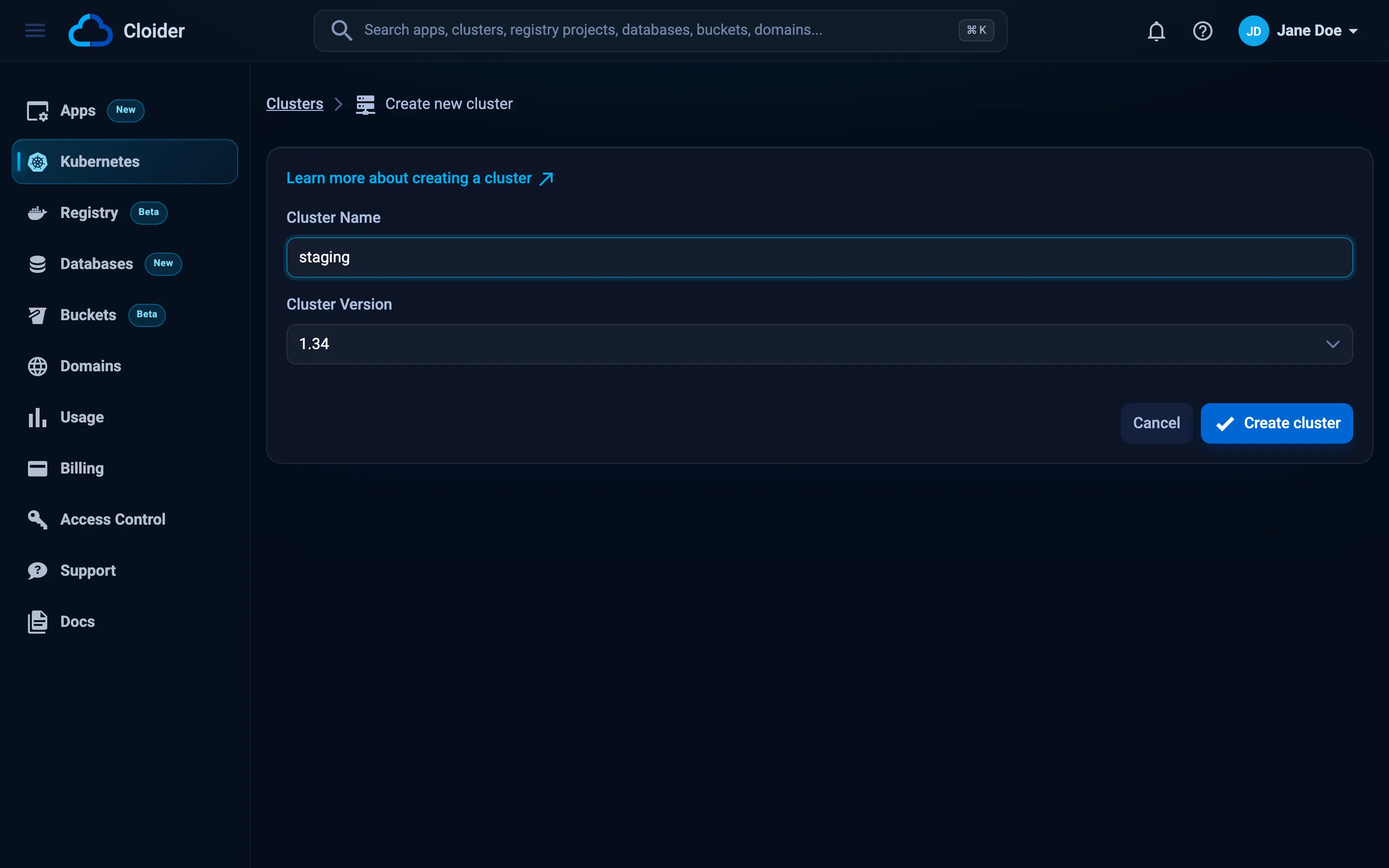
The cluster appears in the list with the status Creating, then Starting, then Ready. The page updates by itself.
cloider cluster create staging --wait
✓ Creating cluster staging (Kubernetes 1.34)
✓ Cluster staging is ready. Get its kubeconfig with `cloider cluster kubeconfig staging --merge`.
Without --wait, the command returns at once and cloider cluster status staging tells you when it is Ready. Pick a version with --version 1.33.
terraform {
  required_providers {
    cloider = {
      source = "cloider/cloider"
    }
  }
}

provider "cloider" {}

resource "cloider_cluster" "staging" {
  name = "staging"
}
terraform init
terraform apply
terraform apply waits until the cluster is Ready. See cloider_cluster.
curl -X POST https://cloider.com/api/clusters \
  -H "Authorization: Bearer $CLOIDER_TOKEN" \
  -H "Content-Type: application/json" \
  -d '{"cluster_name": "staging", "cluster_version": "1.34"}'
{"hashed_id": "q7m2x"}
Then poll GET /api/clusters/q7m2x/status until it answers Ready. See Clusters endpoints.
Create a Kubernetes cluster called staging and wait until it's ready.
{"name": "staging", "wait": true}
Step 2: Connect kubectl
kubectl finds a cluster through a kubeconfig file, which holds the cluster's address and the credentials to reach it. Treat it like a password: anyone with the file has full access to the cluster.
- Dashboard
- CLI
- Terraform
- API
- MCP
- In Kubernetes, click the menu button (three dots) at the end of the
stagingrow. - Click Kubeconfig. Your browser downloads a file called
config. - Move it somewhere safe and point
kubectlat it:
mkdir -p ~/.kube
mv ~/Downloads/config ~/.kube/staging.yaml
export KUBECONFIG=~/.kube/staging.yaml
Merge the cluster into your kubeconfig as the context cloider-staging, and switch to it:
cloider cluster kubeconfig staging --merge --use
✓ Added context cloider-staging to /Users/jane/.kube/config
Leave out --use to add the context without switching, and change contexts later with kubectl config use-context cloider-staging. To write a separate file instead, use cloider cluster kubeconfig staging -f ~/.kube/staging.yaml.
The cluster's kube_config attribute holds the whole file in raw, and the parts the kubernetes and helm providers need in host, cluster_ca_certificate, client_certificate and client_key:
resource "local_sensitive_file" "kubeconfig" {
  filename        = "${path.module}/kubeconfig-staging.yaml"
  content         = cloider_cluster.staging.kube_config.raw
  file_permission = "0600"
}
terraform apply
export KUBECONFIG=$PWD/kubeconfig-staging.yaml
curl -H "Authorization: Bearer $CLOIDER_TOKEN" \
  https://cloider.com/api/clusters/q7m2x/kubeconfig -o ~/.kube/staging.yaml
export KUBECONFIG=~/.kube/staging.yaml
{"cluster": "staging", "merge": true, "use": true}
Check the connection:
kubectl get namespaces
NAME              STATUS   AGE
default           Active   4m
kube-node-lease   Active   4m
kube-public       Active   4m
kube-system       Active   4m
More options, such as several clusters and contexts, are in Connect with kubectl.
Step 3: Deploy a workload
Create a Deployment running two replicas of the NGINX web server, and a Service in front of it:
apiVersion: apps/v1
kind: Deployment
metadata:
  name: hello
spec:
  replicas: 2
  selector:
    matchLabels:
      app: hello
  template:
    metadata:
      labels:
        app: hello
    spec:
      containers:
        - name: web
          image: nginx:1.27
          ports:
            - containerPort: 80
          resources:
            requests:
              cpu: 50m
              memory: 64Mi
---
apiVersion: v1
kind: Service
metadata:
  name: hello
spec:
  selector:
    app: hello
  ports:
    - port: 80
      targetPort: 80
kubectl apply -f hello.yaml
kubectl get pods
NAME                     READY   STATUS    RESTARTS   AGE
hello-6d4b9c7f8d-2xk9p   1/1     Running   0          20s
hello-6d4b9c7f8d-q8m4t   1/1     Running   0          20s
You pay for the CPU and memory the pods use, so small requests keep a test workload cheap. See Deploy a workload.
Step 4: Put it on the internet
A Service inside the cluster isn't reachable from the internet yet. On Cloider you publish it by routing a domain to it with a target: a free cloider.app subdomain works and comes with HTTPS. Kubernetes Ingress objects in the cluster are not served, so use a target instead.
- Dashboard
- CLI
- Terraform
- API
- MCP
- Open Domains in the sidebar and claim a free subdomain, for example
hello-staging.cloider.app. - On the domain's page, add a target that routes the path
/to the clusterstaging, the servicedefault/helloand port80.
The full walkthrough with screenshots is in Expose services.
cloider domain create hello-staging.cloider.app
cloider target create hello-staging.cloider.app --cluster staging --service default/hello --port 80
✓ Claimed hello-staging.cloider.app
Route it with `cloider target create hello-staging.cloider.app --app <app>`.
✓ Routed hello-staging.cloider.app/ to staging/default/hello:80
cloider cluster services staging lists the services a target can route to.
Use the cloider_domain and cloider_target resources. Their attributes and a complete example are on those pages.
Claim the subdomain with POST /api/domains and create the target with POST /api/targets. See Domains endpoints and Targets endpoints.
Claim hello-staging.cloider.app and route it to the hello service in the default namespace of my staging cluster, port 80.
The agent calls create_domain, then create_domain_target:
{"domain": "hello-staging.cloider.app", "cluster": "staging", "service": "default/hello", "port": 80}
Open it:
curl -I https://hello-staging.cloider.app
HTTP/2 200
server: nginx/1.27.5
content-type: text/html
Step 5: Use the browser terminal (optional)
Each cluster has a terminal in the dashboard with kubectl and helm already pointed at it, which is handy on a computer without kubectl. In Kubernetes, open the row menu of staging and click Terminal. From a terminal on your own computer, cloider cluster shell staging opens the same shell, and cloider cluster exec staging kubectl get pods -A runs one command. See Web terminal and exec.
Verify
- The cluster's status is Ready.
kubectl get podsshows thehellopods asRunning.https://hello-staging.cloider.appanswers with the NGINX welcome page.
Stop paying for the cluster when you're done
- Pause it to stop paying for compute while keeping everything in it: row menu, Pause, or
cloider cluster pause staging. Resume it the same way. See Pause and resume. - Delete it to remove it and everything in it for good: row menu, Delete, or
cloider cluster delete staging. See Delete a cluster.
How a paused cluster is billed is explained in Billing model.
Troubleshooting
| Symptom | Likely cause and fix |
|---|---|
Free plan users can not create more than one cluster. UPGRADE NOW! | You are on the trial and already have a cluster. Delete it or upgrade. |
| Kubeconfig is greyed out in the row menu | The cluster isn't Ready yet. Wait for it, or check cloider cluster status staging. |
kubectl answers Unable to connect to the server | kubectl uses another kubeconfig or context. Check echo $KUBECONFIG and kubectl config current-context. A paused cluster doesn't answer either. |
cluster staging has no services to route to yet | The Service wasn't created. Run kubectl get svc and apply hello.yaml again. |
Pods stay Pending | The pods can't be scheduled. Run kubectl describe pod <pod-name> and read the events. |
More in Kubernetes troubleshooting.
Next steps
- Helm: install charts.
- Persistent volumes and Load balancers.
- Pull private images from your Cloider registry project.
- WordPress on Kubernetes: a complete example with a database and a volume.
Frequently asked questions
How do I create a Kubernetes cluster on Cloider?
In the dashboard, open Kubernetes, click Create Cluster, type a name and click Create cluster. From a terminal, run cloider cluster create staging --wait.
How do I get the kubeconfig of a Cloider cluster?
In the dashboard, open the cluster row menu and click Kubeconfig to download it. With the CLI, run cloider cluster kubeconfig staging --merge --use to add it to ~/.kube/config as the context cloider-staging.
Do I need to manage nodes?
No. Cloider clusters are serverless: you deploy workloads and pay for the CPU and memory they use. There are no node pools to size or upgrade.
Can I use Ingress resources?
Ingress objects in a Cloider cluster are not served. To reach a Service from the internet, route a domain to it with a target, or use a Service of type LoadBalancer.
Can I upgrade a cluster to a newer Kubernetes version?
A cluster keeps the version it was created with. To move to a newer version, create a new cluster and deploy your workloads to it.
How many clusters can I have?
One at a time during the free trial. Paid accounts have no limit on the number of clusters.