Trusted sources (database IP allowlist and firewall)
Trusted sources are a Cloider database's firewall: the list of places allowed to open a connection to it. A connection from anywhere else is dropped before it reaches the database, even with the right password. You can trust the whole internet, single IPv4 addresses, IPv4 ranges in CIDR notation, and your own Cloider apps and Kubernetes clusters.
At a glance
| What it filters | New connections to the database's port, on both the public and the private host |
| Source types | Anywhere (*), My IP, an IPv4 address or CIDR range, a Cloider app, a Cloider Kubernetes cluster |
| Default | Anywhere, when created from the dashboard, CLI, Terraform or MCP |
| Empty list | Nobody can connect over the network |
| Not filtered | The browser terminal, cloider db shell, cloider db exec and backups |
| IPv6 | Not supported. Use IPv4 addresses and ranges |
| Restart needed | No, changes apply without restarting the database |
| Where to change it | The Settings tab, cloider db trusted-sources, Terraform trusted_sources, the API and the update_database_trusted_sources MCP tool |
Types of trusted source
| Type | What it allows | Dashboard | CLI, MCP | Terraform |
|---|---|---|---|---|
| Anywhere | Any IP address, plus all your apps and clusters | Allow Everything | * (also 0.0.0.0/0 or anywhere) | * |
| My IP | The public IPv4 address of the browser or machine you are using, as a /32 | Allow My IP | --add-my-ip, --allow-my-ip, add_my_ip | Write the address as a CIDR |
| IPv4 address or range | One address or a CIDR range, on the public host | Type it, for example 203.0.113.0/24, and press Enter | 203.0.113.7 or 203.0.113.0/24 | 203.0.113.0/24 or 198.51.100.7/32 |
| App | One of your Cloider apps, on the private host | Pick the app by name | app:<name>, for example app:api | app:<id> |
| Cluster | One of your Cloider Kubernetes clusters, on the private host | Pick the cluster by name | cluster:<name>, for example cluster:production | cluster:<id> |
The CLI and MCP accept an app or cluster by its name, label or id. Terraform takes the id, which is the id attribute of a cloider_cluster resource. App and cluster sources match connections that arrive on the database's private host, which is how your apps and clusters should connect.
What is CIDR notation?
CIDR notation writes a range of IP addresses as an address, a slash and a prefix length: 203.0.113.0/24. The prefix length says how many leading bits are fixed. The larger the number after the slash, the smaller the range.
| CIDR | Addresses | Covers |
|---|---|---|
198.51.100.7/32 | 1 | Exactly 198.51.100.7 |
203.0.113.0/28 | 16 | 203.0.113.0 to 203.0.113.15 |
203.0.113.0/24 | 256 | 203.0.113.0 to 203.0.113.255 |
10.20.0.0/16 | 65,536 | 10.20.0.0 to 10.20.255.255 |
0.0.0.0/0 | All | Every IPv4 address. Cloider stores it as Anywhere |
The dashboard only accepts ranges written with a prefix, so type 198.51.100.7/32 for a single address. The CLI adds /32 to a bare address for you, and stores a range as the network it covers: 10.0.0.7/24 becomes 10.0.0.0/24.
How the list behaves
- Anywhere replaces everything else. Choosing Anywhere (
*) removes every other entry, because it already allows them. - Anything else replaces Anywhere. Adding an address, a range, an app or a cluster to a list that contains Anywhere removes Anywhere, so the list becomes restrictive. The dashboard and the CLI both do this.
- Entries add up. A connection is allowed when it matches any entry.
- An empty list allows nobody. With no trusted sources, no connection over the network reaches the database. The dashboard shows the warning "No trusted sources added. This database will be completely unreachable from anywhere. Add at least one source to allow connections." The CLI refuses to save an empty list, and Terraform requires at least one entry. Only the API accepts an empty list.
What trusted sources don't block
Trusted sources only filter network connections to the database's host and port. These keep working whatever the list says, because they run next to the database inside Cloider:
- the Terminal tab in the dashboard,
cloider db shellandcloider db exec, and thedatabase_execMCP tool,- backups and restores.
This makes a fully locked down database practical: keep only your apps and clusters in the list, and use the terminal or cloider db exec for admin work.
View and change trusted sources
- Dashboard
- CLI
- Terraform
- API
- MCP
- Open the database and go to the Settings tab.
- In Trusted Sources, open the Select trusted sources list:
- pick Allow Everything to allow anywhere,
- pick Allow My IP to add your current public IP,
- pick one of your clusters or apps by name,
- or type an IPv4 range such as
203.0.113.0/24and press Enter.
- Remove an entry with its x.
- Click Apply changes. The button shows Saved once the list is stored.
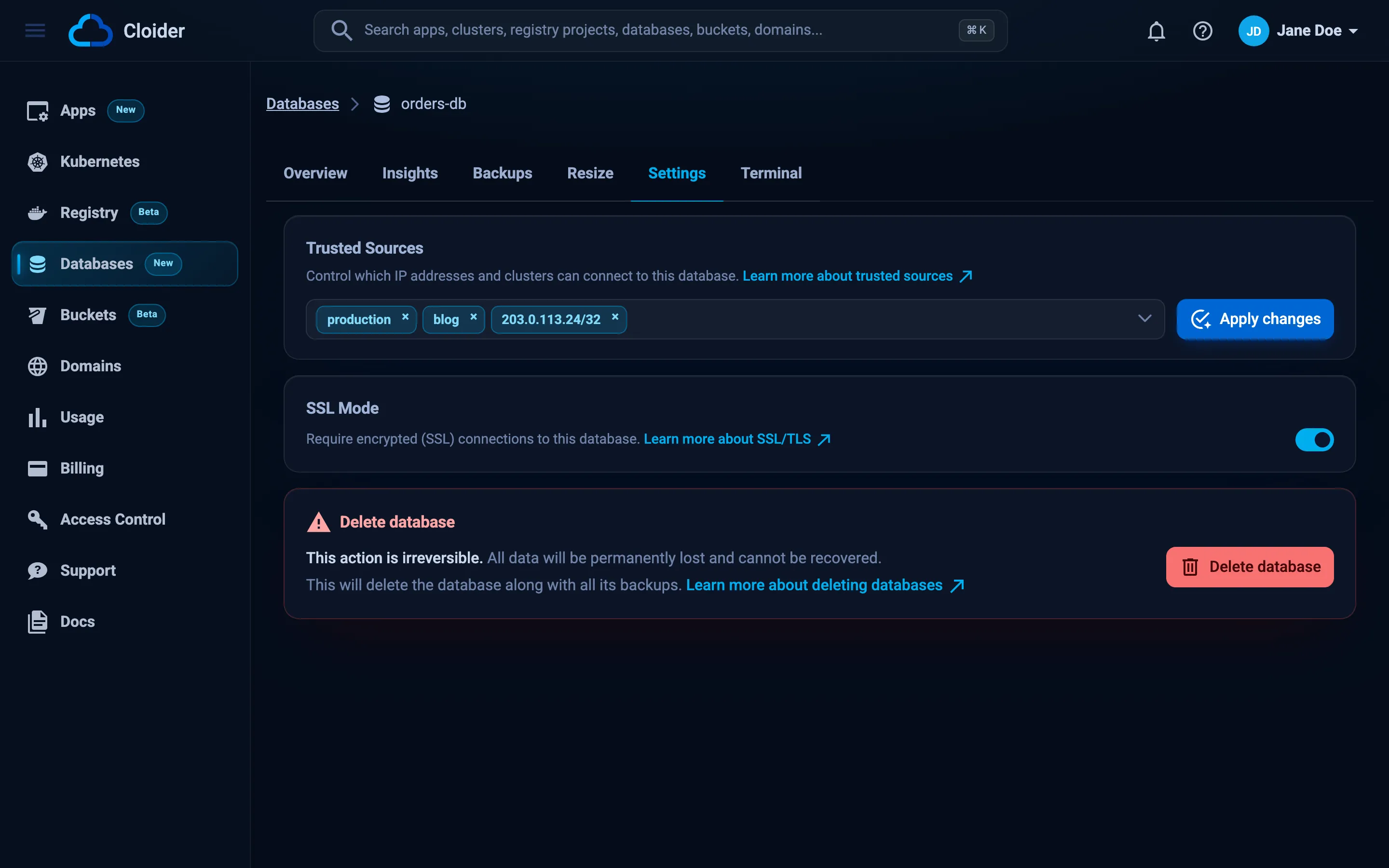
The same picker appears when you create a database.
List the current sources:
cloider db trusted-sources orders-db
SOURCE  TYPE      NAME
*       Anywhere  Allow Everything
Replace the list with your app and your cluster:
cloider db trusted-sources orders-db --set app:api --set cluster:production
✓ Updated who may connect to orders-db
SOURCE  TYPE     NAME
k2m8xq  App      api
v9d3hn  Cluster  production
Add and remove entries:
# Add the public IP of this machine
cloider db trusted-sources orders-db --add-my-ip

# Add an office range and a CI runner
cloider db trusted-sources orders-db --add 203.0.113.0/24 --add 198.51.100.7

# Stop allowing everyone and allow one address instead
cloider db trusted-sources orders-db --remove '*' --add 203.0.113.7

# Remove an entry
cloider db trusted-sources orders-db --remove 198.51.100.7/32
| Flag | Meaning |
|---|---|
--set | Replace the whole list with these sources. Repeatable |
--add | Add a source. Repeatable |
--remove | Remove a source. Repeatable |
--add-my-ip | Add the public IPv4 address this command runs from |
firewall is an alias: cloider db firewall orders-db does the same. With no flag, the command only lists. Quote '*' in your shell so it isn't expanded to file names.
resource "cloider_database" "orders" {
  name   = "orders-db"
  engine = "postgresql"

  trusted_sources = [
    "cluster:${cloider_cluster.production.id}",
    "203.0.113.0/24",
    "198.51.100.7/32",
  ]
}
trusted_sources is a set of strings: *, IPv4 CIDR ranges (/32 for one address), cluster:<id> and app:<id>. It needs at least one entry and defaults to ["*"]. Changing it updates the database in place.
curl -X PUT https://cloider.com/api/databases/p0q9zm/trusted-sources \
  -H "Authorization: Bearer $CLOIDER_TOKEN" \
  -H "Content-Type: application/json" \
  -d '{
    "trusted_sources": [
      {"name": "production", "code": "v9d3hn", "type": "Cluster"},
      {"name": "api", "code": "k2m8xq", "type": "App"},
      {"name": "203.0.113.0/24", "code": "203.0.113.0/24", "type": "Custom"}
    ]
  }'
{"success": true}
The request replaces the whole list. Each source is an object with name, code and type:
type | code | name |
|---|---|---|
Anywhere | * | Allow Everything |
Custom | The CIDR range, for example 203.0.113.0/24 | The same CIDR |
MyIP | Your address as a /32, for example 198.51.100.7/32 | A label, for example My IP (198.51.100.7/32) |
App | The app's id | The app's name, exactly |
Cluster | The cluster's id | The cluster's name, exactly |
For App and Cluster, code must be the resource's id and name its name, exactly: an entry where either one doesn't match allows nothing. The API doesn't validate the list: an invalid CIDR or a wrong name is stored but won't allow anything. Use a /32 for a single address. Read the current list from trusted_sources in GET /api/databases/<id>.
Only let my api app and my production cluster connect to orders-db.
{"database": "orders-db", "set": ["app:api", "cluster:production"]}
The tool takes set (replace the list), add, remove and add_my_ip, at least one of them. get_database lists the current sources.
Recommended setups
| Situation | Trusted sources |
|---|---|
| Production database used by a Cloider app | app:<name> only. Admin work through the Terminal tab or cloider db exec |
| Database used by a Cloider Kubernetes cluster | cluster:<name> only |
| Database used from another cloud or a VPS | That server's static IPv4 address as a /32 |
| Developer access from an office | The office's public range, for example 203.0.113.0/24 |
| Local development with a hobby database | Allow My IP, refreshed when your IP changes |
| Quick test or demo | Allow Everything, with SSL on and a short life |
With Allow Everything, anyone on the internet can reach the database's port and try to log in. The password is 32 random characters, so guessing it isn't practical, but a leaked password is then enough to get in. For production data, list only the sources that need access.
Troubleshooting
My connection times out
A connection from a source that isn't trusted is dropped silently, so the client waits until it times out instead of getting an error. Typical messages are Connection timed out (psql and redis-cli), Can't connect to MySQL server ... (110) (mysql) and Server selection timed out (mongosh). Add your address with Allow My IP or cloider db trusted-sources <database> --add-my-ip, then try again.
Allow My IP added the wrong address
Allow My IP and --add-my-ip add the public IPv4 address that a lookup service sees for your browser or machine. Behind a VPN, a corporate proxy or a mobile hotspot, that address can differ from the one your database client uses, or change often. Check the address with curl -4 https://api.ipify.org, and add the range of your network instead of a single address if it changes.
Invalid IPv4 subnet. Use CIDR format (e.g., 192.168.1.0/24).
The dashboard only accepts IPv4 ranges with a prefix length. Write a single address as 198.51.100.7/32.
The CLI says a source is not an IPv4 address or CIDR
The CLI answers "<value>" is not '*', an IPv4 address or CIDR, cluster:<name> or app:<name> when it couldn't read a source. IPv6 addresses and host names aren't accepted. Use an IPv4 address or range, *, app:<name> or cluster:<name>.
The CLI says that leaves nobody able to connect
The CLI answers that leaves nobody able to connect; use '*' to allow anywhere because it won't save an empty list. Add at least one source, or use --set '*' to allow anywhere.
My app can't connect even though it is trusted
App and cluster sources only match connections to the private host (<name>-<id>.db.cloider.internal). Check that the app's connection string uses the private host, not the public one. See connect from a Cloider app.
Next steps
- Turn on SSL/TLS
- Connect to the database
- Run queries without opening the firewall
- Security on Cloider
Frequently asked questions
What happens if a database has no trusted sources?
Nobody can connect to it over the network, from the internet or from your apps and clusters. The browser terminal, cloider db shell and cloider db exec still work, because they run next to the database.
Does Allow Everything also allow my Cloider apps and clusters?
Yes. Allow Everything (*) allows connections from any address, on the public host, and from all your apps and clusters, on the private host.
Can I use IPv6 addresses in trusted sources?
No. Trusted sources accept IPv4 addresses and IPv4 CIDR ranges, plus your Cloider apps and clusters.
Do I need to restart the database after changing trusted sources?
No. Trusted sources are applied in front of the database, without a restart.
Why does my client hang instead of showing an error when my IP is not trusted?
Connections from untrusted sources are dropped without an answer, so the client waits until its connect timeout. A timeout from a database that otherwise works usually means your IP is not in its trusted sources.