Deploy your first app on Cloider
This tutorial deploys a small web app to Cloider and then walks through the everyday tasks around it: watching the build, opening the app on its free HTTPS address, setting an environment variable, reading the logs and deploying a new version. It takes about ten minutes.
An app on Cloider is your source code, built into a container image and run for you. You bring the code; Cloider detects the language, builds it (with your Dockerfile if the project has one, or with buildpacks if it doesn't), runs it and gives it a URL. You don't manage servers, clusters or certificates. Read the Apps overview for the full picture.
Before you begin
- A Cloider account. See Create an account.
- For the CLI path, the
cloiderCLI installed and logged in with Read and write access. See Install the CLI. - Some code to deploy. This tutorial uses a minimal Node.js server, but any language Cloider supports works (see Supported languages), and so does a folder of static HTML.
What happens when you deploy
Every deploy creates a numbered build (version 1, 2, and so on). The app's status follows the build through these steps:
| Status | What is happening |
|---|---|
| Pending | The source archive is still being uploaded |
| Queued | The build is waiting for a builder |
| Building | Cloider is building a container image from your code |
| Deploying | The new image is being applied |
| Starting | The new containers are pulling the image and starting up |
| Ready | The new version is running and serving requests |
| Failed | The build or start failed. The build log says why, and you can retry it |
If an app already has a working version, a failed build doesn't take it down: the previous version keeps serving.
Step 1: Prepare the code
Create a folder called hello with two files:
{
  "name": "hello",
  "version": "1.0.0",
  "scripts": {
    "start": "node server.js"
  }
}
const http = require('http');

const port = process.env.PORT || 8080;
const greeting = process.env.GREETING || 'Hello';

http
  .createServer((req, res) => {
    console.log(`${req.method} ${req.url}`);
    res.writeHead(200, {'Content-Type': 'text/plain'});
    res.end(`${greeting} from Cloider!\n`);
  })
  .listen(port, () => console.log(`Listening on ${port}`));
Two things matter for any app you deploy:
- Listen on the port Cloider gives you. An app built from source receives the port in the
PORTenvironment variable. Use it, or make sure the port you set when you create the app is the one your code listens on. - Start with one command. Cloider uses the project's own start script (here
npm start) or Procfile. You can also set a Start Command yourself.
The CLI leaves out everything .gitignore lists, plus .git and .cloider. To leave out more without changing .gitignore, list it in a .cloiderignore file with the same syntax. An upload can hold up to 2000 files and 100 MB.
Step 2: Deploy
- Dashboard
- CLI
- Terraform
- API
- MCP
-
Open Apps in the sidebar and click Create App.
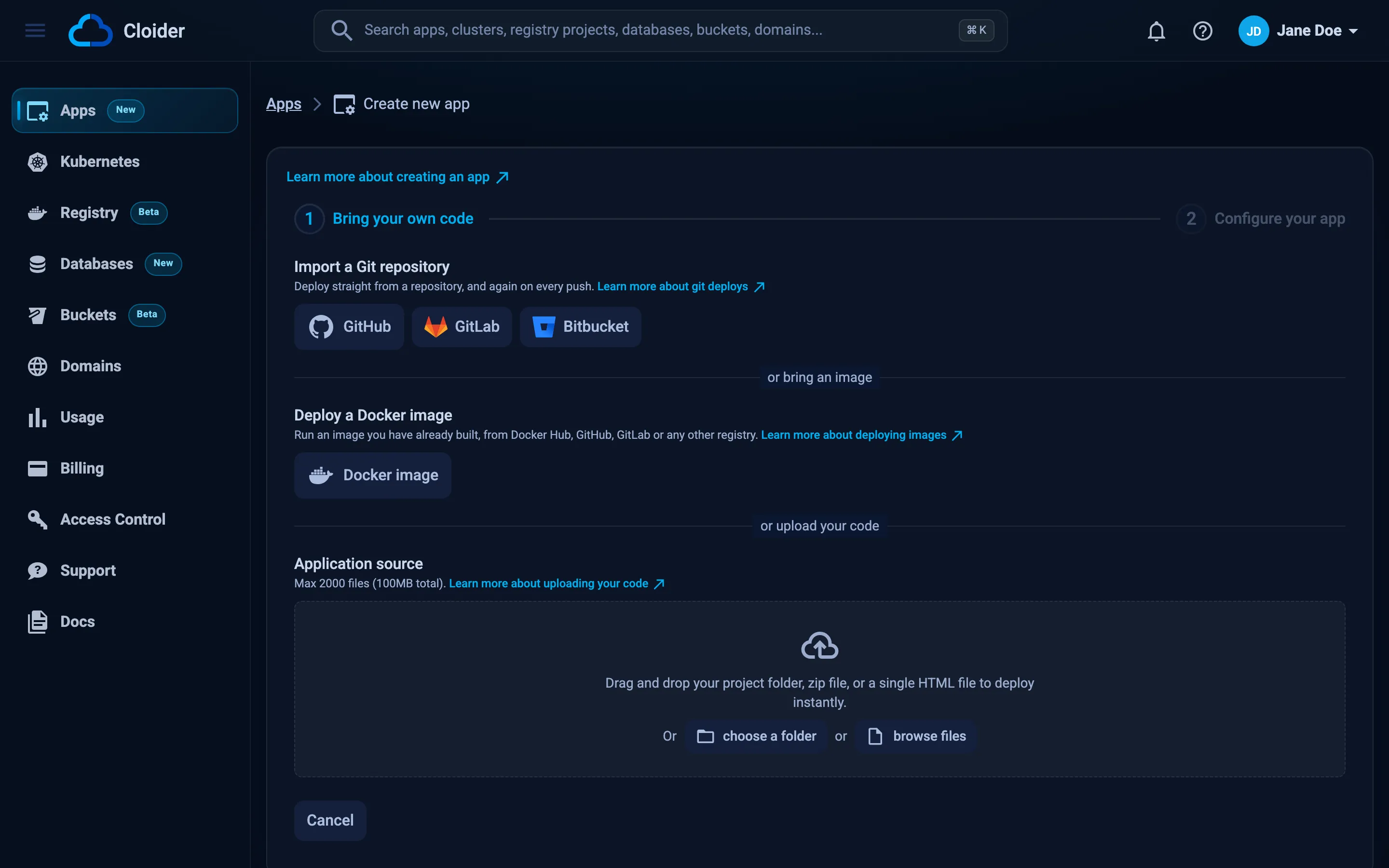
Step 1 of Create App: import a Git repository, deploy a Docker image or upload your code. -
Under Application source, drag the
hellofolder onto the drop zone, or click choose a folder. A zip file or a single HTML file works too. To deploy from a repository instead, click GitHub, GitLab or Bitbucket under Import a Git repository (see Deploy from Git), and to run an image you already built, click Docker image (see Deploy a Docker image). -
Cloider uploads the code and looks at it. The Configure your app step opens with what it detected under We had a look at your code.
-
Fill in the form:
- App Name:
hello. Lowercase letters, digits and dashes, 2 to 64 characters, starting with a letter. - Port:
8080. - Start Command: leave empty, so
npm startruns. - Give this app a free subdomain: leave on, and type
hello-acmein Subdomain. Wait for hello-acme.cloider.app is available. - Environment variables, Build variables and Build arguments: leave empty for now.
- App Name:
-
Click Create App.
From inside the hello folder:
cloider deploy --name hello --subdomain hello-acme
Packaged 2 files (0.6 KB)
Detected JavaScript
✓ Created app hello on port 8080
Linked . to hello in .cloider/app.json, later deploys from here update it.
...
✓ Deployed version 1 of hello
https://hello-acme.cloider.app
The CLI streams the build output while it waits. Pass --detach (-d) to return as soon as the build starts, then follow it with cloider app build logs hello.
The Terraform provider doesn't manage apps. Use the Dashboard or CLI tab to deploy, and Terraform for the resources it supports, such as a database the app connects to.
An API deploy is four calls: POST /api/apps/source (answers with a token and a presigned_url), a PUT of your zip to the presigned_url, POST /api/apps/source/<token>/detect, and POST /api/apps with app_name, port, subdomain and source_token. The request and response shapes are in Apps endpoints. The CLI's cloider deploy does exactly this for you.
Deploy /Users/jane/hello as an app called hello on the subdomain hello-acme.
{"dir": "/Users/jane/hello", "name": "hello", "subdomain": "hello-acme"}
The tool follows the build and answers with the app's URL.
Step 3: Watch the build
The first build turns your code into a container image, so it takes a little while. You can follow it live.
- Dashboard
- CLI
- Terraform
- API
- MCP
The app page opens after Create App. Its status moves through Queued, Building, Deploying and Starting to Ready. Open the Builds tab and click Logs on the build to see the build output as it happens.
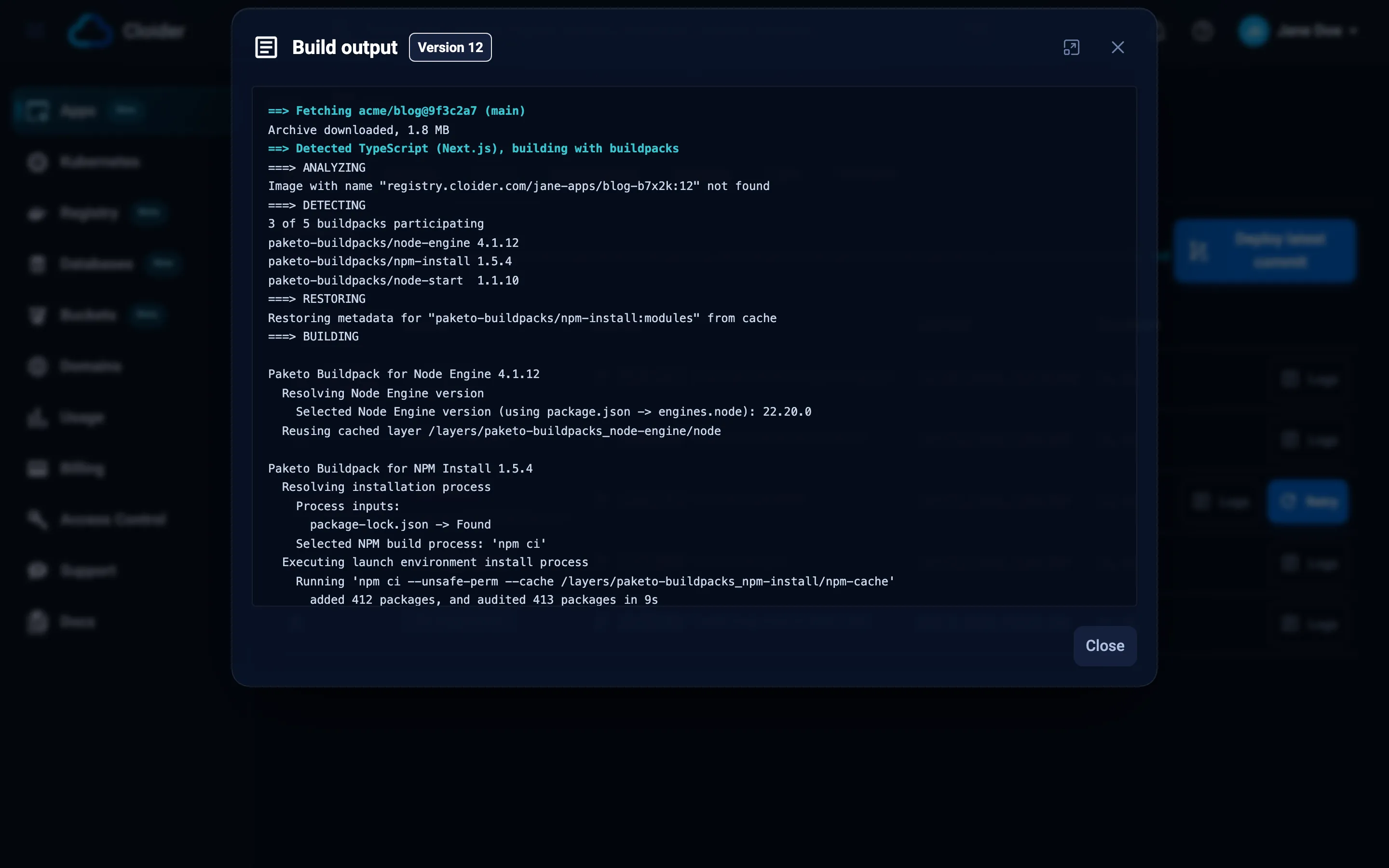
cloider app builds hello
cloider app build logs hello
cloider app status hello
cloider app build logs follows a running build until it ends, and prints the whole log of a finished one.
Not available in Terraform. Use the Dashboard or CLI tab.
curl -H "Authorization: Bearer $CLOIDER_TOKEN" https://cloider.com/api/apps/<app-id>/status
curl -H "Authorization: Bearer $CLOIDER_TOKEN" https://cloider.com/api/apps/<app-id>/builds
See App builds endpoints for build logs.
Show me the build log of the latest build of hello.
{"app": "hello"}
Step 4: Open the app
When the status is Ready, the app answers on its URL. The URL is on the app's Overview tab, printed by cloider deploy, and opened in your browser by cloider app open hello.
curl https://hello-acme.cloider.app
Hello from Cloider!
HTTPS is set up for you. You can add your own domain later, see App domains.
Step 5: Set an environment variable
Environment variables configure the running app without changing the code. Changing them restarts the app with the new values; no new build is needed. Mark a value as secret to keep it out of every listing.
- Dashboard
- CLI
- Terraform
- API
- MCP
- Open the app and go to the Environment tab.
- Under Environment variables, click Add variable.
- Type
GREETINGas the name andHias the value. To store a value as a secret, click the lock icon next to it. - Click Save changes.
cloider app env set hello GREETING=Hi
✓ Saved, hello restarts with 1 variable(s)
Add --secret to store values as secrets: cloider app env set hello --secret API_KEY=....
Not available in Terraform. Use the Dashboard or CLI tab.
PUT /api/apps/<app-id>/env replaces the whole environment with the list you send, so include every variable you want to keep:
curl -X PUT https://cloider.com/api/apps/<app-id>/env \
  -H "Authorization: Bearer $CLOIDER_TOKEN" \
  -H "Content-Type: application/json" \
  -d '{"env_vars": [{"key": "GREETING", "value": "Hi", "secret": false}]}'
{"success": true}
Set GREETING to Hi on the app hello.
{"app": "hello", "variables": {"GREETING": "Hi"}}
After the restart, curl https://hello-acme.cloider.app answers Hi from Cloider!. Read Environment variables for build time variables and secrets.
Step 6: Read the logs
Everything your app prints to standard output and standard error is in its logs. The example server prints one line per request.
- Dashboard
- CLI
- Terraform
- API
- MCP
Open the app's Logs tab. New lines appear as they are printed.
cloider app logs hello -f
Listening on 8080
GET /
GET /favicon.ico
-n sets how much history to print first: 100, 200 (the default), 500 or 1000 lines.
Not available in Terraform. Use the Dashboard or CLI tab.
Logs are streamed from GET /api/apps/<app-id>/logs/stream. See Apps endpoints.
{"app": "hello", "lines": 200}
More in Logs.
Step 7: Deploy a new version
Change the code, for example the text in server.js, and deploy again.
- Dashboard
- CLI
- Terraform
- API
- MCP
Open the app's Builds tab, click Deploy new version and upload the folder again. An app imported from Git shows Deploy latest commit instead, and also deploys on every push to its branch unless you turn that off.
Run the same command in the same folder. The folder is linked to the app in .cloider/app.json, so it builds version 2 of hello:
cloider deploy
Packaged 2 files (0.6 KB)
✓ Uploaded version 2 of hello
...
✓ Deployed version 2 of hello
https://hello-acme.cloider.app
Not available in Terraform. Use the Dashboard or CLI tab.
A new version is a POST /api/apps/<app-id>/builds, an upload to the presigned URL it returns, then POST /api/apps/<app-id>/builds/<build-id>/uploaded. See App builds endpoints.
Deploy my changes in /Users/jane/hello.
{"dir": "/Users/jane/hello"}
The current version keeps serving while the new one builds, and if the new build fails, the current version stays up. When a new version reaches Ready, the one before it is marked Superseded in the build history. Read Builds and deployments.
Verify
- The app's status is Ready in the dashboard, or
cloider app status helloprintsReady. curl https://hello-acme.cloider.appanswers with your text.- The Builds tab, or
cloider app builds hello, lists versions 1 and 2, with version 2 live.
Troubleshooting
| Symptom | Likely cause and fix |
|---|---|
| The build is Failed | Read the build log. Common causes are a missing start script, a dependency that fails to install, or a Dockerfile error. Fix it and deploy again, or retry the build. |
| The app never gets past Starting | The app isn't listening on its port, or it crashes on start. Check the Logs tab and that the code listens on PORT. |
| Only up to 2000 files can be uploaded, zip your project first. | The folder has too many files, usually node_modules. Leave it out (the CLI follows .gitignore) or upload a zip. |
You have read-only access to this account, you can not create apps! | Your role is Restricted, or you logged the CLI in with a read only token. Ask an owner or admin, or run cloider login again with Read and write. |
| The subdomain is taken | Pick another name. Free subdomains are unique across all of Cloider. |
More in Apps troubleshooting.
Next steps
- Build configuration: Dockerfile or buildpacks, ports, build arguments.
- Deploy from Git: deploy on every push to GitHub, GitLab or Bitbucket.
- Full stack app with PostgreSQL: connect the app to a database.
- Create your first cluster: when you need full Kubernetes.
Frequently asked questions
How do I deploy an app to Cloider?
In the dashboard, open Apps, click Create App, upload your code or import a Git repository, and click Create App. From a terminal, run cloider deploy in the project folder.
Does my app need a Dockerfile?
No. Without a Dockerfile, Cloider builds your code with buildpacks. If the project has a Dockerfile, Cloider builds that instead and uses its CMD to start the app.
Which port should my app listen on?
The port you set when you create the app, 8080 by default with the CLI. An app built from source also gets that port in the PORT environment variable, so listening on process.env.PORT or the equivalent always works.
Does changing an environment variable rebuild my app?
No. Changing environment variables restarts the app with the new values. Changing build arguments or build variables builds the app again.
What happens to the running version if a new build fails?
It keeps running. A failed build only takes an app down when the app has no other version to serve.
How big can an app upload be?
Up to 2000 files and 100 MB. Leave out dependencies and build output, which Cloider installs and builds itself.