Cloider quick start, deploy an app in 5 minutes
This quick start takes you from no account to a live app with its own HTTPS address, and then (optionally) to a serverless Kubernetes cluster you control with kubectl. It takes about five minutes, and every step works from the dashboard or from the cloider command line tool.
At a glance
| You will | Sign up, deploy a small web app, open it at https://<name>.cloider.app, optionally create a Kubernetes cluster and run kubectl get nodes |
| Time | About 5 minutes, plus a few minutes while the cluster is created |
| Cost | New accounts start on a 14-day free trial with $25 of free credit (see the billing model) |
| You need | A Google or GitHub account, and a web browser. For the CLI path, a terminal on macOS, Linux or Windows |
Before you begin
- You need a Google or GitHub account. Cloider has no separate password: you sign in with one of those two providers.
- For the CLI path, you need a terminal with
curl(macOS and Linux) or PowerShell (Windows), see Install the CLI. - For the optional Kubernetes step, install
kubectl, the standard Kubernetes command line tool.
Every step below is shown in tabs: Dashboard, CLI, Terraform, API and MCP (an AI agent). The tab you pick is remembered on every page of these docs. If you are not sure which to use, start with the Dashboard, or read Choose a tool.
Step 1: Create your Cloider account
You create a Cloider account by signing in with Google or GitHub on cloider.com. The first sign in creates the account, and later sign ins use the same button.
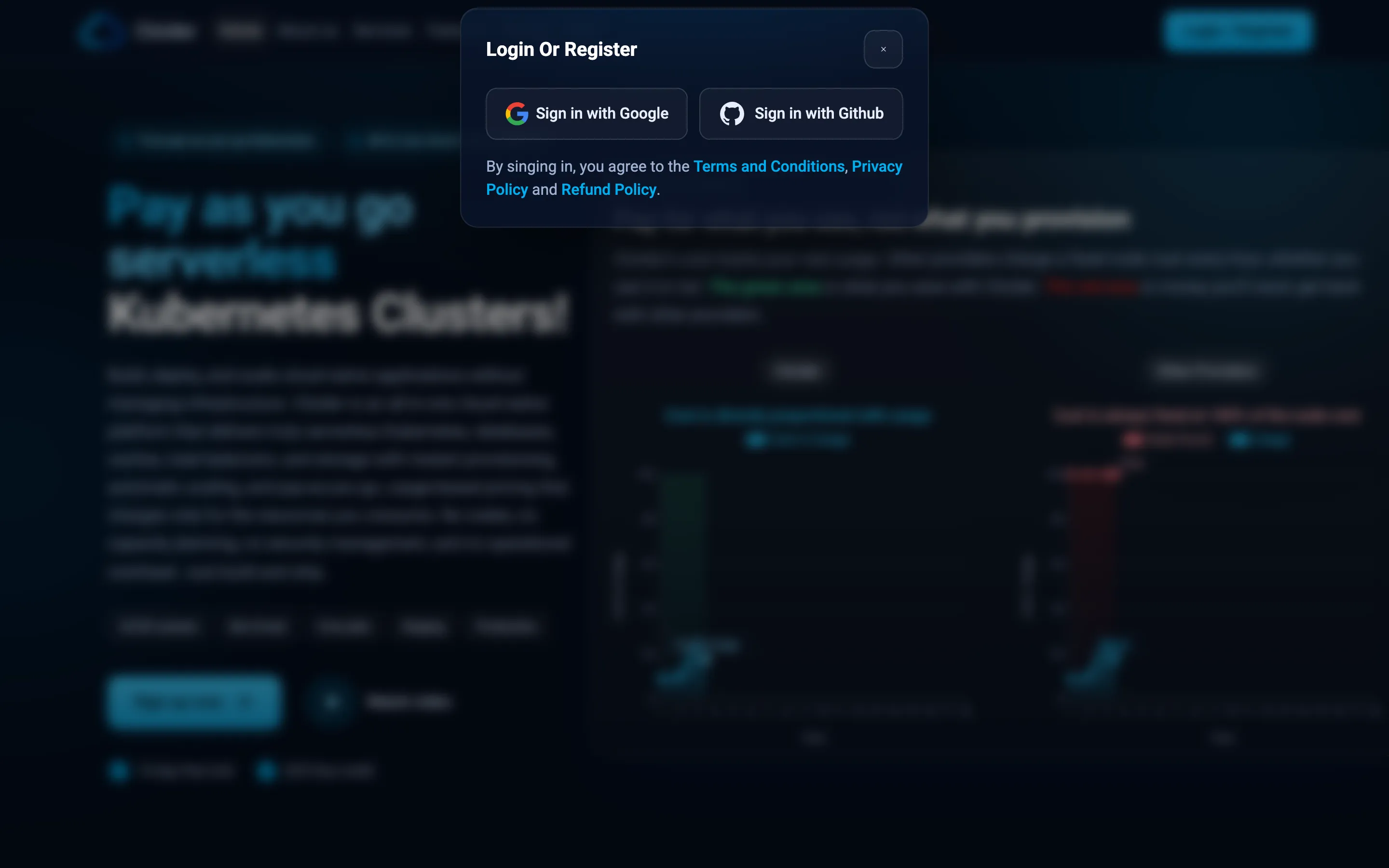
- Go to cloider.com and click Login / Register in the top right corner.
- In the Login Or Register dialog, click Sign in with Google or Sign in with Github.
- Approve the request on the Google or GitHub page. You land on the Cloider dashboard.
A new account is on the free trial. A banner at the top of the dashboard shows the date the trial ends. During the trial you can have one Kubernetes cluster, one database, one bucket and one registry project at a time. Read Create an account for the details.
Step 2: Install the CLI (CLI path only)
Skip this step if you use the dashboard. The cloider CLI is a single binary for macOS, Linux and Windows.
curl -fsSL https://cloider.com/install.sh | sh
Downloading cloider 1.4.0 for darwin/arm64
Installed cloider 1.4.0 to /usr/local/bin/cloider
Get started with: cloider login
Then log in. cloider login opens your browser on the Authorize Cloider CLI page, where you pick the account and the access level (Read and write or Read only), then click Authorize CLI.
cloider login
Opening the browser to log in. If it doesn't open, visit:
  https://cloider.com/cli/login?port=53682&state=...
✓ Logged in as jane@example.com in account jane@example.com (Read & Write)
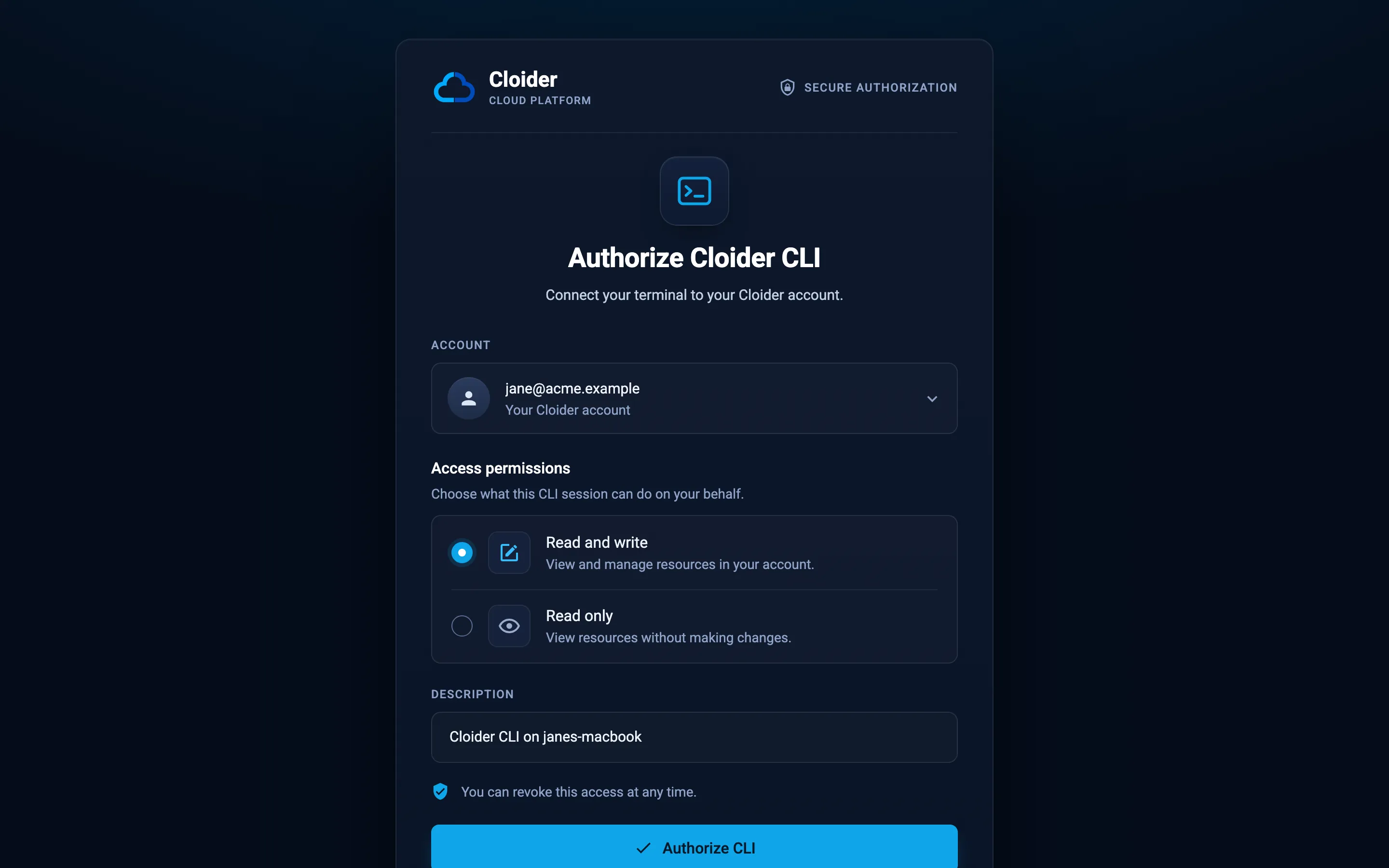
Choose Read and write here: a read only token can't deploy anything. More options, such as --no-browser for a remote machine, are in Install the CLI.
Step 3: Deploy your first app
An app is your code, built into a container image and run by Cloider on a free subdomain with HTTPS. You don't write a Dockerfile or configure servers: Cloider detects the language and framework, builds the code and starts it. Read Apps overview for everything apps can do.
Create a small Node.js app to deploy. Any folder with code works, including a folder with a single index.html, but this example shows a real server:
mkdir hello && cd hello
{
  "name": "hello",
  "version": "1.0.0",
  "scripts": {
    "start": "node server.js"
  }
}
const http = require('http');

// Cloider tells the app which port to listen on in the PORT variable
const port = process.env.PORT || 8080;

http
  .createServer((req, res) => {
    res.writeHead(200, {'Content-Type': 'text/plain'});
    res.end('Hello from Cloider!\n');
  })
  .listen(port, () => console.log(`Listening on ${port}`));
Now deploy it:
- Dashboard
- CLI
- Terraform
- API
- MCP
- In the dashboard sidebar, open Apps and click Create App.
- On the Bring your own code step, drag the
hellofolder onto the box that says Drag and drop your project folder, zip file, or a single HTML file to deploy instantly, or click choose a folder and pick it. You can also import a repository from GitHub, GitLab or Bitbucket here instead (see Deploy from Git). - Cloider uploads and inspects the code. On the Configure your app step it shows what it found under We had a look at your code.
- Check the App Name (for example
hello) and the Port (8080for this example). - Leave Give this app a free subdomain switched on and pick an address in Subdomain, for example
hello-acme. The form shows hello-acme.cloider.app is available when the name is free. - Click Create App.
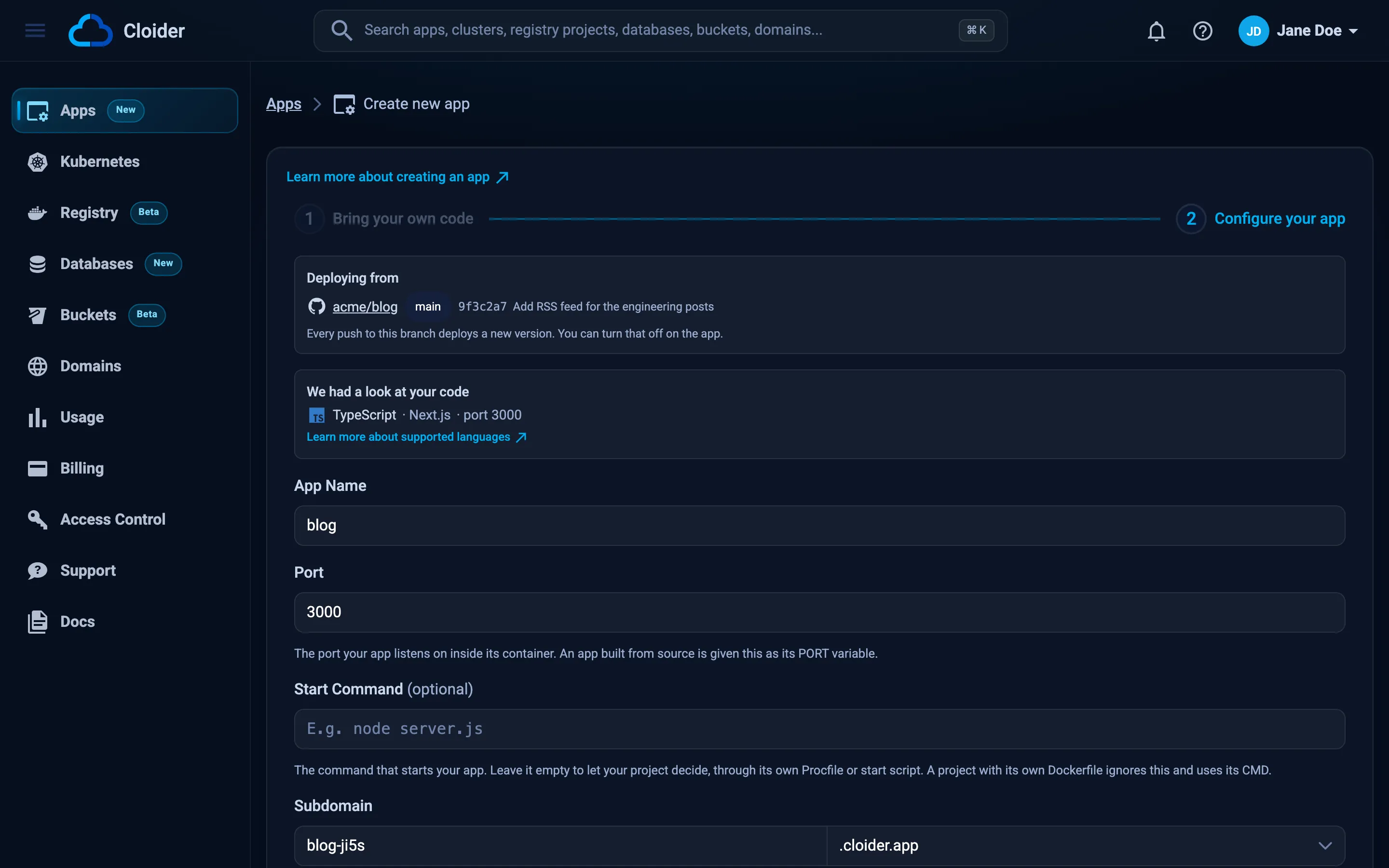
The app page opens and shows the build. When the status reaches Ready, the app's URL is live.
Run cloider deploy in the folder. The first deploy zips the folder, detects the language, framework and port, creates the app, claims a free subdomain and builds it:
cloider deploy --name hello
Packaged 2 files (0.4 KB)
Detected JavaScript
✓ Created app hello on port 8080
Linked . to hello in .cloider/app.json, later deploys from here update it.
...
✓ Deployed version 1 of hello
https://hello-7kq2.cloider.app
Build output is printed to stderr and the app's URL to stdout, so URL=$(cloider deploy) captures just the URL in a script. The folder is now linked to the app in .cloider/app.json: run cloider deploy again after a change and it builds version 2 of the same app.
Useful flags: --subdomain hello-acme picks the subdomain, --env KEY=VALUE sets a runtime variable, and --detach returns as soon as the build starts. See Deploy from your computer.
The Terraform provider doesn't manage apps. Deploy the app with the Dashboard or CLI tab, and use Terraform for clusters, databases, buckets, registry projects, domains, DNS records and targets (see Terraform overview).
Deploying an app over the REST API is a sequence of calls, which cloider deploy makes for you:
POST https://cloider.com/api/apps/sourcewith the archive'sname,typeandsizeanswers with atokenand apresigned_url.PUTthe zip of your code to thepresigned_url.POST https://cloider.com/api/apps/source/<token>/detectdetects the language, framework and port.POST https://cloider.com/api/appswithapp_name,port,subdomainandsource_tokencreates the app and starts the first build.
Every call needs a Read & Write API token in the Authorization: Bearer $CLOIDER_TOKEN header. The full request and response shapes are in Apps endpoints. For a first deploy, the CLI is much quicker.
With the Cloider MCP server set up in your AI agent (it runs cloider mcp, so log in with the CLI first), ask:
Deploy the folder /Users/jane/hello as a new app called hello and tell me its URL.
It calls the deploy_app tool:
{"dir": "/Users/jane/hello", "name": "hello"}
The tool follows the build until the app is up and answers with the app's URL.
Open your app
Open the URL in a browser, or use curl:
curl https://hello-7kq2.cloider.app
Hello from Cloider!
The first deploy takes longer than a page load, because Cloider builds a container image from your code before it starts it. If the build fails, the build log on the app's Builds tab (or cloider app build logs hello) says why; see Apps troubleshooting.
Step 4 (optional): Create a Kubernetes cluster
A Cloider Kubernetes cluster is a standard Kubernetes API that you reach with kubectl, Helm or any Kubernetes tool. It is serverless: you don't size or manage nodes, and you pay for the CPU and memory your workloads use. Read Kubernetes overview for how it works.
- Dashboard
- CLI
- Terraform
- API
- MCP
- Open Kubernetes in the sidebar and click Create Cluster.
- Type a Cluster Name, for example
staging. Use lowercase letters, digits and dashes, starting with a letter. - Leave Cluster Version on the newest version, or pick another.
- Click Create cluster.
- Wait until the cluster's status is Ready. It goes through Creating and Starting first, which takes a few minutes.
- Click the menu button (three dots) at the end of the cluster's row and choose Kubeconfig to download its kubeconfig file (saved as
config).
Then point kubectl at the downloaded file:
export KUBECONFIG=~/Downloads/config
kubectl get nodes
cloider cluster create staging --wait
✓ Creating cluster staging (Kubernetes 1.34)
✓ Cluster staging is ready. Get its kubeconfig with `cloider cluster kubeconfig staging --merge`.
Merge the cluster into your kubeconfig and make it the current context:
cloider cluster kubeconfig staging --merge --use
kubectl get nodes
✓ Added context cloider-staging to /Users/jane/.kube/config
--merge adds the cluster to ~/.kube/config (or the first file in $KUBECONFIG) as the context cloider-staging. Without --merge, the command prints the kubeconfig so you can save it anywhere: cloider cluster kubeconfig staging > staging.yaml.
terraform {
  required_providers {
    cloider = {
      source = "cloider/cloider"
    }
  }
}

# Uses CLOIDER_TOKEN, or the token `cloider login` saved
provider "cloider" {}

resource "cloider_cluster" "staging" {
  name = "staging"
}

# Writes a kubeconfig for kubectl
resource "local_sensitive_file" "kubeconfig" {
  filename        = "${path.module}/kubeconfig-staging.yaml"
  content         = cloider_cluster.staging.kube_config.raw
  file_permission = "0600"
}
terraform init
terraform apply
KUBECONFIG=./kubeconfig-staging.yaml kubectl get nodes
terraform apply waits until the cluster is Ready (up to 20 minutes by default). See Terraform get started.
Create the cluster:
curl -X POST https://cloider.com/api/clusters \
  -H "Authorization: Bearer $CLOIDER_TOKEN" \
  -H "Content-Type: application/json" \
  -d '{"cluster_name": "staging", "cluster_version": "1.34"}'
{"hashed_id": "q7m2x"}
Poll its status until it is Ready (the answer is plain text), then download the kubeconfig:
curl -H "Authorization: Bearer $CLOIDER_TOKEN" https://cloider.com/api/clusters/q7m2x/status
curl -H "Authorization: Bearer $CLOIDER_TOKEN" https://cloider.com/api/clusters/q7m2x/kubeconfig -o staging.yaml
KUBECONFIG=./staging.yaml kubectl get nodes
The versions you can pass as cluster_version are listed by GET /api/options. See Clusters endpoints.
Ask your agent:
Create a Kubernetes cluster called staging, wait until it is ready, and add it to my kubeconfig as the current context.
It calls create_cluster, then get_cluster_kubeconfig:
{"name": "staging", "wait": true}
{"cluster": "staging", "merge": true, "use": true}
When kubectl get nodes answers, kubectl is talking to your new cluster. You're ready to deploy: follow Deploy a workload for a first Deployment and Service, and Expose services to give it a public address.
Step 5: Clean up (optional)
Resources are billed while they exist, so delete what you created if you don't need it. Deleting is permanent.
- Dashboard
- CLI
- Terraform
- API
- MCP
- App: in Apps, click the menu button (three dots) at the end of the app's row and choose Delete. See Pause, resume and delete an app.
- Cluster: in Kubernetes, click the menu button at the end of the cluster's row, choose Delete and type the cluster name to confirm. See Delete a cluster.
cloider app delete hello
cloider cluster delete staging --wait
Each command asks you to type the name to confirm. In a script, add --yes to skip the question.
terraform destroy
The app was created outside Terraform, so delete it with the Dashboard or CLI tab.
curl -X DELETE -H "Authorization: Bearer $CLOIDER_TOKEN" https://cloider.com/api/clusters/q7m2x
Apps are deleted with DELETE /api/apps/<id>; see Apps endpoints.
Delete the app hello and the cluster staging.
The agent calls delete_app and delete_cluster. Both tools are marked as deleting something, so your MCP client can ask you before it runs them.
You can also pause a cluster or an app instead of deleting it. A paused cluster keeps its state and isn't billed for compute. See Resource lifecycle.
Next steps
- Deploy your first app: the same app step by step, with environment variables, logs and redeploys.
- Create your first cluster: a full walkthrough from cluster to a public service.
- Create a database: add managed PostgreSQL, MySQL, MongoDB or Redis to your app.
- Dashboard tour and Choose a tool: find your way around.
Frequently asked questions
Is Cloider free to try?
Yes. A new account starts on a 14-day free trial with $25 of free credit. During the trial an account can have one Kubernetes cluster, one database, one bucket and one container registry project at a time.
Do I need a credit card to sign up?
No card is asked for when you sign up. You sign in with Google or GitHub and the trial starts. To keep using Cloider after the trial, the account owner upgrades to the paid plan from the link in the dashboard banner.
Do I need a Dockerfile to deploy an app?
No. Cloider detects the language and framework and builds your code with buildpacks. If your project has its own Dockerfile, Cloider builds that instead.
What URL does my app get?
An app gets a free subdomain of cloider.app with HTTPS, for example https://hello-7kq2.cloider.app. You can pick the name when you create the app, and add your own domain later.
How long does it take to create a Kubernetes cluster?
A few minutes. The cluster goes through Creating and Starting before it is Ready. Use --wait with the CLI, or wait for the Ready status in the dashboard, before you download the kubeconfig.
Which Kubernetes versions can I choose?
The versions offered right now are listed by the Cluster Version field in the dashboard, by the GET /api/options endpoint and by the cloider_options Terraform data source. The CLI picks the newest one when you leave out --version.