Invite members and manage roles on Cloider
Access Control is where the Owner and Admins decide who can reach the account and what they can do. You invite people by email address and give each one the Admin or Restricted role. This page walks through every member task.
If you are new to roles, read Accounts and roles first: it explains users, accounts and the full permission matrix.
At a glance
| Where | Dashboard, Access Control, Members tab |
| Who can manage members | The Owner and Admins |
| Roles you can give | Admin (full access except billing) or Restricted (read-only) |
| Member statuses | Pending, Active, Deactivated |
| Tools | Dashboard only. The CLI, API and MCP can list members but not change them |
Before you begin
- You need the Owner or Admin role in the account. Restricted members can only see the list and leave.
- Know the email address the person signs in to Google or GitHub with. The invitation is tied to that address.
Invite a member
- Dashboard
- CLI
- Terraform
- API
- MCP
- Open Access Control in the sidebar. The Members tab opens.
- Click Add New Member (or Invite member if the account has no members yet).
- In the Invite member dialog, type the person's Email address.
- Pick an Access role: Admin or Restricted. Information about access roles explains the difference.
- Click Send Invitation.
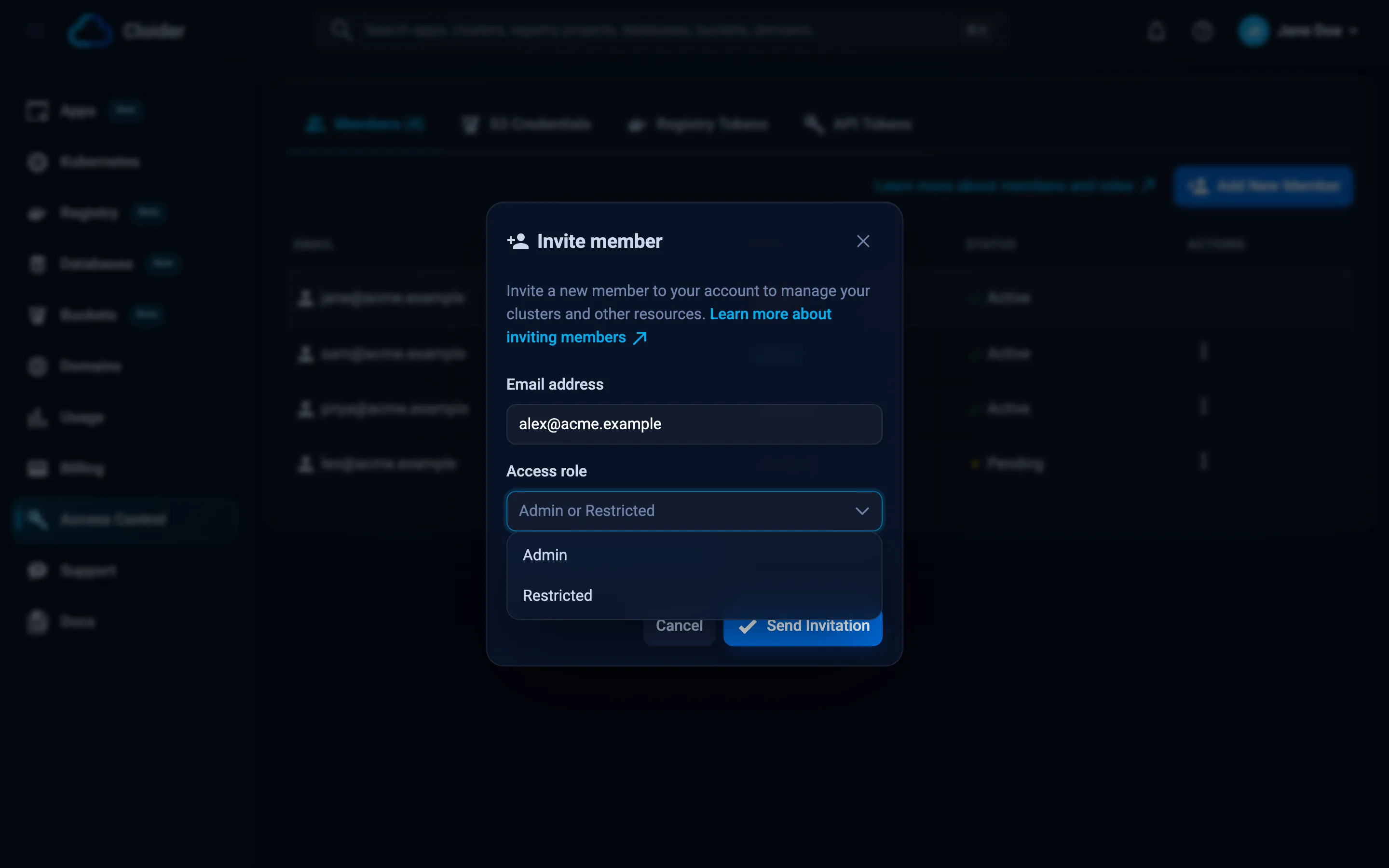
The member appears in the list with the status Pending, and Cloider emails them an invitation titled Invitation to Access a Cloider Account.
The CLI can't invite members. Members are managed in the dashboard only, so a leaked token can't hand out access. Use the Dashboard tab. To check the result:
cloider member list
EMAIL               ROLE        STATUS   NAME            ADDED
ops@acme.com        Owner       Active   Acme Inc        -
jane@acme.com       Admin       Active   -               2026-09-02 10:14
sam@acme.com        Restricted  Pending  -               2026-10-19 16:40
The Terraform provider doesn't manage members. Use the Dashboard tab.
POST /api/members only accepts a signed in dashboard session. With an API token it answers 403 with This endpoint can't be used with an API token!. You can list members with a token:
curl -H "Authorization: Bearer $CLOIDER_TOKEN" https://cloider.com/api/members
[
  {
    "email": "jane@acme.com",
    "role": "Admin",
    "status": "Active",
    "created_at": "2026-09-02T10:14:03Z",
    "updated_at": "2026-09-02T11:02:47Z"
  }
]
The Owner isn't a member row: GET /api/whoami returns the account itself.
The MCP server can't invite members. Ask your agent to list them instead:
{}
What the invited person does
- They open the invitation email, or simply go to cloider.com.
- They sign in with Google or GitHub, using the invited email address. If they have no Cloider user yet, one is created.
- The Select an account screen lists your account, highlighted as a pending invitation. They pick it.
- The membership becomes Active and they land in your account's dashboard.
They can switch between their own account and yours at any time. See Switch accounts.
Members list
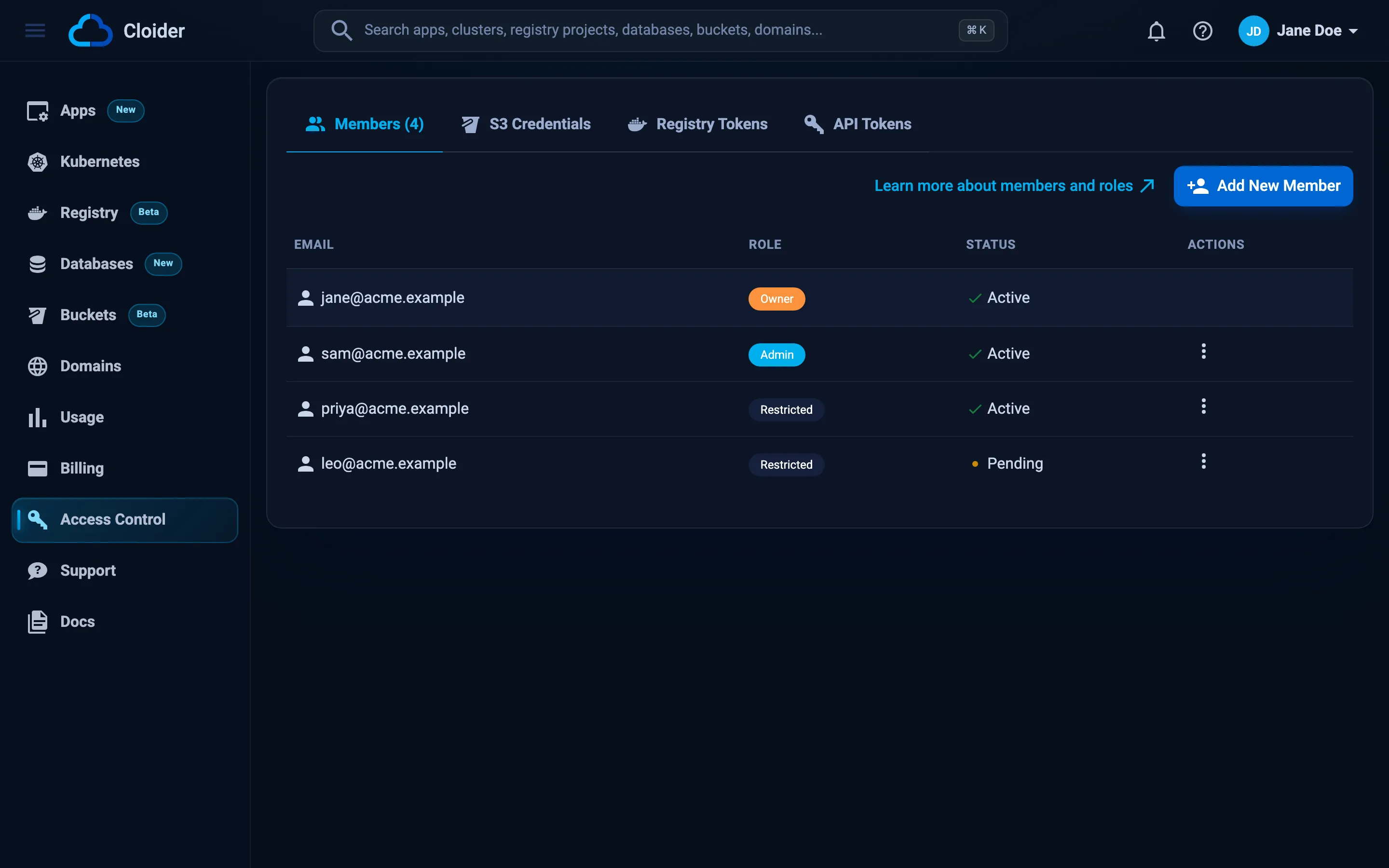
| Column | Shows |
|---|---|
| The member's email address | |
| Role | Owner, Admin or Restricted |
| Status | Pending, Active or Deactivated. On the Owner's row: Trial, Active or Suspended, the state of the account itself |
| Actions | The menu button (three dots) with the actions below |
Change a member's role
- In Access Control, Members, click the menu button on the member's row.
- Click Change role.
- In Change member role, pick the new Access role and click Save.
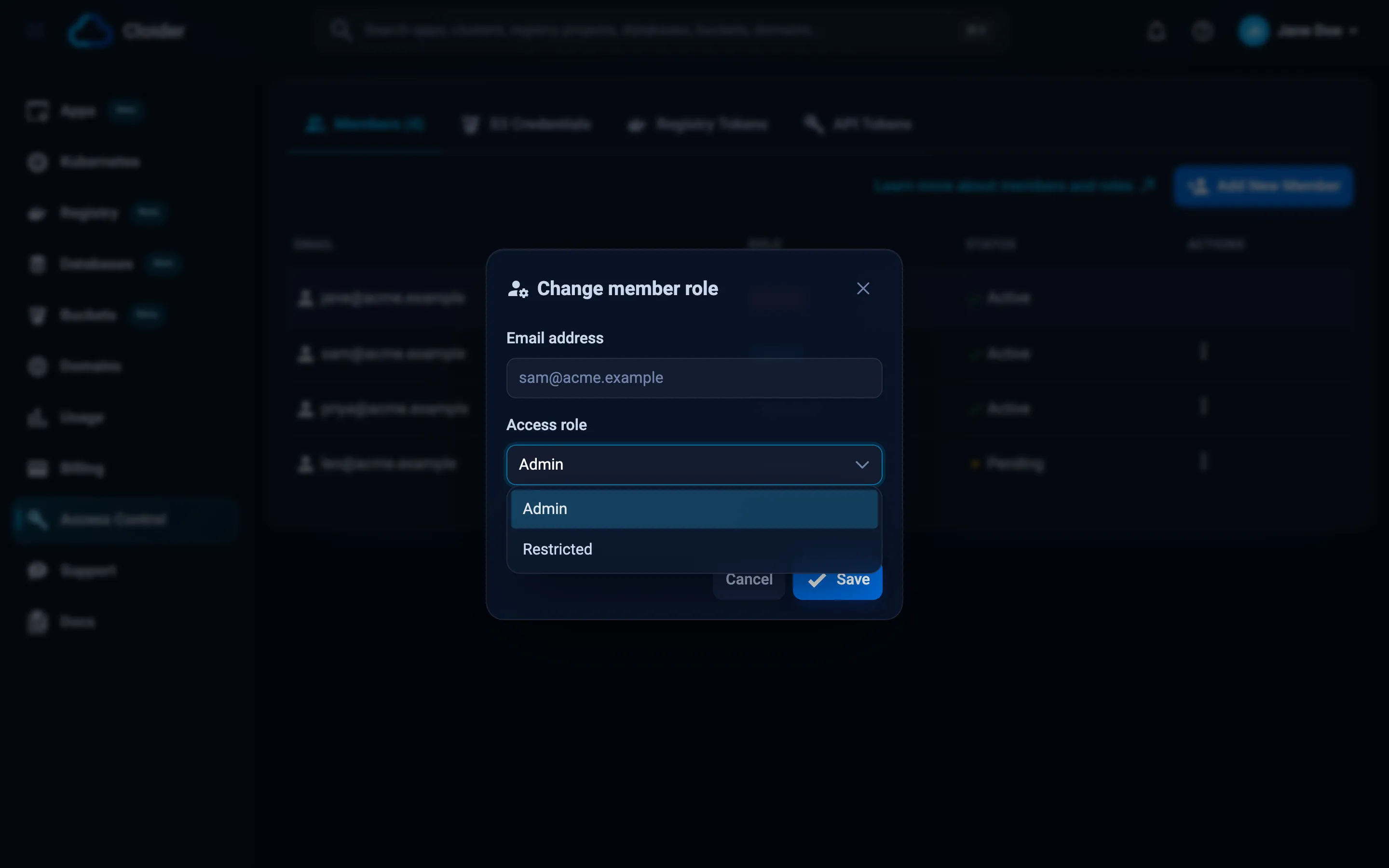
The change applies to the member's next request. Changing someone to Restricted also switches all their API tokens in this account to Read.
Deactivate or activate a member
Deactivating switches a member's access off without removing them, for example while someone is away.
- Click the menu button on the member's row.
- Click Deactivate member. The status becomes Deactivated.
A deactivated member can't open the account and their API tokens stop working. To restore access, open the same menu and click Activate member: the status goes back to Active, or to Pending if they never accepted the invitation.
Remove a member
- Click the menu button on the member's row.
- Click Remove member, then confirm with Remove.
Removing a member ends their access immediately and deletes the API tokens they created in the account. Resources they created stay in the account: resources belong to the account, not to the person.
Leave an account
As a member you can leave an account you were invited to:
- Switch to that account, open Access Control, and click the menu button on your own row.
- Click Leave account, then confirm with Leave.
You are taken back to the start, and the account disappears from your Select an account list. Your API tokens in that account are deleted. The Owner can't leave their own account.
Verify
- The member's row shows the role and status you expect.
- The member sees the account on their Select an account screen, or in the account menu under Switch account.
cloider member listlists them.
Troubleshooting
| Message | Cause and fix |
|---|---|
Email address already added! | That address is already a member (perhaps deactivated). Change its role or activate it instead. |
You can't add the account's email address! | That is the Owner's address. The Owner doesn't need an invitation. |
Invalid email address! | Check the address for typos. |
Role is required! | Pick Admin or Restricted in Access role. |
You are not authorized to do this action! | Your role is Restricted. Ask the Owner or an Admin. |
| The invited person doesn't see the account | They signed in with a different email address than the one you invited. Invite the address they actually use, or ask them to sign in with the other provider. |
This endpoint can't be used with an API token! | Members can only be managed from the dashboard. |
Next steps
- Accounts and roles: the full permission matrix.
- API tokens: give scripts access without adding a person.
- Switch accounts.
Frequently asked questions
How do I add a team member to my Cloider account?
Open Access Control in the dashboard, click Add New Member, type their email address, pick Admin or Restricted and click Send Invitation. They get an email and see your account the next time they sign in with that address.
Does the invited person need a Cloider account first?
No. Signing in with Google or GitHub using the invited email address creates their Cloider user if needed, and your account appears on their Select an account screen.
Can an Admin remove another Admin?
Yes. Owners and Admins can change the role of, deactivate and remove any member. Nobody can remove the Owner.
What is the difference between deactivating and removing a member?
Deactivating keeps the membership and switches access off until you activate it again; the member's API tokens stop working meanwhile. Removing deletes the membership and the member's API tokens in the account.
Can I invite members with the CLI or API?
No. Members are managed in the dashboard only. The CLI, API and MCP server can list members.
What happens to resources a removed member created?
Nothing. Resources belong to the account, so they stay and keep running after the member is removed.