Get help from Cloider support
When you need help, open a support request to the Cloider team. A request has a subject, a type, the business impact, the product it is about, a description and up to five attachments. You follow the conversation in the dashboard or the CLI, and replies from the team are also emailed to the account.
At a glance
| Where | Dashboard, Support (also the question mark icon in the top bar) |
| Who | Every member of the account. Every member sees every request of the account |
| Tools | Dashboard, cloider support, /api/support endpoints, the support MCP tools |
| Attachments | Up to 5 files per message, 10 MB each: plain text, PDF, Word .doc, images or zip |
| Team replies are emailed to the account's address | |
| Also | support@cloider.com |
Before you begin
Gather what the team needs to help quickly:
- the name of the resource (app, cluster, database, bucket, project or domain),
- what you did, what you expected and what happened instead,
- the exact error message, and for apps the build or app logs,
- when it started.
Never paste passwords, API tokens, access keys or kubeconfigs into a request.
Open a support request
- Dashboard
- CLI
- Terraform
- API
- MCP
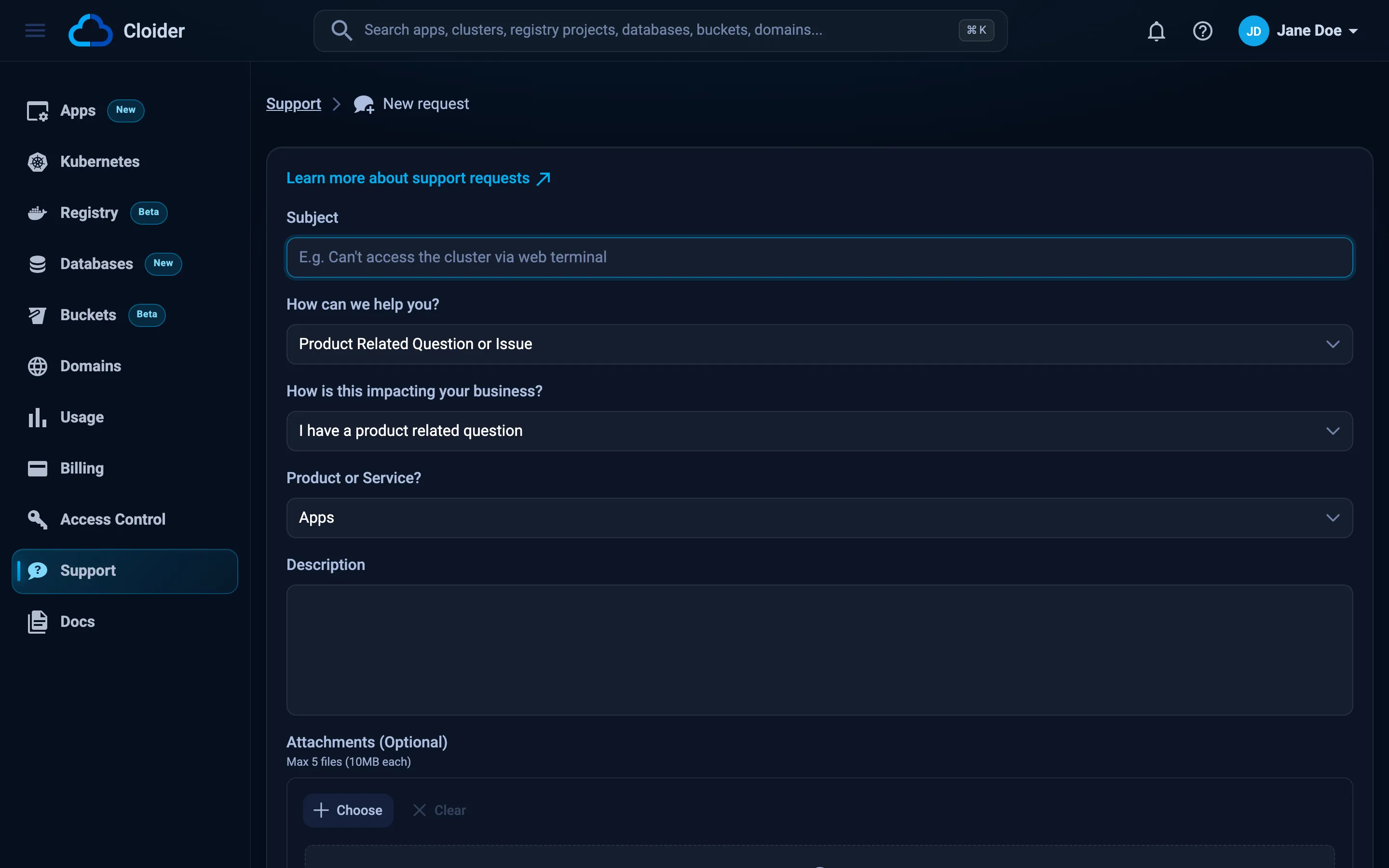
- Open Support in the sidebar and click New Request (or Submit a request if you have none yet).
- Fill in the form:
- Subject: one line, at least 4 characters. For example Can't access the cluster via web terminal.
- How can we help you?: the request type.
- How is this impacting your business?: the impact.
- Product or Service?: the product it is about.
- Description: the details, at least 20 characters.
- Attachments (Optional): drag and drop files, or choose them.
- Click Submit request.
cloider support create \
  --subject "Deploys of blog stuck in Building" \
  --type QuestionOrIssue \
  --impact Issue \
  --service App \
  --description-file notes.txt \
  --attach build.log
✓ Opened support request K7QM
| Flag | Values | Default |
|---|---|---|
--subject, -s | One line | Required |
--description, -d or --description-file | At least 20 characters; - reads stdin | Required |
--type, -t | QuestionOrIssue, FeatureRequest, DocumentationIssue, Feedback, Billing, NotListed | QuestionOrIssue |
--impact | Question, Issue, PartiallyBlocked, CompletelyBlocked | Question |
--service | App, Kubernetes, Database, Bucket, Registry, Volume, LoadBalancer, Domain, Other | App |
--attach, -a | A file path, repeatable, up to 5 files of 10 MB |
Terraform doesn't manage support requests. Use another tab.
curl -X POST https://cloider.com/api/support/tickets \
  -H "Authorization: Bearer $CLOIDER_TOKEN" \
  -H "Content-Type: application/json" \
  -d '{
    "subject": "Deploys of blog stuck in Building",
    "ticket_type": "QuestionOrIssue",
    "business_impact": "Issue",
    "service": "App",
    "description": "Since 09:00 UTC every deploy of the app blog stays in Building."
  }'
{"request_id": "K7QM"}
With attachments (a list of name, type and size), the response also has presigned_urls to upload each file to, followed by POST /api/support/attachments-uploaded. See Support endpoints.
Open a Cloider support request: deploys of the app blog have been stuck in Building since 09:00 UTC. Attach ./build.log.
{
  "subject": "Deploys of blog stuck in Building",
  "description": "Since 09:00 UTC every deploy of the app blog stays in Building.",
  "impact": "Issue",
  "service": "App",
  "attachments": ["/Users/jane/blog/build.log"]
}
Request types
| In the dashboard | API and CLI value | Use it for |
|---|---|---|
| Product Related Question or Issue | QuestionOrIssue | Questions, errors and anything not working |
| Feature Request | FeatureRequest | Something you'd like Cloider to do |
| Documentation issue | DocumentationIssue | A mistake or gap in these docs |
| Support Experience Feedback | Feedback | Feedback on support itself |
| Billing/Payment/Pricing Question or Issue | Billing | Invoices, payments, prices |
| Issue Not Listed | NotListed | Anything else |
Business impact
| In the dashboard | API and CLI value |
|---|---|
| I have a product related question | Question |
| I got an error message or an issue is slowing me down | Issue |
| I have a partial production impact and some work is blocked | PartiallyBlocked |
| I have a complete PRODUCTION system outage and all work is blocked | CompletelyBlocked |
Products
The dashboard's Product or Service? list offers Apps, Kubernetes, Databases, Object Storage Buckets, Volumes, LoadBalancers, Domains and Other. The CLI and MCP also accept Registry for the container registry.
Follow a request
- Dashboard
- CLI
- Terraform
- API
- MCP
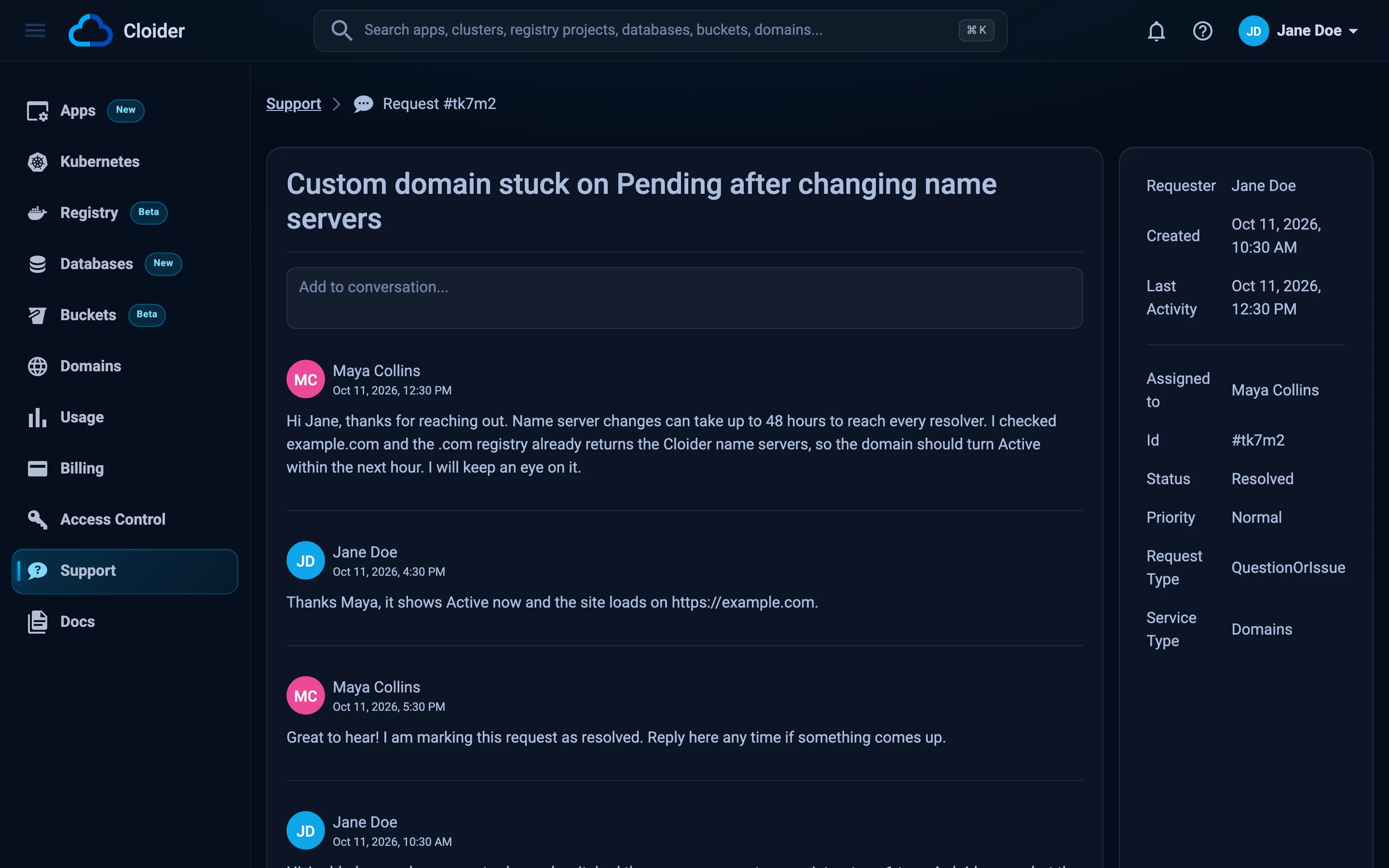
Support lists every request of the account with its Subject, ID, Submit date, Last updated and Status. Click one to open the conversation, with the details (Id, Status, Request Type, Service Type, who it is Assigned to) beside it.
cloider support list
cloider support get K7QM
SUBJECT                             STATUS      SERVICE  IMPACT  UPDATED
Deploys of blog stuck in Building   InProgress  App      Issue   2026-10-20 09:41
cloider support list -o wide adds the request ids.
Terraform doesn't manage support requests. Use another tab.
curl -H "Authorization: Bearer $CLOIDER_TOKEN" https://cloider.com/api/support
curl -H "Authorization: Bearer $CLOIDER_TOKEN" https://cloider.com/api/support/tickets/K7QM
The second call answers with the ticket and its replies.
{"ticket_id": "K7QM"}
list_support_tickets lists every request.
Request statuses
| Status | Meaning |
|---|---|
| Open | Received and being looked at by the support team |
| InProgress | A support agent is actively working on it |
| Pending | The team is waiting for information or action from you |
| WaitingForReply | The team is waiting for your reply |
| OnHold | Paused, waiting on an external factor or an internal decision |
| Resolved | The team believes it is resolved and is waiting for your confirmation |
| Closed | Resolved and confirmed, or no further action is needed |
| Reopened | Closed before, opened again because the problem came back |
| Cancelled | Won't be worked on, for example a duplicate |
Reply to a request
- Dashboard
- CLI
- Terraform
- API
- MCP
Open the request, type in Add to conversation..., attach files if needed, and click Reply.
cloider support reply K7QM --message "It started after I changed the Dockerfile." --attach Dockerfile
Terraform doesn't manage support requests. Use another tab.
curl -X POST https://cloider.com/api/support/tickets/K7QM/reply \
  -H "Authorization: Bearer $CLOIDER_TOKEN" \
  -H "Content-Type: application/json" \
  -d '{"reply_text": "It started after I changed the Dockerfile."}'
{"ticket_id": "K7QM", "message": "It started after I changed the Dockerfile."}
Download an attachment from the dashboard by clicking it, or with cloider support attachment <attachment-id> (ids are listed by cloider support get K7QM -o wide).
Things to know
- Requests belong to the account. Every member sees and can reply to every request of the account, and requests and replies are made in the account's name.
- Replies are emailed to the account's address, the Owner's, with the subject
Re: [#K7QM]: <subject>and a link to the request. - A Read API token can't open or reply to requests, because those are write requests. Use a Read & Write token, or the dashboard.
Troubleshooting
| Message | Fix |
|---|---|
Subject must not be shorter than 4 characters! | Write a longer subject. |
Description must not be shorter than 20 characters! | Add more detail. |
Only maximum of 5 files are allowed per submission, zip the files if you need more! | Attach at most 5 files, or zip them. |
File (<name>) exceeded the allowed size of 10MB! | Compress or trim the file, or split it across messages. |
File (<name>) type is not allowed, you can zip it before uploading! | Only plain text, PDF, Word .doc, image and zip files are accepted. Zip other files, such as .docx files, before attaching them. |
Request submitted but attachments did not upload successfully! | The request exists; add the files again in a reply. |
Support request not found! | The id is wrong, or the request belongs to another account. Check which account you are in. |
Next steps
- Troubleshooting: fixes for the most common problems.
- FAQ
- Notifications: the emails Cloider sends.
Frequently asked questions
How do I contact Cloider support?
Open Support in the dashboard and click New Request, or run cloider support create. You can also email support@cloider.com.
Can I attach files to a support request?
Yes. Up to 5 files per message, 10 MB each: plain text, PDF, Word .doc, images or zip files. Zip any other file type before attaching it.
Who in my team can see our support requests?
Every member of the account can see and reply to every support request of the account.
Where do support replies arrive?
In the conversation on the Support page and by email to the account's address.
How do I ask a billing question?
Open a support request with the type Billing/Payment/Pricing Question or Issue (Billing in the CLI and API).