Kubernetes web terminal, shell and exec
Every Cloider cluster comes with a terminal that has kubectl and helm installed and already pointed at the cluster. You can use it three ways: in the browser from the dashboard, as an interactive shell with cloider cluster shell, or to run single commands with cloider cluster exec, which is what scripts, CI jobs and AI agents use. None of them needs a kubeconfig on your machine.
At a glance
| Browser terminal | cloider cluster shell | cloider cluster exec | |
|---|---|---|---|
| Where | Dashboard, Kubernetes, Terminal | Your terminal | Your terminal, scripts, CI, MCP |
| Interactive | Yes, up to 4 tabs | Yes | No, one command per call |
| Tools | kubectl, helm | kubectl, helm | kubectl, helm |
| Output | A terminal screen | A terminal screen | stdout and stderr kept apart, the command's exit code, or JSON |
| Who can use it | Members who can open the dashboard | Read & Write API tokens | Read & Write API tokens, members with write access |
| Cluster status | Ready | Ready | Ready |
How the terminal works
When a cluster is created, Cloider deploys a small terminal Deployment into the cluster's kube-system namespace. Its pod holds the cluster's kubeconfig, so kubectl and helm inside it talk to your cluster's API as cluster admin. The browser terminal, cloider cluster shell and cloider cluster exec all run in that pod.
A few consequences are worth knowing:
- Don't delete or scale down the
terminalDeployment inkube-system. If it is gone, the browser terminal andexecstop working withThis cluster's terminal isn't running right now!. - The terminal's filesystem is temporary. Files you create in it are lost whenever its pod restarts, for example when the cluster is paused and resumed. Keep manifests in git or on your computer, and pipe them in with
exec -i. - It runs in your cluster, so its CPU and memory use is counted in the cluster's compute like any other pod. When idle it uses very little.
- It needs the cluster to be
Ready. While a cluster is creating, paused or being deleted, the terminal isn't available.
Open the browser terminal
- Dashboard
- CLI
- Terraform
- API
- MCP
- Open Kubernetes in the sidebar.
- Click the cluster's name, or click the actions button (the three dots) on its row and then Terminal.
- A terminal tab called Terminal 1 opens, connected to the cluster. Type
kubectl get pods -A.
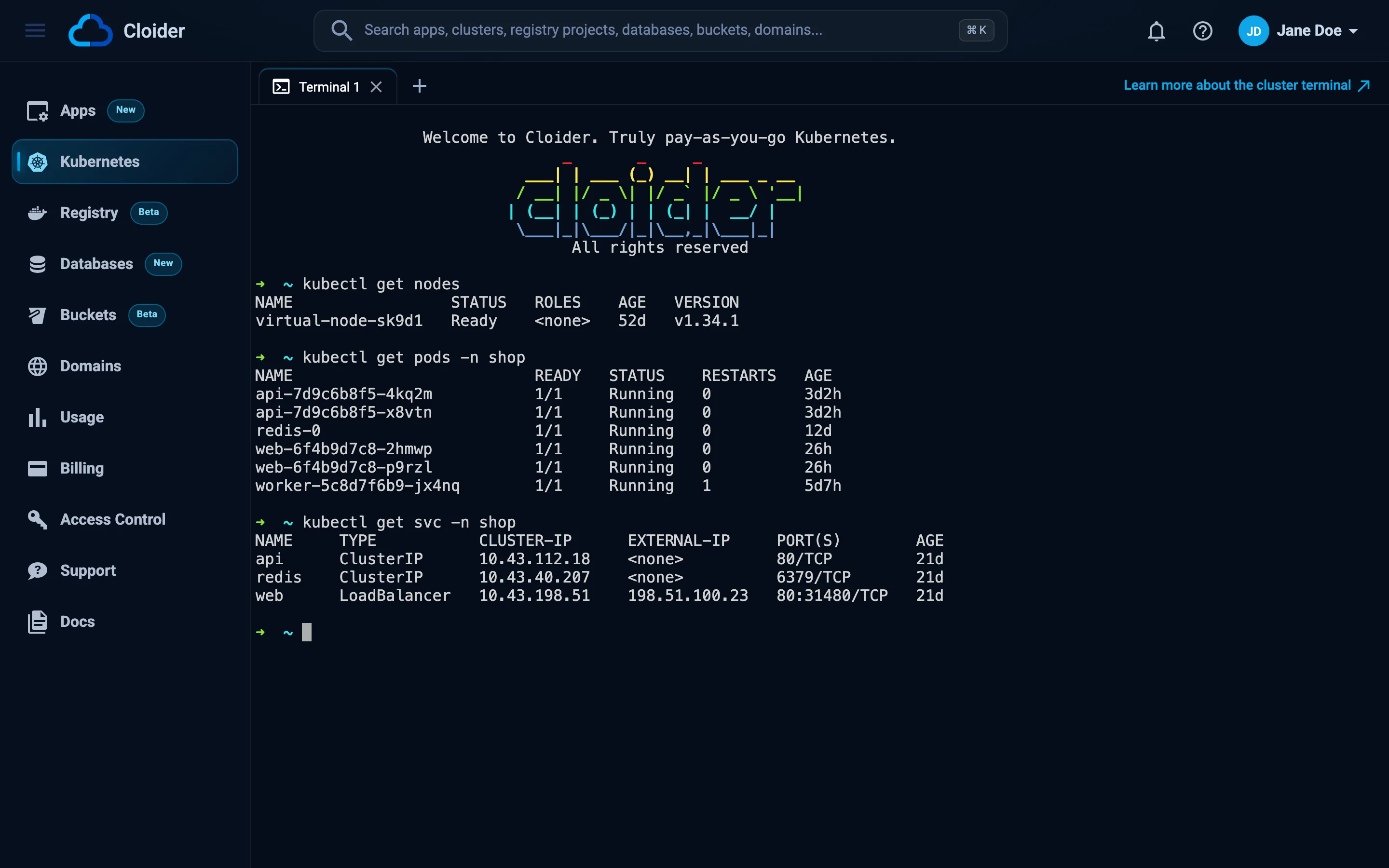
- Click + in the tab bar to open another terminal, up to 4 at a time. Each tab is its own shell session, and switching tabs keeps every session alive.
- Close a tab with its x. When every tab is closed, click Open a terminal to start a new one.
The cluster name is only a link, and Terminal is only enabled, while the cluster is Ready.
cloider cluster shell staging
This opens the same terminal in your own terminal window. Exit it with exit or Ctrl-D. A shell needs an interactive terminal on both ends; in a script, use exec instead (see below), otherwise the CLI stops with a shell needs a terminal on both ends and exit code 2.
Terraform doesn't open terminals. Use the dashboard or cloider cluster shell, or deploy with Terraform's kubernetes and helm providers as shown in Kubernetes and Helm with Terraform.
GET /api/clusters/{id}/terminal returns a short-lived URL for the terminal:
curl https://cloider.com/api/clusters/x8f2kq/terminal \
  -H "Authorization: Bearer $CLOIDER_TOKEN"
{
  "url": "https://cloider.com/terminal?name=staging&id=x8f2kq&token=...",
  "cluster_slug": "staging-x8f2kq"
}
The URL carries a token that is valid for about 2 minutes, so open it straight away. It needs a Read & Write API token; a Read token gets HTTP 403 with Terminals need a Read & Write API token!. For scripted commands, use the exec endpoint below instead.
The MCP server has no interactive shell tool, since an agent can't type into a terminal. Agents run commands with the cluster_exec tool, described in the next section.
Run a single command with exec
cloider cluster exec runs one command in the cluster's terminal and exits with that command's exit code. Its stdout and stderr stay separate, so it behaves like running the command locally. This is the easiest way to use kubectl in a CI job or from an AI agent without handling a kubeconfig.
- Dashboard
- CLI
- Terraform
- API
- MCP
The dashboard runs commands interactively in the browser terminal. For one-off commands from scripts, use the CLI, API or MCP tabs.
cloider cluster exec staging kubectl get pods -A
NAMESPACE     NAME                        READY   STATUS    RESTARTS   AGE
kube-system   coredns-6b9d8c7f5d-q2x7l    1/1     Running   0          2d
kube-system   terminal-7c9f6d8b4d-4mzk8   1/1     Running   0          2d
shop          web-6d8f7b9c5d-2kq9x        1/1     Running   0          5h
shop          web-6d8f7b9c5d-8hj2p        1/1     Running   0          5h
More examples:
# helm is there too
cloider cluster exec staging helm list -A

# -- separates the command when it has flags of its own
cloider cluster exec staging -- kubectl logs deploy/web -n shop --tail 50

# one quoted argument runs with sh -c, so pipes, && and $VARS work
cloider cluster exec staging "kubectl get pods -A | grep -v Running"

# apply a local manifest through stdin
cloider cluster exec -i staging -- kubectl apply -f - < deploy.yaml

# -o json before the cluster is cloider's, after it is kubectl's
cloider cluster exec -o json staging kubectl get nodes -o name
{
  "exit_code": 0,
  "stdout": "node/node-a\nnode/node-b\n",
  "stderr": "",
  "timed_out": false
}
| Flag | Default | What it does |
|---|---|---|
-i, --stdin | off | Send your stdin to the command, up to 2 MiB |
--timeout | 10m | Stop the command after this long, up to 1h |
-o json, -o yaml | Print {"exit_code", "stdout", "stderr", "timed_out"} once the command ends |
Flags for exec go before the cluster name. Everything after the cluster belongs to the command, flags included.
Exit codes. exec exits with the command's own exit code. As in a shell, 127 means the command doesn't exist, 126 means it can't run, and 124 means --timeout stopped it. Because the command's codes can overlap with the CLI's own (1 to 5), use -o json when you need to tell them apart: the JSON is only printed when the command actually ran.
Terraform doesn't run commands. Use cloider cluster exec in a local-exec provisioner if you must, or better, manage the objects with the kubernetes and helm providers. See Kubernetes and Helm with Terraform.
POST /api/clusters/{id}/exec runs a command and streams the result as server-sent events:
curl -N -X POST https://cloider.com/api/clusters/x8f2kq/exec \
  -H "Authorization: Bearer $CLOIDER_TOKEN" \
  -H "Content-Type: application/json" \
  -d '{"command": ["kubectl", "get", "namespaces"], "timeout": 60}'
: open

event: stdout
data: TkFNRSAgICAgICAgICAgICAgU1RBVFVTICAgQUdFCmRlZmF1bHQgICAgICAgICAgIEFjdGl2ZSAgIDJkCg==

event: exit
data: 0

event: end
data: 1
| Field | Type | Description |
|---|---|---|
command | array of strings | Required. The program and its arguments. Use ["sh", "-c", "..."] for a command line with pipes |
stdin | string (base64) | Optional. Bytes passed to the command's stdin, up to 2 MiB. Leave it out and the command gets no stdin |
timeout | integer | Optional. Seconds, up to 3600. Default 600 |
Events:
| Event | Data |
|---|---|
stdout, stderr | A chunk of output, base64 encoded |
exit | The command's exit code. The command finished |
timeout | The timeout in seconds. The command was stopped |
error | A message: the command couldn't be run or was cut off |
end | Always last. Nothing follows |
Comment lines (: ping) keep the connection alive while a command is quiet.
Ask your agent:
Show me the pods that aren't running in the staging cluster.
It calls the cluster_exec tool:
{"cluster": "staging", "command": "kubectl get pods -A --field-selector=status.phase!=Running"}
{"exit_code": 0, "stdout": "No resources found\n", "stderr": "", "timed_out": false}
| Parameter | Description |
|---|---|
cluster | Name or id of the cluster |
command | The command line. With spaces it runs with sh -c, so pipes, && and $VARS work |
stdin | Text passed to the command's stdin, up to 2 MiB, for example a manifest for kubectl apply -f - |
timeout_seconds | Stop the command after this long, 1 to 3600 seconds. Default 600 |
cluster_exec is marked as a tool that can change or delete things, so MCP clients that honor tool annotations ask before running it, and it isn't offered when the server runs with --read-only. See MCP safety and permissions.
Examples
Apply a whole directory of manifests from your computer:
cat k8s/*.yaml | cloider cluster exec -i staging -- kubectl apply -f -
Watch a rollout finish in CI, failing the job if it doesn't within 5 minutes:
cloider cluster exec --timeout 6m staging -- kubectl rollout status deploy/web -n shop --timeout=5m
Install a Helm chart without a local Helm:
cloider cluster exec staging "helm repo add podinfo https://stefanprodan.github.io/podinfo && helm upgrade --install podinfo podinfo/podinfo -n demo --create-namespace"
Read a Secret's value:
cloider cluster exec staging "kubectl get secret web-secrets -n shop -o jsonpath='{.data.DATABASE_URL}' | base64 -d"
Check what a pod's containers use right now:
cloider cluster exec staging kubectl top pods -n shop
Who can use the terminal and exec?
- Dashboard members can open the browser terminal for any
Readycluster of the account. - API tokens need the Read & Write permission for
shell,execand the terminal URL. With a Read token, the API answers HTTP 403 and the CLI exits with code5. - Members with read-only access can't run commands with
exec: the API answersYou have read-only access to this account, you can not run commands!.
See Access control and API tokens.
Troubleshooting
| Message | Cause and fix |
|---|---|
This cluster is paused. Resume it to run a command! (HTTP 409) | Resume the cluster first |
This cluster is not ready yet! (HTTP 409) | The cluster is still being created. Wait for Ready |
This cluster is being deleted! (HTTP 409) | The cluster is being deleted, nothing can run in it |
This cluster's terminal isn't running right now! (HTTP 409) | The terminal pod in kube-system isn't running. If you scaled the terminal Deployment down, scale it back up with your kubeconfig (kubectl scale deployment terminal -n kube-system --replicas 1). If you deleted it, contact support |
The command could not be started, try again in a moment! (HTTP 503) | A temporary problem starting the command. Retry |
Give a command to run! | The request had no command. With the CLI, put the command after the cluster name |
stdin is bigger than 2 MiB! | Split the input, or apply manifests in several calls |
The timeout can be an hour at most! | Use a timeout of at most 3600 seconds (--timeout 1h) |
Terminals need a Read & Write API token! (HTTP 403) | Use a Read & Write token. See API tokens |
the connection dropped before the command finished, it may still be running | The connection to the API broke. Like kubectl exec, the command may still be running in the cluster. Check its effect before running it again |
| The browser terminal stays blank | Reload the page. If the cluster was just resumed, wait until it is Ready. Check that your network and browser extensions allow WebSocket connections |
More cases are in Kubernetes troubleshooting.
Next steps
- Deploy a workload by pasting manifests into the terminal.
- Install charts with Helm.
- Connect with kubectl to use your own tools locally.
- MCP tools to let an AI agent run
cluster_exec.
Frequently asked questions
Can I use kubectl on Cloider without installing anything?
Yes. Every Cloider cluster has a browser terminal with kubectl and helm already connected to the cluster. Open Kubernetes in the dashboard and click the cluster name, or use cloider cluster shell from your own terminal.
What is the difference between cloider cluster shell and cloider cluster exec?
cloider cluster shell opens an interactive terminal session. cloider cluster exec runs one command, keeps stdout and stderr separate and exits with the command's exit code, which is what scripts, CI jobs and AI agents need.
Which tools are installed in the Cloider cluster terminal?
kubectl and helm, both already configured for the cluster with cluster admin access.
Are files saved in the cluster terminal?
Not permanently. The terminal runs as a pod in the cluster with no persistent storage, so files are lost when the pod restarts, for example after the cluster is paused and resumed.
How long can a cloider cluster exec command run?
Up to one hour. The default timeout is 10 minutes; change it with --timeout, up to 1h. A command stopped by the timeout exits with code 124.