How Cloider builds an app (Dockerfile, buildpacks, static)
Every time you deploy, Cloider turns your source into a container image with one of three build strategies: your
own Dockerfile, Cloud Native Buildpacks for a project without one, or a static site server for plain HTML.
This page explains how the strategy is chosen, what detection does, how the port and start command work, and how to pass
values to a build with build arguments and build variables.
At a glance
Cloider checks the root of your source and uses the first strategy that applies:
| Order | Strategy | Used when | The image starts with |
|---|---|---|---|
| 1 | Dockerfile | A file named exactly Dockerfile is at the root | The Dockerfile's CMD / ENTRYPOINT |
| 2 | Static site | No Dockerfile, no start command, no project files at the root, and at least one .html or .htm file anywhere | A web server that serves your files on $PORT |
| 3 | Buildpacks | Everything else | The start command, a Procfile, or what the buildpack detects |
All three build for linux/amd64, push the image to your account's private apps registry project, and are limited to
30 minutes for the whole build.
What does Cloider detect?
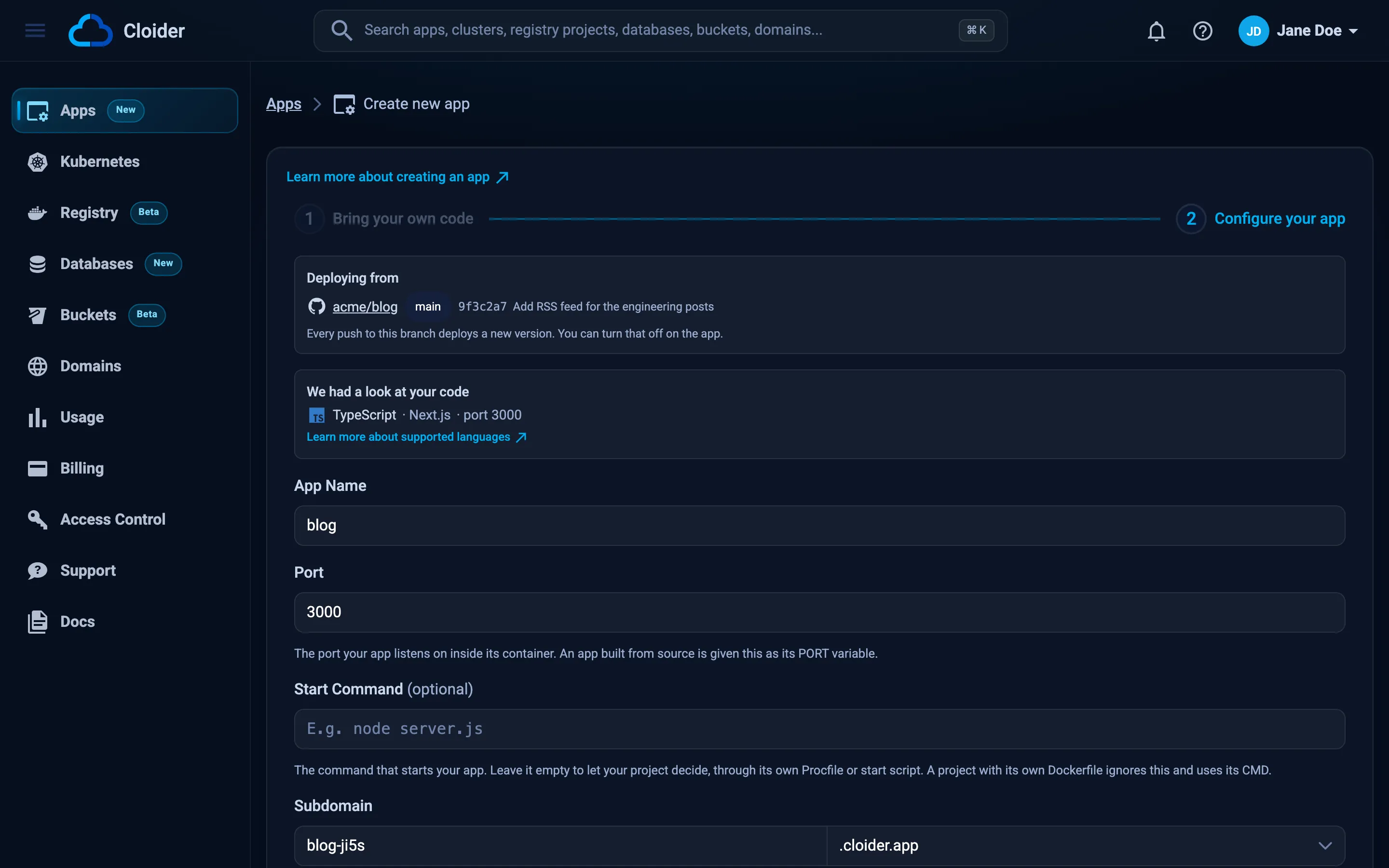
When you create an app, Cloider reads the uploaded source once to fill in the Configure your app form for you. It reports:
| Detected | Where it is used |
|---|---|
| Language and framework (for example JavaScript and Express, Python and Django, Go) | Shown on the form and as Detected on the app's Overview tab |
Port the project declares, such as in its framework configuration or a Dockerfile's EXPOSE | Prefilled as the app's Port |
Name from the project's own manifest, such as package.json or pom.xml | Prefilled as App Name, made valid (lowercase, - for anything else) |
ARGs your Dockerfile declares | Offered as Declared in your Dockerfile buttons under Build arguments |
Detection is only a suggestion. The build never reads it: a Dockerfile or a buildpack decides how the app is built,
and the port you confirm decides where traffic goes. When detection recognizes nothing, the form keeps its defaults
(port 8080) and the app is created normally. When a repository holds several projects, detection reports on the one
closest to the root.
Build with your own Dockerfile
A Dockerfile at the root of the source always wins. Cloider builds it with BuildKit exactly as written, with the
source root as the build context, and runs the image's own command. Use it when you need a specific base image,
system packages, a compiled language buildpacks don't cover, or a multi-stage build.
FROM node:22-alpine AS build
WORKDIR /app
COPY package*.json ./
RUN npm ci
COPY . .
RUN npm run build
FROM node:22-alpine
WORKDIR /app
ENV NODE_ENV=production
COPY /app/package*.json ./
RUN npm ci --omit=dev
COPY /app/dist ./dist
# Cloider sets PORT to the app's port
CMD ["node", "dist/server.js"]
Things to know:
- The file must be named
Dockerfile(capital D) and sit at the root.Dockerfile.prod,docker/Dockerfileordockerfilearen't used. If you upload a zip with a single top folder, its contents are the root. - The image's
ENTRYPOINTandCMDstart the app. A Start command, when you set one, runs withsh -cin their place, so the image needs a shell. Changing it redeploys the app without building it again. EXPOSEdoesn't route anything. Traffic goes to the app's Port, and the container gets that port asPORT. Either listen on$PORT, or set the app's port to the port your image listens on.- The image runs as the user the Dockerfile sets. Running as root works, and so does a non-root user on a port below 1024.
- A
.dockerignoreat the root is honored as usual by BuildKit. - Only variables you set as build arguments reach the build. See Build arguments.
Build with buildpacks
A project without a Dockerfile is built with Cloud Native Buildpacks, using Heroku's open source builder
(heroku/builder:26). A buildpack recognizes your language from the project files at the root (such as
package.json, requirements.txt, go.mod or pom.xml), installs the runtime and your dependencies, runs your build
step, and works out how to start the app. See Supported languages for each language's
files and conventions.
The finished image runs as a non-root user named cloider, gets the app's port as PORT, and must listen on it.
How a buildpack app starts
In order of precedence:
- The app's Start command setting, if set. Cloider writes it into the source as a
Procfileline,web: <your command>, replacing anyProcfileyou had. - A
Procfileat the root of your project. Only thewebprocess runs. - What the language's buildpack defines, for example the
startscript in a Node.jspackage.json.
web: gunicorn app:app --bind 0.0.0.0:$PORT
Buildpack caching
Cloider keeps a build cache for each app, and each build starts from the layers of the version deployed before it. The first build of an app downloads its runtime and dependencies; later builds usually reuse them and finish faster.
Static sites
A source with HTML and nothing else is served as a static site: no build step, no runtime. Cloider uses this strategy when all of these are true:
- There is no
Dockerfileat the root. - The app has no Start command.
- None of these files is at the root:
package.json,requirements.txt,Pipfile,Pipfile.lock,pyproject.toml,poetry.lock,uv.lock,setup.py,setup.cfg,runtime.txt,.python-version,go.mod,pom.xml,mvnw,build.gradle,build.gradle.kts,settings.gradle,settings.gradle.kts,gradlew,system.properties,build.sbt,composer.json,composer.lock,Gemfile,Gemfile.lock,Procfile,project.toml, or a.csproj,.fsproj,.vbproj,.sln,.slnxor.csfile. - There is no
.phpfile anywhere. - There is at least one
.htmlor.htmfile somewhere.
Every file of the source is served as is by an unprivileged nginx web server listening on $PORT. Put an
index.html at the root: it is what / serves, and without it / answers 403 Forbidden. Files are made readable for
the server whatever permissions the zip carried.
my-site/
  index.html
  about.html
  css/style.css
  img/logo.png
A site that needs a build step (React, Vue, Astro and other frameworks) has a package.json, so it is built by the
Node.js buildpack instead. See Supported languages.
The app's port
The Port is the one port Cloider sends traffic to. It is required, between 1 and 65535, and defaults to the detected
port or 8080.
- Cloider sets the
PORTenvironment variable in the container to this port. A variable namedPORTthat you set yourself is overridden. - A version only goes live once something accepts connections on this port, so an app listening elsewhere never becomes ready and its build fails with The app did not start in time.
- Listen on all interfaces (
0.0.0.0), not only onlocalhost/127.0.0.1, or the platform can't reach it.
const port = process.env.PORT || 3000;
app.listen(port, "0.0.0.0", () => console.log(`Listening on ${port}`));
Changing the port on the Settings tab redeploys the running version with the new port, without a rebuild. See Settings.
The start command
The Start command is optional and only used by buildpack builds. Leave it empty to let the project decide through its
Procfile or its language's conventions. It must be a single line of at most 1000 characters. Setting it also stops a
source from being treated as a static site, since a command means something should run.
Changing the start command on the Settings tab rebuilds the source the app is serving, because the command is built into the image.
Build arguments, build variables and environment variables
An app has three lists of variables, and each reaches a different place:
| List | Reaches | Strategy | Set with |
|---|---|---|---|
| Environment variables | The running app, when its container starts | All | Environment tab, cloider app env, --env / --secret-env |
| Build arguments | The docker build of your Dockerfile | Dockerfile | Environment tab, cloider app build-args, --build-arg / --secret-build-arg |
| Build variables | The buildpack build | Buildpacks | Environment tab, cloider app build-env, --build-env / --secret-build-env |
Build arguments and build variables never reach the running app. Each variable in each list can be secret (locked): its value is never listed back, only revealed on request. Changing a build list rebuilds the version the app is serving. See Environment variables for limits, secrets and the full how-to.
Build arguments for a Dockerfile
A plain build argument is passed as --build-arg, which your Dockerfile reads with ARG:
FROM node:22-alpine
WORKDIR /app
COPY . .
# Set NEXT_PUBLIC_API_URL as a build argument of the app
ARG NEXT_PUBLIC_API_URL
ARG NODE_VERSION_LABEL=22
RUN npm ci && npm run build
CMD ["npm", "start"]
An empty value isn't passed at all, so the ARG's own default applies. That is how the Declared in your
Dockerfile suggestions are added: with an empty value, keeping your defaults until you type one.
A secret build argument is passed as a BuildKit build secret instead, never as a build arg, because build args are
kept in the image's history. Read it with a secret mount, which exists only for that one RUN step:
FROM node:22-alpine
WORKDIR /app
COPY package*.json .npmrc ./
# NPM_TOKEN is a secret build argument of the app; .npmrc reads ${NPM_TOKEN}
RUN npm ci
COPY . .
CMD ["node", "server.js"]
The secret's id is the variable's name. Without env=, the value is a file at /run/secrets/<NAME>:
RUN \
pip install --index-url "$(cat /run/secrets/PIP_INDEX_URL)" -r requirements.txt
- Dashboard
- CLI
- Terraform
- API
- MCP
- Open the app and go to the Environment tab.
- Under Build arguments, click a name under Declared in your Dockerfile, or Add argument.
- Type the value. Click the lock icon to store it as a secret.
- Click Save and rebuild (or Save changes if the app has never deployed).
cloider app build-args set web NEXT_PUBLIC_API_URL=https://api.example.com
cloider app build-args set web --secret NPM_TOKEN=npm_xxxxxxxxxxxxxxxx
✓ Saved 1 argument(s), building web again
✓ Saved 2 argument(s), building web again
On a first deploy, pass them as flags:
cloider deploy --name web \
  --build-arg NEXT_PUBLIC_API_URL=https://api.example.com \
  --secret-build-arg NPM_TOKEN=npm_xxxxxxxxxxxxxxxx
The Terraform provider can't manage app variables. Use the dashboard, the CLI or the API.
PUT replaces the whole list. A secret sent back with "value": null keeps its stored value:
curl -X PUT https://cloider.com/api/apps/w4d8hz/build-args \
  -H "Authorization: Bearer $CLOIDER_TOKEN" \
  -H "Content-Type: application/json" \
  -d '{"env_vars": [
    {"key": "NEXT_PUBLIC_API_URL", "value": "https://api.example.com", "secret": false},
    {"key": "NPM_TOKEN", "value": "npm_xxxxxxxxxxxxxxxx", "secret": true}
  ]}'
{"applied": "build"}
applied is build when a rebuild of the running version started, none when the app hasn't deployed yet.
Ask your agent:
Set the build argument NEXT_PUBLIC_API_URL=https://api.example.com on the web app.
{"app": "web", "kind": "build-args", "variables": {"NEXT_PUBLIC_API_URL": "https://api.example.com"}}
Build variables for buildpacks
Build variables are the environment a buildpack build runs in. Use them to configure the buildpacks, or for anything your build step reads, such as a token for a private package registry:
cloider app build-env set blog API_BASE_URL=https://api.example.com
cloider app build-env set blog --secret NPM_TOKEN=npm_xxxxxxxxxxxxxxxx
The buildpack build also sees the app's plain (non-secret) environment variables. A build variable with the same name wins over an environment variable. Secret environment variables never reach a build; a secret build variable is available to the build step alone and isn't stored in the image.
Build limits
| Limit | Value |
|---|---|
| Whole build, from download to pushed image | 30 minutes |
| New version answering on its port after deploy | 5 minutes |
| Source | 100 MB compressed, 500 MB extracted |
| Platform | linux/amd64 |
| Builds at once | One per app |
| Build output kept | The last 64 KB |
A build that is still running after the limit fails. See Troubleshooting apps for the messages each failure shows.
Next steps
- Supported languages: minimal projects per language.
- Environment variables: runtime variables and secrets.
- Builds and deployments: watch a build, read its logs, retry it.
- Settings: change the port and start command.
Frequently asked questions
Does Cloider use my Dockerfile?
Yes. If a file named Dockerfile is at the root of your source, Cloider builds it exactly as written with BuildKit and runs its CMD. Without one, Cloider uses Cloud Native Buildpacks, or serves plain HTML as a static site.
Which buildpacks does Cloider use?
Cloider builds apps without a Dockerfile with Heroku's open source Cloud Native Buildpacks builder, heroku/builder:26, which covers Node.js, Python, Go, Java, Scala, PHP, Ruby and .NET.
Does the start command work with a Dockerfile?
Yes. An image built from your Dockerfile runs the start command with sh -c in place of its ENTRYPOINT and CMD, and changing it only redeploys the app. Left empty, the image starts with its own ENTRYPOINT and CMD. A buildpack build writes the start command into a Procfile instead.
How do I pass a secret to docker build on Cloider?
Add it as a secret build argument. Cloider passes it as a BuildKit build secret, which you read with RUN --mount=type=secret,id=NAME,env=NAME, so it never lands in an image layer or the image history.
Why is my Next.js NEXT_PUBLIC_ variable empty?
NEXT_PUBLIC_ variables are inlined at build time. With a Dockerfile, set them as build arguments and declare them with ARG before the build step. With buildpacks, a plain environment variable or a build variable reaches the build.
Which port does my app have to listen on?
The app's Port setting, which the container receives as the PORT environment variable. Listen on 0.0.0.0 and that port, or change the port setting to match your app.