Create a PostgreSQL, MySQL, MongoDB or Redis database
This page shows how to create a managed database on Cloider with each of the five tools, what every setting means, which names are allowed, and how to fix the errors you can get. A new database is usually ready to accept connections a few minutes after you create it.
Before you begin
- You need a Cloider account. See create an account.
- Your role in the account must allow changes. Members with read-only access can't create databases, see access control.
- For the CLI, install the CLI and run
cloider login. - For Terraform, the REST API and the CLI in CI, create an API token with Read & Write access.
- For MCP, set up the MCP server in your AI client.
- On the free plan, an account can have one database at a time. See billing.
What you choose when you create a database
| Setting | What it is | Can it change later? |
|---|---|---|
| Name | The database's name. It is the name of the database inside the engine (for PostgreSQL, MySQL and MongoDB) and part of its host name, <name>-<id>.db.cloider.com | No |
| Username | The user your application connects as. The password is generated for you | No |
| Engine and version | PostgreSQL 18, MySQL 9, MongoDB 8 or Redis 8. See which engine to choose | No |
| Trusted sources | Who may connect: anywhere, IPv4 addresses or ranges, your apps, your clusters. See trusted sources | Yes, any time |
| SSL mode | Whether connections use TLS. See SSL/TLS | Yes, with a short restart |
| Plan | CPU, RAM and storage. See plans and sizes | Yes, to a larger plan only. See resize |
The database also gets a label, the name it is shown and found by in the dashboard and the CLI. The label starts as the name, and gets a -1, -2 and so on suffix when another database in the account already has that label. You can rename a database's label at any time.
Create a database
- Dashboard
- CLI
- Terraform
- API
- MCP
- Open Databases in the sidebar and click Create Database.
- In Database Name, type a name, for example
orders-db. - Database Username fills itself in from the name (
orders_db_user). Change it if you want another user name. - In Database Engine, choose the engine and version, for example PostgreSQL v18.
- In Trusted sources, keep Allow Everything or choose who may connect: Allow My IP, one of your clusters or apps, or type an IPv4 range in CIDR format such as
203.0.113.0/24and press Enter. - Leave SSL Mode on to require encrypted connections. It is on by default for PostgreSQL, MySQL and MongoDB, and off for Redis.
- Under Select a Plan, pick a plan. The table shows each plan's monthly and hourly price, RAM, CPUs and storage.
- Click Create database.
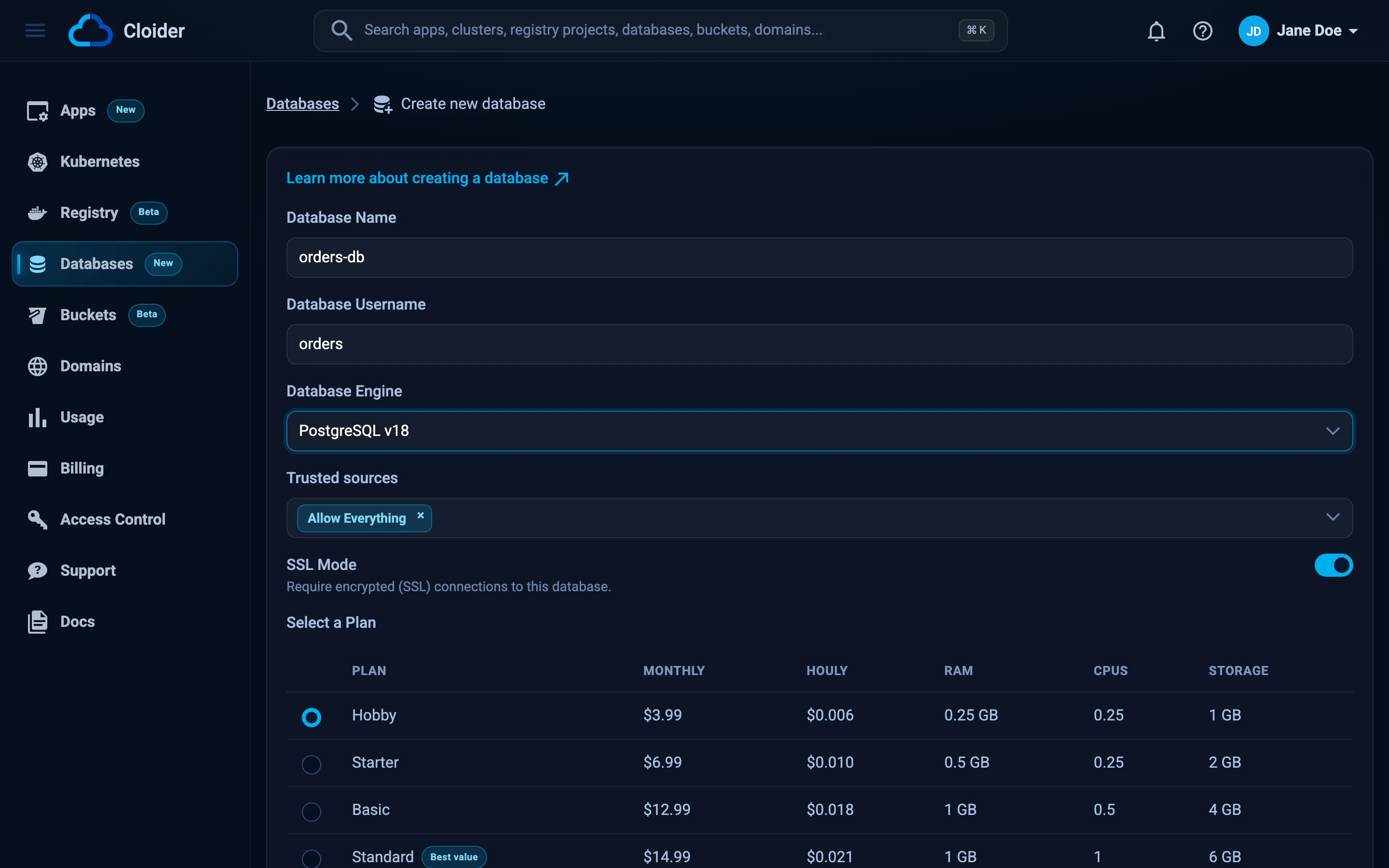
The dashboard takes you back to the Databases list, where the new database is highlighted with the status Creating. The status changes to Ready on its own, and the name becomes a link to the database's page.
cloider db create orders-db --engine postgresql --plan standard --wait
✓ Creating PostgreSQL 18 database orders-db (plan Standard)
✓ Database orders-db is ready. Connect with `cloider db connect orders-db`.
Without --wait, the command returns as soon as the database is being created, and you can follow it with cloider db status orders-db.
More examples:
# MySQL on the Hobby plan (the default plan), only reachable from your current IP
cloider db create shop-db --engine mysql --allow-my-ip

# MongoDB with a custom user, reachable from an office network and one CI runner
cloider db create catalog-db --engine mongodb --plan basic --user catalog_app \
  --trusted-source 203.0.113.0/24 --trusted-source 198.51.100.7

# Redis reachable only from the app "web" and the cluster "production", over TLS
cloider db create cache --engine redis --plan starter --ssl \
  --trusted-source app:web --trusted-source cluster:production --wait

# Print only the new database's id, for scripts
cloider db create orders-db --engine postgresql -q
| Flag | Meaning | Default |
|---|---|---|
--engine | postgresql (or postgres, pg), mysql, mongodb (or mongo), redis. Required | |
--version | Engine version | The newest offered |
--plan | hobby, starter, basic, standard, plus or pro, in any letter case | Hobby |
--user | Database user | <name>_user, with - turned into _ |
--ssl / --no-ssl | Require TLS, or don't | On, except for Redis |
--trusted-source | *, an IPv4 address or CIDR, cluster:<name> or app:<name>. Repeatable | * (anywhere) |
--allow-my-ip | Also trust the public IPv4 address this command runs from | |
--wait, -w | Wait until the database is Ready | |
--timeout | How long --wait waits | 15m |
resource "cloider_database" "orders" {
  name   = "orders-db"
  engine = "postgresql"
  plan   = "standard"

  # Who may connect. Defaults to ["*"], anywhere.
  trusted_sources = [
    "203.0.113.0/24",
    "cluster:${cloider_cluster.production.id}",
  ]

  lifecycle {
    prevent_destroy = true
  }
}

output "orders_db_host" {
  value = cloider_database.orders.host
}

output "orders_db_private_host" {
  value = cloider_database.orders.private_host
}

output "orders_db_port" {
  value = cloider_database.orders.port
}

output "orders_db_password" {
  value     = cloider_database.orders.password
  sensitive = true
}
terraform apply
terraform apply waits until the database is Ready (up to 20 minutes by default, see timeouts). The password and ca_certificate attributes are stored in your Terraform state, so keep the state private.
Attributes you can set: name and engine (required), plan (default hobby), version (default the newest), user (default <name>_user), label, ssl (default on, except for Redis), trusted_sources (default ["*"], at least one), paused and timeouts. Changing name, engine, version or user, or choosing a smaller plan, replaces the database and its data. See the cloider_database reference.
curl -X POST https://cloider.com/api/databases \
  -H "Authorization: Bearer $CLOIDER_TOKEN" \
  -H "Content-Type: application/json" \
  -d '{
    "database_name": "orders-db",
    "database_user": "orders_db_user",
    "service": "PostgreSQL",
    "database_version": "18",
    "database_plan": "Standard",
    "trusted_sources": [
      {"name": "Allow Everything", "code": "*", "type": "Anywhere"}
    ],
    "ssl": true
  }'
{"hashed_id": "p0q9zm"}
| Field | Values |
|---|---|
database_name | The name, see naming rules |
database_user | The user, see naming rules |
service | PostgreSQL, MySQL, MongoDB or Redis |
database_version | 18 for PostgreSQL, 9 for MySQL, 8 for MongoDB and Redis |
database_plan | Hobby, Starter, Basic, Standard, Plus or Pro, capitalized |
trusted_sources | A list of sources, see the source format. An empty or missing list leaves the database unreachable |
ssl | true to require TLS. Missing means false |
The database is created in the background. Poll its status until it is Ready:
curl https://cloider.com/api/databases/p0q9zm/status \
  -H "Authorization: Bearer $CLOIDER_TOKEN"
Ready
Ask your agent:
Create a PostgreSQL database called orders-db on the Standard plan,
reachable only from my production cluster, and wait until it is ready.
It calls the create_database tool:
{
  "name": "orders-db",
  "engine": "postgresql",
  "plan": "Standard",
  "trusted_sources": ["cluster:production"],
  "wait": true
}
The tool also takes version, user, ssl (true or false) and allow_my_ip. With wait, it waits up to 15 minutes for the database to be ready.
What happens after you create a database?
Cloider provisions the database in the background. Its status goes through these steps:
Creating: Cloider creates the database server, its storage volume, the user and password, the TLS certificate (when SSL is on), the public and private endpoints and the firewall rules for your trusted sources.Ready: the database accepts connections. Its page in the dashboard opens, and the Terminal tab appears.
Creation usually takes a few minutes. The first full backup is taken the first night after the database is created, so the Backups tab says "You can restore a backup after the first full backup is completed." until then.
Verify
Check that the status is Ready:
cloider db status orders-db
Ready
Then show the connection details and run a first query without installing anything:
cloider db get orders-db
cloider db exec orders-db "SELECT current_database(), current_user;"
 current_database |  current_user
------------------+----------------
 orders-db        | orders_db_user
(1 row)
Next, connect from your machine or your app.
Naming rules
The name and the user are checked when you create the database. Both can't be changed afterwards.
Database name rules
- 2 to 64 characters.
- Lower case letters (
atoz), digits and hyphens (-) only. No spaces, upper case letters or other characters. - Starts with a letter (not a digit, not a hyphen) and doesn't end with a hyphen.
- Not a reserved name:
mysql,information_schema,performance_schema,sys,postgres,template0,template1,admin,localorconfig.
Names don't have to be unique: two databases can share a name, and they are told apart by their id and label. The name is part of the host name, so a short name is easier to type.
A name with a hyphen, such as orders-db, works as is in connection strings and client flags (psql -d orders-db). Inside SQL, quote it: "orders-db" in PostgreSQL and `shop-db` in MySQL.
Username rules
- 2 to 64 characters.
- Lower case letters, digits and underscores (
_) only. Hyphens aren't allowed. - Starts with a letter and doesn't end with an underscore.
- Not a reserved user:
root,mysql,postgresoradmin.
The dashboard, CLI and Terraform suggest <name>_user, with hyphens turned into underscores: orders-db gets orders_db_user.
Label rules
The label follows the database name rules (2 to 64 lower case letters, digits and hyphens, starting with a letter), without the reserved names, and it must be unique among the account's databases.
Defaults by tool
The tools pick slightly different defaults when you leave a setting out:
| Setting | Dashboard | CLI | Terraform | API | MCP |
|---|---|---|---|---|---|
| Plan | Hobby | Hobby | hobby | Required | Hobby |
| Version | The one listed | The newest | The newest | Required | The newest |
| User | <name>_user | <name>_user | <name>_user | Required | <name>_user |
| SSL | On, except Redis | On, except Redis | On, except Redis | Off | On, except Redis |
| Trusted sources | Allow Everything | * | ["*"] | None (unreachable) | * |
How do I rename a database?
You can change a database's label, the name it is shown and found by, without touching its host, user or database name.
- Dashboard
- CLI
- Terraform
- API
- MCP
- Open the database's page.
- Click its name in the breadcrumb at the top, type the new label and confirm.
cloider db rename orders-db orders-production
✓ Renamed orders-db to orders-production
Set label:
resource "cloider_database" "orders" {
  name   = "orders-db"
  engine = "postgresql"
  label  = "orders-production"
}
curl -X PUT https://cloider.com/api/databases/p0q9zm/label \
  -H "Authorization: Bearer $CLOIDER_TOKEN" \
  -H "Content-Type: application/json" \
  -d '{"database_label": "orders-production"}'
{"success": true}
Rename the database orders-db to orders-production.
{"database": "orders-db", "new_name": "orders-production"}
Troubleshooting
Database name must not have special characters except "-"
The name contains a character other than lower case letters, digits and hyphens, for example an underscore or a dot. Use hyphens: orders-db, not orders_db. The other name errors are just as literal: Database name can not be upper case, Database name can not start with numbers, Database name must not have spaces, Database name must be at least 2 characters, Database name must not exceed 64 characters and Database name is reserved.
Database username must not have special characters except "_"
The user contains a hyphen or another character. Use underscores: orders_db_user. Other user errors: Database username can not be upper case, Database username can not start with numbers, Database username must not start with any special character, Database username must not end with any special character and Database username is reserved (for root, mysql, postgres and admin).
Invalid database version!
The version doesn't exist for the engine. PostgreSQL takes 18, MySQL 9, MongoDB and Redis 8. In the CLI, leave --version out to get the newest.
Invalid database plan
The plan isn't one of Hobby, Starter, Basic, Standard, Plus or Pro. The API expects the capitalized name. The CLI and Terraform accept lower case.
database engine must be selected!
The request has no service. In the dashboard, choose an option in Database Engine.
This database engine isn't available at the moment!
The engine can't be created right now. cloider pricing lists the engines that can.
Free plan users can not create more than one database. UPGRADE NOW!
Accounts on the free plan can have one database at a time. Delete the existing one or upgrade, see billing.
You have read-only access to this account, you can not create databases!
Your role in the account, or your API token, is read-only. Ask an account owner for a role that can make changes, or use a Read & Write token.
Your account is suspended. Upgrade to a paid plan to continue using our services.
The account is suspended, for example after the trial ended. See billing.
The database stays in Creating
Creating usually takes a few minutes. If it is still Creating after 20 minutes, contact support with the database's id (cloider db list -o wide shows it).
Next steps
- Connect to the database
- Restrict trusted sources
- Use it from a Cloider app or cluster
- Build a full stack app with PostgreSQL
Frequently asked questions
How long does it take to create a database on Cloider?
A new database is usually ready a few minutes after you create it. Its status changes from Creating to Ready, and cloider db create --wait returns when it is ready.
Can I change the database name or user after creating it?
No. The name, user, engine and version are fixed when the database is created. You can change its label (the name shown in the dashboard), its plan (larger only), its trusted sources and its SSL mode.
What is the default password of a Cloider database?
There is no default password. Cloider generates a random 32 character password for the database user. Show it on the database's Overview tab or with cloider db password <database>.
What does a new Cloider database contain?
A new PostgreSQL, MySQL or MongoDB database comes with one database named after it and one user, both created for you. A new Redis database comes with one user and the standard numbered Redis databases, starting at 0. To keep the data of two projects fully apart, create a Cloider database for each.
Who can connect to a new database by default?
The dashboard, CLI, Terraform and MCP create databases that trust every source (Allow Everything), protected by the password and, when SSL is on, TLS. Restrict trusted sources to your IPs, apps and clusters for production. A database created through the API with no trusted sources can't be reached until you add some.