Manage Cloider with an AI agent over MCP
The cloider CLI includes an MCP server (Model Context Protocol), so an AI agent such as Claude Code, Claude
Desktop, Cursor or VS Code can create databases, deploy apps, read logs, run queries and set up domains for you, as
tool calls you can see and approve. In this guide you connect it to Claude Code, then follow a realistic session in
which the agent builds and deploys an app with a PostgreSQL database and a custom domain, and finally lock the setup
down so an agent can only do what you intend.
At a glance
| You will build | An MCP connection from Claude Code to your Cloider account, and through it: the database orders-db, the app api deployed from a local folder, and example.com routed to it |
| Products | MCP server, Apps, Databases, Domains |
| Tools | The cloider CLI, Claude Code (or another MCP client) |
| Difficulty | Beginner |
| Time | About 30 minutes |
| Cost | Only what the agent creates, billed like anything else. See What it costs |
How it works
cloider mcpis started by the agent's client as a local process and talks MCP on stdin and stdout. Nothing is hosted, and no extra service needs your credentials.- Each tool runs one
cloidercommand as the profile and API token the CLI is logged in with. Whatever that token can do, the agent can do, and nothing more. - Tools are marked as read only or destructive, so clients can run reads without asking and ask before a delete.
- Members and API tokens can't be managed through MCP (or the CLI), only in the dashboard, so an agent can never hand out access.
See the MCP overview and the tool reference.
Before you begin
- A Cloider account.
- The
cloiderCLI:curl -fsSL https://cloider.com/install.sh | shon macOS and Linux, or see Install the CLI. - Claude Code installed and working. Other clients are covered below.
- For the session: a small web app in a local folder, here
/home/me/api(any appcloider deploycan build, for example the Express app from Full stack app with PostgreSQL), and optionally a domain you own.
Part 1: Give the agent its own login
Log the CLI in under a profile of its own for the agent, so its token is separate from yours, shows up with its own name under Access Control, API Tokens, and can be revoked on its own:
cloider login --profile agent
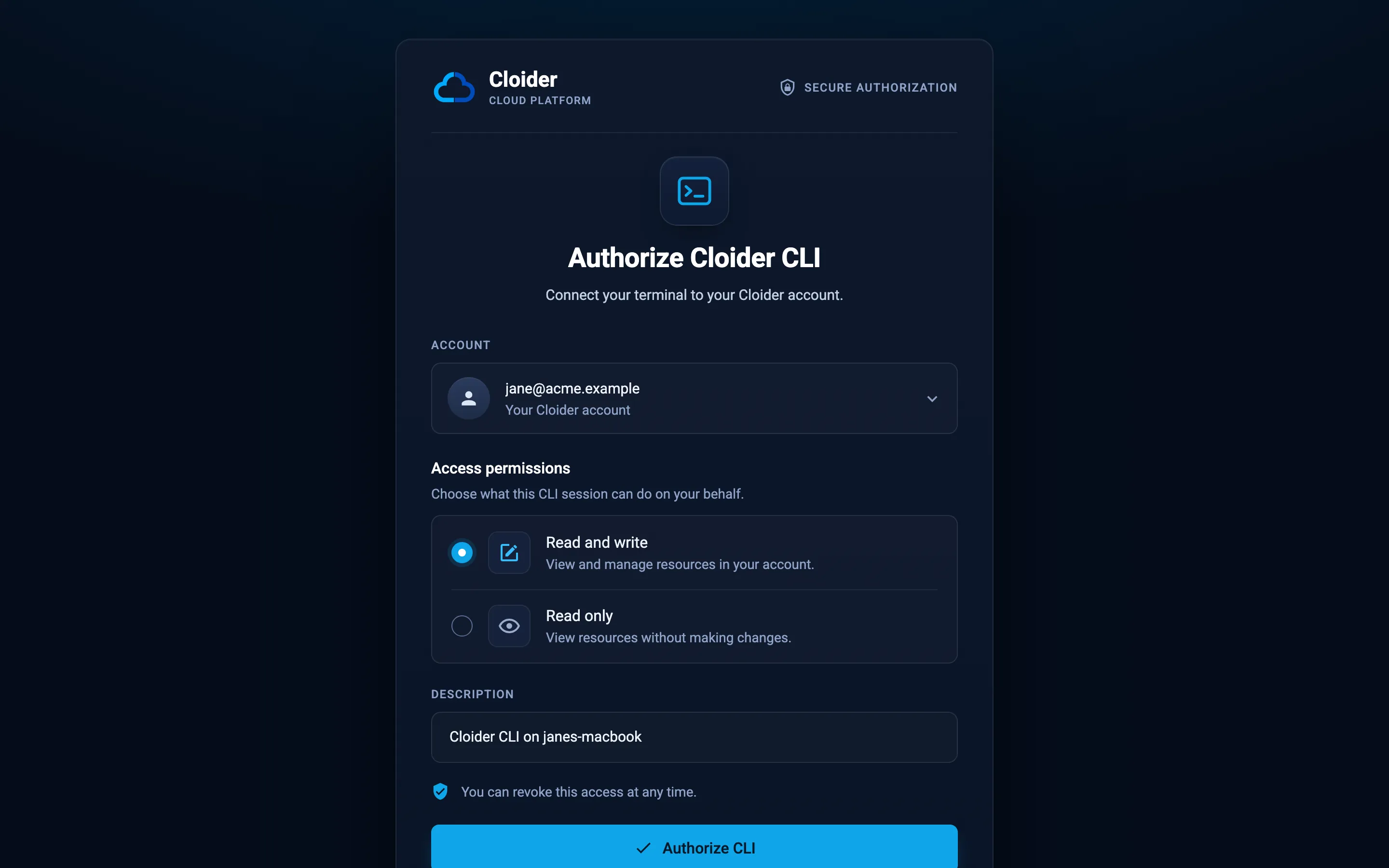
The browser opens on Cloider. Pick the account and the access:
- Read & Write to let the agent create and change resources, as in this guide.
- Read for an agent that should only look (see Part 4).
Verify
cloider --profile agent whoami
The output names the account and the access level. See Authentication and Profiles.
Part 2: Add Cloider to Claude Code
claude mcp add cloider -- cloider --profile agent mcp
Everything after -- is the command Claude Code starts: the CLI, the profile, and mcp. To share the setup with
your team through the repository, add it with --scope project, which writes it to .mcp.json in the project; each
teammate's own cloider login then decides which account and access their agent gets.
Verify
claude mcp list
cloider: cloider --profile agent mcp - ✓ Connected
Inside Claude Code, /mcp lists the cloider server and its tools. Ask a first, harmless question:
Which Cloider account are you connected to, and can you change things in it?
{}
The agent answers with the account and whether the token can only read.
Other MCP clients
Every client starts the same command. Use the absolute path to cloider (which cloider) in desktop apps, which
don't always see your shell's PATH.
| Client | Where | Configuration |
|---|---|---|
| Claude Desktop | Settings, Developer, Edit Config (claude_desktop_config.json) | {"mcpServers": {"cloider": {"command": "/usr/local/bin/cloider", "args": ["--profile", "agent", "mcp"]}}} |
| Cursor | .cursor/mcp.json in the project, or ~/.cursor/mcp.json | {"mcpServers": {"cloider": {"command": "cloider", "args": ["--profile", "agent", "mcp"]}}} |
| VS Code | .vscode/mcp.json | {"servers": {"cloider": {"type": "stdio", "command": "cloider", "args": ["--profile", "agent", "mcp"]}}} |
| OpenAI Codex CLI | ~/.codex/config.toml | [mcp_servers.cloider] with command = "cloider" and args = ["--profile", "agent", "mcp"] |
| Gemini CLI | ~/.gemini/settings.json | {"mcpServers": {"cloider": {"command": "cloider", "args": ["--profile", "agent", "mcp"]}}} |
The MCP setup page has each client in detail.
Part 3: Build and deploy an app by asking for it
This is a real session, shortened. Each step shows what you type, the tool calls the agent makes with their arguments, and what to check. Claude Code asks you to approve tool calls that change something; read the arguments before you approve.
1. Look around
What do I have on Cloider right now?
{}
{}
{}
All three are read only, so a client can run them without asking. The agent summarizes what exists, which is also how it learns the names to use in later calls.
2. Create the database
Create a PostgreSQL database called orders-db on the Standard plan and wait until it is ready.
{"name": "orders-db", "engine": "postgresql", "plan": "Standard", "wait": true}
✓ Creating PostgreSQL 18 database orders-db (plan Standard)
✓ Database orders-db is ready. Connect with `cloider db connect orders-db`.
wait makes the tool return once the database is Ready, up to 15 minutes. Without it, the tool returns at once and
the agent checks progress with get_database.
3. Create the tables
Run migrations/001_create_orders.sql from this repository on orders-db.
Claude Code reads the file from your project and passes its content as a script:
{"database": "orders-db", "script": "CREATE TABLE IF NOT EXISTS orders (\n id BIGSERIAL PRIMARY KEY,\n customer TEXT NOT NULL,\n item TEXT NOT NULL,\n created_at TIMESTAMPTZ NOT NULL DEFAULT now()\n);\n"}
{"exit_code": 0, "stdout": "CREATE TABLE\n", "stderr": "", "timed_out": false}
database_exec runs psql next to the database, already logged in, so the database's trusted sources don't apply
and nothing has to be installed. A failing statement returns a non-zero exit_code with the error in stderr, which
the agent reads and can fix. It is marked destructive, because SQL can change anything: always read the script before
approving.
4. Deploy the app with its connection string as a secret
Deploy /home/me/api as an app called api on port 3000. Give it DATABASE_URL as a secret,
with orders-db's private host, and NODE_ENV=production.
The agent looks up the connection details, then deploys:
{"database": "orders-db"}
{"database": "orders-db"}
{
  "dir": "/home/me/api",
  "name": "api",
  "port": 3000,
  "env": {"NODE_ENV": "production"},
  "secret_env": {"DATABASE_URL": "postgresql://orders_db_user:Xq7rT2-vLp9_aZk4.Nw8sYb3HcD6mJe1@orders-db-p0q9zm.db.cloider.internal:20417/orders-db"}
}
Detected JavaScript Express
✓ Created app api on port 3000
Linked /home/me/api to api in /home/me/api/.cloider/app.json, later deploys from here update it.
...
✓ Deployed version 1 of api
https://api-q2v8.cloider.app/
deploy_app zips the folder (leaving out what .gitignore and .cloiderignore list), creates the app with a free
subdomain, follows the build until the app is up, and returns its URL. dir must be an absolute path.
To build the connection string, the agent read the database password, so the password is now in the conversation
with the model. That is true of every secret an agent reads: database passwords, kubeconfigs, variable values. If
that isn't acceptable for a resource, set the secret yourself with cloider app env set api --secret ... and tell the
agent the variable already exists.
5. Lock down the database
Make orders-db accept connections only from the api app.
{"database": "orders-db", "set": ["app:api"]}
The app reaches the database on its private host, which the app:api source covers. See
Trusted sources.
6. Debug a problem
POST /api/orders returns 500. Find out why and fix it.
{"app": "api", "lines": 200}
{"app": "api", "command": "node -e \"console.log(process.version)\""}
The agent reads the error in the logs (for example a column the code expects but the table lacks), changes the code
or writes a migration, runs it with database_exec, and deploys again. Because the folder is now linked to the app,
the second deploy needs only the folder:
{"dir": "/home/me/api"}
✓ Uploaded version 2 of api
...
✓ Deployed version 2 of api
https://api-q2v8.cloider.app/
7. Put the app on your domain
Serve the api app on example.com and www.example.com.
{"domain": "example.com"}
The answer lists Cloider's nameservers, which you set at your registrar yourself. The domain comes with an ALIAS
record for the apex that points at Cloider, but a target doesn't add DNS records, so the agent adds a CNAME for www
to the app's free subdomain:
{"domain": "example.com", "type": "CNAME", "name": "www", "value": "api-q2v8.cloider.app.", "ttl": 3600}
{"domain": "example.com", "app": "api"}
{"domain": "www.example.com"}
{"domain": "www.example.com", "app": "api"}
See Add a custom domain for the full flow, including recreating existing DNS records before you switch nameservers.
8. Ask what it costs
What will this cost this month?
{}
{}
The agent answers with the month to date and the forecast for each resource, from the same data as the Usage page.
Verify
Check the result yourself, outside the agent:
cloider app get api
cloider db trusted-sources orders-db
cloider target list example.com
curl -s https://api-q2v8.cloider.app/healthz
The app is Ready, the database trusts only api, both domain names have a target, and the app answers. See
Example prompts for more sessions.
Part 4: Keep the agent safe
An agent acts with the token you give it, at the speed of a script. These settings decide how much it can do.
Read only: a Read token and --read-only
For an agent that should look but never touch, combine both:
cloider login --profile agent-ro --read-only
claude mcp add cloider-ro -- cloider --profile agent-ro mcp --read-only
cloider login --read-onlyasks for a Read token. The API refuses every change made with it (This API token is read only!, exit code5), whatever the agent tries.cloider mcp --read-onlyoffers only the tools that change nothing. The exec tools (app_exec,cluster_exec,database_exec) are left out too, because a command or a query can change anything.
Either one alone is useful; together, the agent doesn't even see a tool it can't use.
A Read token can read database passwords, kubeconfigs (which are cluster admin credentials) and the values of secret app variables, because those are reads. A read only agent can still put them in its conversation. Use a separate account, or don't connect an agent, where that matters.
Fewer tools: --toolsets
--toolsets offers only some groups of tools: account, clusters, databases, buckets, registry, apps,
domains and support. A smaller list keeps the agent focused, and some clients only accept a limited number of
tools:
claude mcp add cloider -- cloider --profile agent mcp --toolsets apps,databases,domains
Approvals in the client
Each tool tells the client whether it only reads (readOnlyHint) or deletes or replaces something
(destructiveHint). In Claude Code, you approve each tool call that isn't allowed yet, and you can allow the read only
tools for good while keeping changes behind a prompt. For example, in .claude/settings.json:
{
  "permissions": {
    "allow": [
      "mcp__cloider__whoami",
      "mcp__cloider__list_apps",
      "mcp__cloider__get_app",
      "mcp__cloider__get_app_logs",
      "mcp__cloider__list_databases",
      "mcp__cloider__get_database"
    ]
  }
}
Never allow delete tools (delete_app, delete_database, delete_cluster, delete_bucket, delete_domain and the
others) without a prompt.
More habits that help
- One profile per purpose, so each agent's token is separate and revocable:
cloider logout --profile agentrevokes it at once. - A separate account for experiments. A token reaches one account, so an agent logged in to a sandbox account can't touch production. Switch with profiles, see Switch accounts.
- Ask for a plan first. "List the commands you would run, don't run them" makes the agent show its intent before it acts.
- Dry runs where they exist, such as
run_registry_retentionwithdry_runbefore deleting images.
See Safety and permissions for the full list of read only and destructive tools.
What it costs
The MCP server and the CLI are free. Everything the agent creates is an ordinary Cloider resource, billed by the second while it exists: in this guide, the app's compute and the database's plan. Domains, DNS records and targets are free. Your AI client is billed by its own provider. See Pricing and the billing model.
Clean up
Ask the agent, and approve each delete:
Delete the api app, the domains example.com and www.example.com, and the orders-db database.
{"app": "api", "wait": true}
{"domain": "www.example.com"}
{"domain": "example.com"}
{"database": "orders-db", "wait": true}
Or from a terminal:
cloider app delete api --yes
cloider domain delete www.example.com --yes
cloider domain delete example.com --yes
cloider db delete orders-db --yes --wait
Then remove the connection and revoke the agent's token:
claude mcp remove cloider
cloider logout --profile agent
Troubleshooting
| Symptom | Cause and fix |
|---|---|
claude mcp list shows the server as failed | cloider isn't on the PATH Claude Code sees, or the profile isn't logged in. Use the absolute path from which cloider, and run cloider --profile agent whoami |
Tools fail with not logged in (exit code 3) | The profile has no token, or it was revoked. Run cloider login --profile agent again |
Changes fail with This API token is read only! (exit code 5) | The profile has a Read token. Log in again with Read & Write, or keep it read only on purpose |
| The client complains about too many tools | Use --toolsets to offer fewer |
dir is required, the absolute path of the directory to deploy | deploy_app needs an absolute path. Ask the agent to use the full path of the folder |
The agent tries to connect to the database with psql and times out | Your IP isn't a trusted source. Ask it to use database_exec, which needs no trusted source |
| A tool the agent wants doesn't exist | Members, API tokens, interactive shells and cloider login aren't offered over MCP. Do those in the dashboard or your terminal |
More in the MCP overview and CLI troubleshooting.
Next steps
- MCP tool reference: every tool and its arguments, by toolset.
- Example prompts: sessions for clusters, buckets, the registry and support.
- AI coding agents:
llms.txt, Markdown pages and anAGENTS.mdsnippet for your repository. - CLI commands: the commands behind each tool.
Frequently asked questions
Does Cloider have an MCP server?
Yes. The cloider CLI includes one: cloider mcp serves every CLI command that works without a terminal as an MCP tool over stdin and stdout. Add it to Claude Code with claude mcp add cloider -- cloider mcp, or give Claude Desktop, Cursor, VS Code and other clients the same command.
What can an AI agent do on Cloider through MCP?
Everything the CLI does without a terminal: create and delete clusters, databases, buckets and registry projects, deploy apps from a folder or git, read logs, set variables, run commands and SQL with the exec tools, manage domains, DNS records and targets, read usage and billing, and open support requests. It can't manage members or API tokens.
How do I make the Cloider MCP server read only?
Log in with a Read token (cloider login --read-only, ideally under its own --profile) and start the server with cloider mcp --read-only, which offers only tools that change nothing and leaves out the exec tools.
Which account does the agent use?
The one the CLI profile is logged in to. Each tool runs a cloider command with that profile's API token, so the agent can do exactly what that token can. Start the server with cloider --profile <name> mcp to pick a profile.
Can an AI agent see my database passwords?
Yes, if its token can read them, which Read tokens can. Reading a password, a kubeconfig or a secret variable puts it in the agent's conversation. Set such secrets yourself, or use a separate account, when that matters.