Change a Cloider app's port, start command and branch
The Settings tab holds what an app is run with: the Port it listens on and its Start command, plus, for an app created from a repository, the Branch it deploys from and Auto deploy on push. Saving applies the change to the running app in the cheapest way that can carry it. This page explains each setting, what saving does, and how to change them from every tool.
At a glance
| Setting | Applies to | Saving does |
|---|---|---|
| Port | Every app | Redeploys the running version on the new port, no rebuild |
| Start command | Apps built by buildpacks | Rebuilds the source the app is serving, as a new version |
| Branch | Git apps | Nothing until the next push or Deploy latest commit |
| Auto deploy on push | Git apps | Turns deploys on push on or off |
| Image, Tag, registry login | Image apps | Checks them with the registry, then deploys when the tag points at a different image |
| Deploy hook | Image apps | Shows the URL that deploys the app, or replaces it with Regenerate |
- Port and start command changes are refused while a build is running or the app is paused (the Save changes button says why: A build is already running or Resume the app to change its settings).
- On an app that has never deployed, the new values are saved and used by its next build.
- The app's name, environment variables and domains are elsewhere: see Environment variables and Domains. An app can't be renamed.
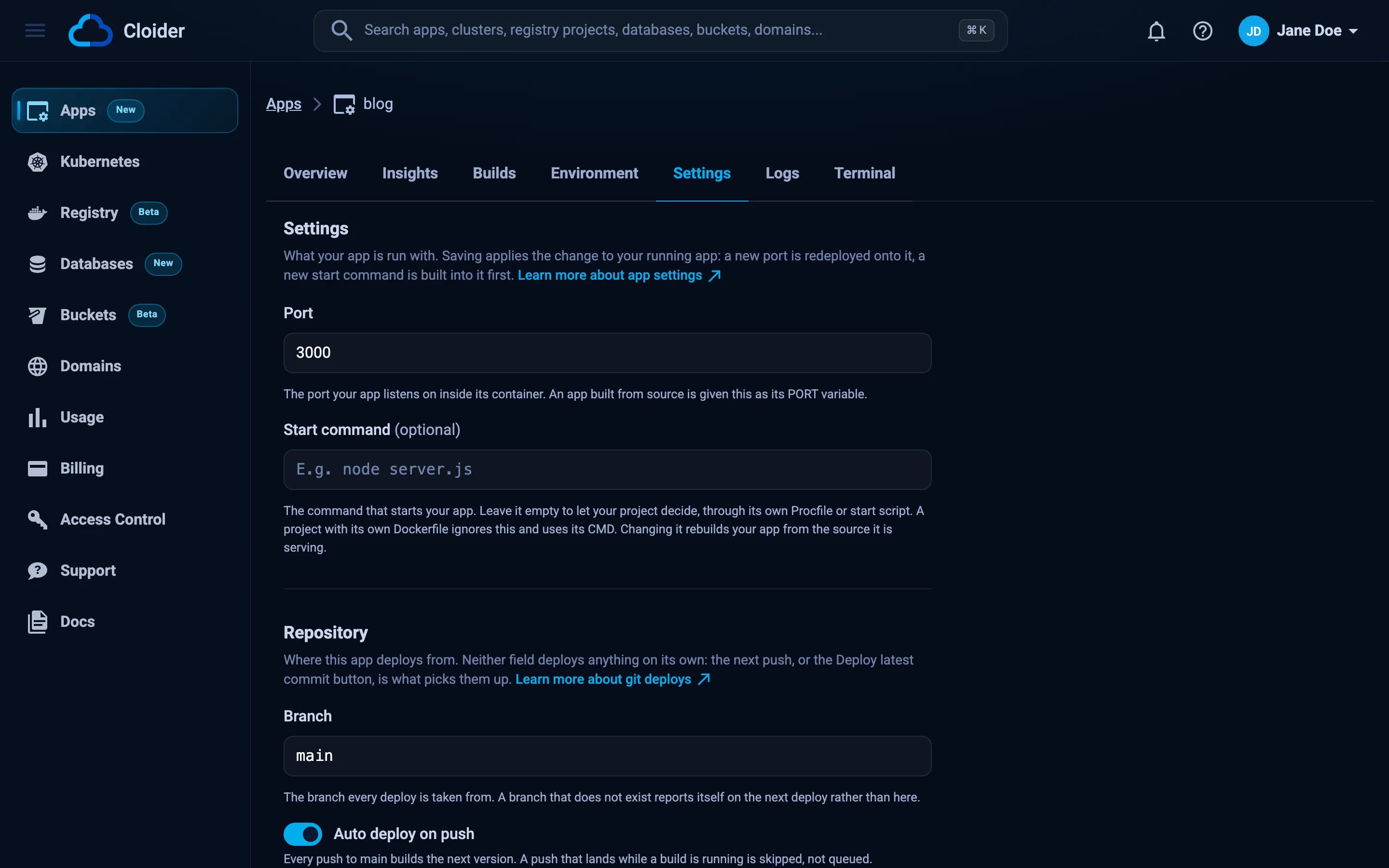
Change the port
The port is where Cloider sends the app's traffic, and the container receives it as the PORT environment variable.
Change it when your app listens on a different port than the one detected, for example a Dockerfile image that always
listens on 80.
Saving a new port redeploys the image the app is already running: the container restarts with the new PORT, and
traffic moves to the new port. The app goes Deploying, then Starting, then Ready once something answers on the new
port. No new build or version is created.
If nothing listens on the new port within 5 minutes, the app goes Failed and stops answering, since traffic now goes
to a port nobody serves. Put the right port back on Settings to recover. An app that reads $PORT (every buildpack
app, and Dockerfile apps written to) follows the change on its own.
- Dashboard
- CLI
- Terraform
- API
- MCP
- Open the app and go to the Settings tab.
- Change Port (1 to 65535).
- Click Save changes. The toast says Your app is redeploying on its new port.
cloider app update web --port 80 --wait
✓ Saved, redeploying web
The Terraform provider can't change app settings. Use the dashboard, the CLI or the API.
Send both settings; start_command is optional and empty means the project decides:
curl -X PUT https://cloider.com/api/apps/w4d8hz/settings \
  -H "Authorization: Bearer $CLOIDER_TOKEN" \
  -H "Content-Type: application/json" \
  -d '{"port": 80, "start_command": ""}'
{"applied": "redeploy"}
applied says what happened: redeploy (new port), build (new start command, which also carries a new port), or
none (nothing changed, or the app hasn't deployed yet).
The web app listens on port 80. Update its port and wait until it is back up.
{"app": "web", "port": 80, "wait": true}
Change the start command
The start command is what your app runs when it starts. Where it goes depends on how the app's image is made:
-
Buildpack build: Cloider writes it into the source as a
Procfileline,web: <command>, so it becomes part of the image. Saving a new one rebuilds the source the app is serving: a new version is built and deployed, and the Builds tab opens on it. -
Your own
Dockerfile, or an image you built: the container runs it withsh -cin place of the image'sENTRYPOINTandCMD, so the image needs a shell. Saving a new one only redeploys the image the app is running, in a few seconds. -
Leave it empty to let the project decide, through its own
Procfile, its language's convention (such as thestartscript ofpackage.json), or the image's ownENTRYPOINTandCMD. -
One line, at most 1000 characters. Use
$PORTfor the port:gunicorn app:app --bind 0.0.0.0:$PORT. -
A static site has no command; setting one makes Cloider build the source with buildpacks instead.
- Dashboard
- CLI
- Terraform
- API
- MCP
- Open the app and go to the Settings tab.
- Type the command in Start command, for example
node dist/server.js, or clear it. - Click Save changes. A buildpack app's toast says Your app is rebuilding to start on the new command., an
image or
Dockerfileapp's Your app is redeploying with its new settings.
cloider app update api --start-command "gunicorn app:app --bind 0.0.0.0:\$PORT" --wait
✓ Saved, building api again
An image or Dockerfile app answers ✓ Saved, redeploying api instead. Clear it with --start-command "".
The Terraform provider can't change app settings. Use the dashboard, the CLI or the API.
curl -X PUT https://cloider.com/api/apps/k3m9tw/settings \
  -H "Authorization: Bearer $CLOIDER_TOKEN" \
  -H "Content-Type: application/json" \
  -d '{"port": 8080, "start_command": "gunicorn app:app --bind 0.0.0.0:$PORT"}'
{"applied": "build"}
applied is redeploy for an image or Dockerfile app.
{"app": "api", "start_command": "gunicorn app:app --bind 0.0.0.0:$PORT", "wait": true}
Change the branch or auto deploy
A git app has a Repository section with the Branch every deploy is taken from and the Auto deploy on push switch. Neither deploys anything by itself: the next push, or Deploy latest commit on the Builds tab, uses them. A branch that doesn't exist isn't checked when you save; the next deploy fails with a message naming it.
cloider app git api --branch release
cloider app git api --auto-deploy=false
On GitLab and Bitbucket, turning auto deploy on also adds the webhook that delivers pushes, which needs the Maintainer role (GitLab) or admin access (Bitbucket); without it, auto deploy switches itself back off. If the connection behind the repository is gone or suspended, the section says so and the app can't deploy from git. See Deploy from git for every tool.
Change an image app's image, tag or login
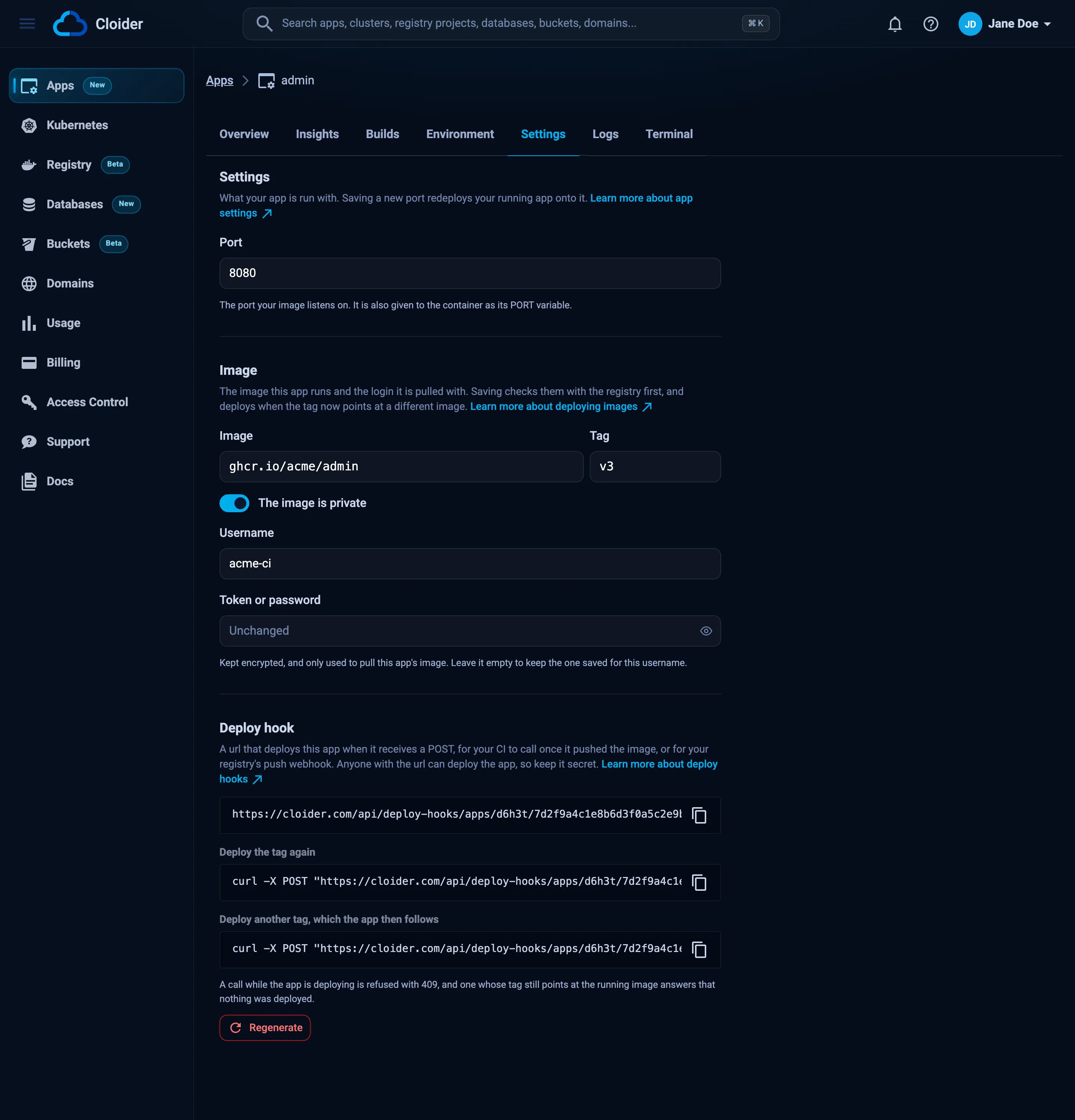
An app created from a Docker image has an Image section below the start command, with the Image, the Tag and The image is private switch for its login. Saving checks them with the registry first and refuses what it can't pull, then deploys when the tag now points at a different image. An empty Token or password keeps the saved one for the same username.
cloider app image admin --tag v4
cloider app image admin --no-login
The Deploy hook section below it shows the URL that deploys the app when your CI calls it. See Deploy from CI with a deploy hook.
Change a cron job's schedule
A cron job has a Schedule instead of a port. Saving a new one redeploys the job on it in a few seconds, on the same version. See Change the schedule.
Where are pause and delete?
Pause, Resume and Delete are in the actions menu (the three dots) of each app on the Apps list, and in
the CLI as cloider app pause, resume and delete. See Pause, resume and delete.
Troubleshooting
| Message | Cause and fix |
|---|---|
App port must not be empty / App port must be between 1 and 65535 | Enter a valid port |
Start command must be a single line | Remove line breaks; chain commands with && or move them into a script |
Start command must be at most 1000 characters | Move the command into a script in your source and run that |
| This app is building, wait for that build to finish before changing its settings! | Wait for the running build |
| This app is paused. Resume it before deploying a new version! | Resume the app, then save |
| The settings were saved but the app could not be redeployed! | The values are saved; save again or deploy a new version to apply them |
The app went Failed after a port change | Nothing answers on the new port. Set the port your app listens on |
A new start command fails with sh: not found | The image has no shell to run it with, like a distroless image. Clear the start command and change the image's CMD instead |
nothing to change, give --port or --start-command (CLI) | Pass at least one of the two flags |
Next steps
- Build configuration: how the port and start command are used during builds.
- Builds and deployments: follow the rebuild a start command change starts.
- Pause, resume and delete.
Frequently asked questions
How do I change the port of a Cloider app?
Change Port on the app's Settings tab and save, run cloider app update <app> --port <port>, or PUT /api/apps/<id>/settings. The running version is redeployed on the new port without a rebuild.
Does changing the start command rebuild the app?
For a buildpack app, yes: the start command is written into the image as a Procfile line, so saving a new one rebuilds the source the app is serving as a new version. An app with its own Dockerfile or running an image you built runs the start command with sh -c in place of the image's ENTRYPOINT and CMD, so saving a new one only redeploys it.
Can I rename a Cloider app?
No. An app keeps the name it was created with. Create a new app with the new name and move its domains and variables over if you need a different name.
What happens if I set the wrong port?
The app is redeployed on the new port and, if nothing answers there within 5 minutes, it goes Failed and stops serving. Set the correct port again to bring it back.