Open a shell in a Cloider app and run commands
You can work inside a running app's container in two ways: the Terminal tab and cloider app shell open an
interactive shell, like SSH, and cloider app exec runs one command and returns its output and exit code, which is
what scripts, CI jobs and AI agents need. Typical uses are database migrations, one-off scripts, checking environment
variables and debugging. This page covers both, with their limits. A cron job has nothing running
between runs, so it has no Terminal tab: a running run has a Terminal button on the Runs tab, and
cloider app shell and cloider app exec open a container with its image and environment that is started for them.
At a glance
Terminal tab / cloider app shell | cloider app exec / API / MCP | |
|---|---|---|
| For | People, interactively | Scripts, CI, AI agents |
| Runs | bash -l, or sh -l when the image has no bash | One command, directly or with sh -c |
| Output | A terminal | Separate stdout and stderr, and the exit code |
| Input | Your keyboard | Optional stdin, up to 2 MiB |
| Time limit | Until you exit; idle for 10 minutes ends the terminal | 10 minutes by default, up to 1 hour |
| Needs | A deployed, running app; read and write access | Same |
Both run inside the app's current container, with its files and environment variables, as the container's user. Anything you change there (files, installed packages) is lost when the container restarts or a new version deploys, so make lasting changes in your source and deploy them.
Open a terminal
- Dashboard
- CLI
- Terraform
- API
- MCP
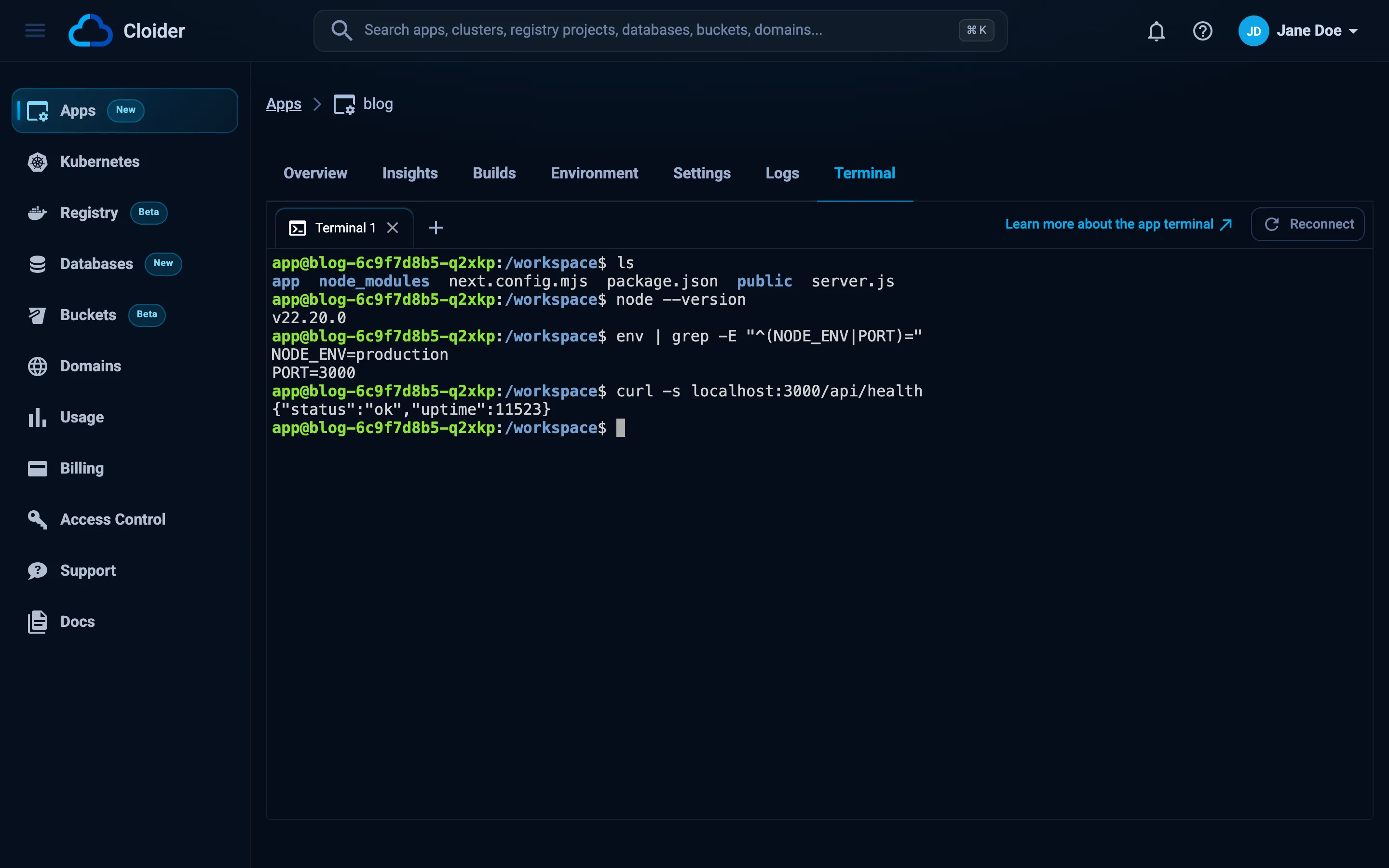
- Open the app and go to the Terminal tab. It appears once a version has deployed, and is hidden while the app is paused.
- Wait for Connecting to the app.... The terminal starts on demand, which can take a few seconds the first time.
- You get a shell in the app's working directory. Type
exitto end the session.
cloider app shell blog
Connected, exit the shell to end the session.
cloider@blog:/workspace$ node --version
v22.11.0
cloider@blog:/workspace$ exit
cloider app shell needs a real terminal on both ends. In scripts, use cloider app exec.
The Terraform provider can't open terminals. Use the dashboard or the CLI.
The interactive terminal is a browser session the dashboard opens through GET /api/apps/<id>/terminal. For
automation, run single commands with POST /api/apps/<id>/exec instead, see
Run a command with exec.
An MCP client has no terminal. Agents run commands one at a time with the app_exec tool, see
Run a command with exec.
The prompt shows the app's name as the host name: Cloider sets the container's hostname to the app name.
When does the terminal stop?
The terminal runs next to your app only while someone uses it. The dashboard's tab keeps it awake while it is open, and after 10 minutes with nobody using it, it goes to sleep until it is next opened. Closing the tab or leaving it ends your session. The terminal isn't part of your app's usage and isn't billed.
Run a command with exec
cloider app exec runs one command in the app's container and exits with the command's exit code. Stdout and stderr
stay separate and nothing is a terminal, so the output is exactly what the command printed.
- Dashboard
- CLI
- Terraform
- API
- MCP
The dashboard runs commands through the Terminal tab. For one-off commands from a script, use the CLI, the API or MCP.
cloider app exec blog uptime
cloider app exec blog ls -la
cloider app exec blog printenv NODE_ENV
How arguments are run:
- Several arguments run as they are, without a shell. This also works in images that have no shell.
- One quoted argument with spaces is a command line, run with
sh -c, so pipes,&&and$VARSwork.
cloider app exec blog "ps aux | grep node"
cloider app exec blog 'echo $DATABASE_URL | cut -d@ -f2'
Flags for exec go before the app. Everything after the app belongs to the command, and -- may separate the two:
cloider app exec --timeout 30m blog -- npm run migrate
Send a local file or script in with -i (stdin, up to 2 MiB):
cloider app exec -i blog -- sh -c 'cat > /tmp/seed.json' < seed.json
cloider app exec -i blog sh < setup.sh
Get one JSON object, for scripts and agents. The exit code is still set:
cloider app exec -o json blog -- node -e 'console.log(process.version)'
{"exit_code": 0, "stdout": "v22.11.0\n", "stderr": "", "timed_out": false}
The Terraform provider can't run commands in apps. Use the CLI, the API or MCP.
Send the command as an argument list. stdin is base64 and optional, timeout is in seconds (default 600, at most
3600):
curl -N -X POST https://cloider.com/api/apps/a7c2mq/exec \
  -H "Authorization: Bearer $CLOIDER_TOKEN" \
  -H "Content-Type: application/json" \
  -d '{"command": ["sh", "-c", "node --version && echo done >&2"], "timeout": 60}'
The answer is a server-sent events stream. stdout and stderr events carry base64 encoded output, then one of
exit (the exit code), timeout (the timeout in seconds) or error (a message) ends it, followed by end:
: open

event: stdout
data: djIyLjExLjAK

event: stderr
data: ZG9uZQo=

event: exit
data: 0

event: end
data: 1
Closing the connection stops the command. The command is limited to 64 KiB of arguments and 2 MiB of stdin.
Ask your agent:
Run the database migrations of the api app with "python manage.py migrate" and tell me if they worked.
It calls the app_exec tool, which answers with the exit code and the output:
{"app": "api", "command": "python manage.py migrate", "timeout_seconds": 600}
{"exit_code": 0, "stdout": "Operations to perform:\n Apply all migrations: ...\n", "stderr": "", "timed_out": false}
A command with spaces runs with sh -c. stdin passes text to the command.
Exit codes
| Code | Meaning |
|---|---|
0 | The command succeeded |
| Any other | The command's own exit code |
124 | --timeout stopped the command |
126 | The command exists but can't run (permissions) |
127 | The command doesn't exist in the image |
The CLI's own error codes (1 to 5) can also be a command's. With -o json, the JSON is only printed when the command
ran, which tells the two apart. Like kubectl exec, a command that prints nothing can keep running in the container
after a timeout or Ctrl-C.
Common tasks
# Run database migrations
cloider app exec api python manage.py migrate
cloider app exec --timeout 30m web -- npx prisma migrate deploy
cloider app exec shop -- php artisan migrate --force
cloider app exec store -- bundle exec rails db:migrate

# Check what the app sees
cloider app exec blog printenv
cloider app exec blog -- cat /etc/os-release

# Test a dependency from inside the app
cloider app exec blog "wget -qO- http://localhost:\$PORT/health"
Troubleshooting
| Message | Cause and fix |
|---|---|
| This app has not been deployed yet! | There is no container until the first build succeeds. Check the Builds tab |
| This app is paused. Resume it to open a terminal! / ...to run a command! | Resume the app, see Pause, resume and delete |
Your app isn't running right now, so there is nothing to open a terminal in. Check the Logs tab, then reconnect. | The container is restarting or crashing. Check the logs |
This app's image has no shell (e.g. a distroless image), so a terminal can't be opened in it. Use the Logs tab instead. | Distroless and scratch images have no sh. Use cloider app exec with a full argument list, or add a shell to the image |
| Terminals need a Read & Write API token! | The CLI's token is read-only. Log in again with Read & Write access |
| You have read-only access to this account, you can not run commands! | Your role in the account is read-only |
| The terminal could not be started, try again in a moment! | The terminal didn't wake in time. Try again |
| This app has no running container right now! | The app is between containers (a restart or a rollout). Try again in a few seconds |
127 exit code | The command isn't installed in the image. Buildpack images don't include every tool, so check with cloider app exec <app> "command -v <tool>" |
Next steps
- Logs: what the app prints.
- Environment variables: configure the app instead of editing files in the container.
- MCP tools: every tool an AI agent can call.
Frequently asked questions
Can I SSH into a Cloider app?
There is no SSH, but the Terminal tab in the dashboard and cloider app shell <app> open an interactive shell inside the app's running container, which is what SSH would give you.
How do I run database migrations on a Cloider app?
Run them inside the app's container with cloider app exec, for example cloider app exec api python manage.py migrate. The command exits with the migration's exit code, so it works in CI too.
Do changes made in the terminal persist?
No. Files written and packages installed inside the container are lost when it restarts or a new version deploys. Make lasting changes in your source code and deploy them.
How long can a command run with cloider app exec?
10 minutes by default. Set --timeout up to 1h. When the timeout stops a command, cloider exits with code 124.
Why can't I open a terminal in my app?
The app must be deployed and running, not paused, and its image must contain sh. You also need read and write access: read-only members and read-only API tokens can't open terminals or run commands.