S3 access keys for buckets
An access key is the pair of credentials an S3 client uses to reach your buckets: an access key id such as CLDRZ8Q4M2X7KD1PLW0B and a secret access key of 40 characters. You create keys in Cloider, choose which buckets each one opens and whether it can only read, and hand them to the AWS CLI, rclone, an SDK or an app as AWS_ACCESS_KEY_ID and AWS_SECRET_ACCESS_KEY.
This page explains how keys work, then shows how to create, change, rotate and delete them with every tool.
At a glance
| Format | Access key id: 20 characters starting with CLDR. Secret key: 40 letters and digits |
| Scope | Every bucket of the account, including buckets created later, or only the buckets you pick |
| Permission | Read & write (list, download, upload and delete files) or Read only (list and download files) |
| Secret | Shown once, when the key is created. It can't be displayed again |
| Limit | 50 access keys per account |
| Where | Buckets > Access Keys tab, or Access Control > S3 Credentials tab, in the dashboard. Also the CLI, Terraform, the API and MCP |
| Not the same as | API tokens, which manage Cloider resources. An access key only talks S3 to buckets |
How access keys work
Every request an S3 client sends is signed with the secret key (AWS Signature Version 4), so the secret itself never travels over the network. Cloider checks the signature and which buckets the access key id opens, then allows or refuses the request.
Keys belong to the account, not to a person. Any member who can manage resources can create and delete them, and a key keeps working when the member who created it leaves the account. Give each app, server, CI pipeline and laptop its own key with the smallest scope it needs, so you can revoke one without breaking the others.
What a key can do
| Action | Read & write key | Read only key |
|---|---|---|
List objects and versions (ListObjectsV2, ListObjectVersions) | Yes | Yes |
Download objects and specific versions (GetObject, HeadObject) | Yes | Yes |
| Upload, overwrite and copy objects, including multipart uploads | Yes | No |
| Delete objects and versions | Yes | No |
| Read and set object tags | Yes | No |
| Change the bucket's versioning and lifecycle rules through the S3 API | Yes | No |
| Change the bucket's visibility or bucket policy | No | No |
| Create or delete buckets | No | No |
Visibility, policies, and creating and deleting buckets are managed with Cloider's own tools only, so a leaked access key can't make a bucket public, change its policy or delete it.
A bucket policy can narrow what a key does on one bucket further, for example allow a key to write only under uploads/, or deny deletes.
Keys for all buckets or for specific buckets
- All buckets, including ones created later. The key opens every bucket of the account. When you create a new bucket, the key reaches it immediately. This is convenient for your own laptop or for backup tools that read everything.
- Only specific buckets. The key opens the buckets you pick and nothing else. A bucket created later isn't added on its own: change the key to include it. When one of the key's buckets is deleted, it drops out of the key's list. A key whose buckets were all deleted shows None left and opens nothing.
Before you begin
- At least one bucket for a key limited to specific buckets. See Create a bucket.
- A role that can manage resources. Members with the read-only role can see keys but can't create, change or delete them.
- For the CLI, Terraform, the API and MCP, an API token with read and write access.
Create an access key
- Dashboard
- CLI
- Terraform
- API
- MCP
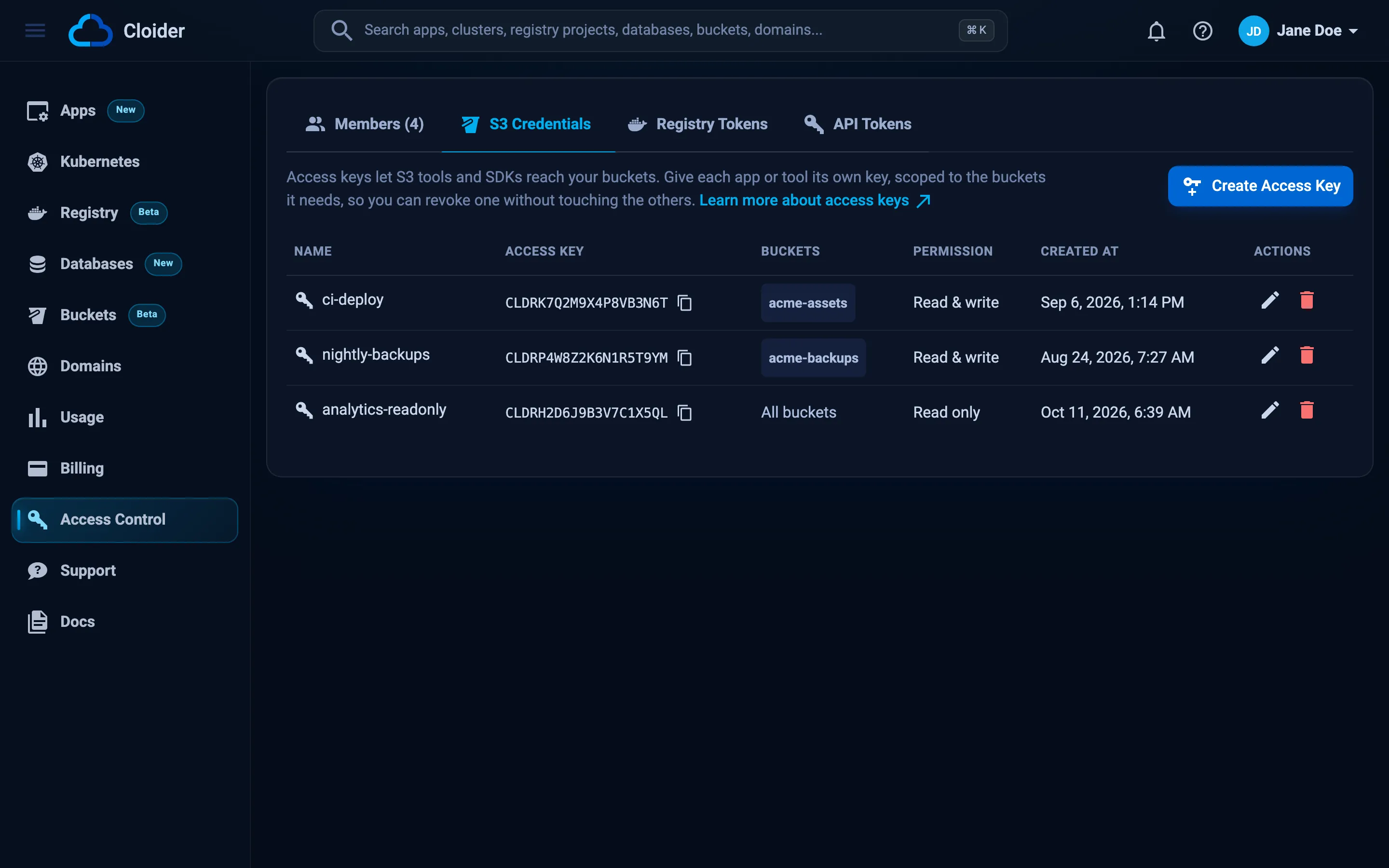
- Open Buckets in the sidebar and select the Access Keys tab. (You can also open Access Control and select S3 Credentials, which works even before the account has a bucket.)
- Click Create Access Key.
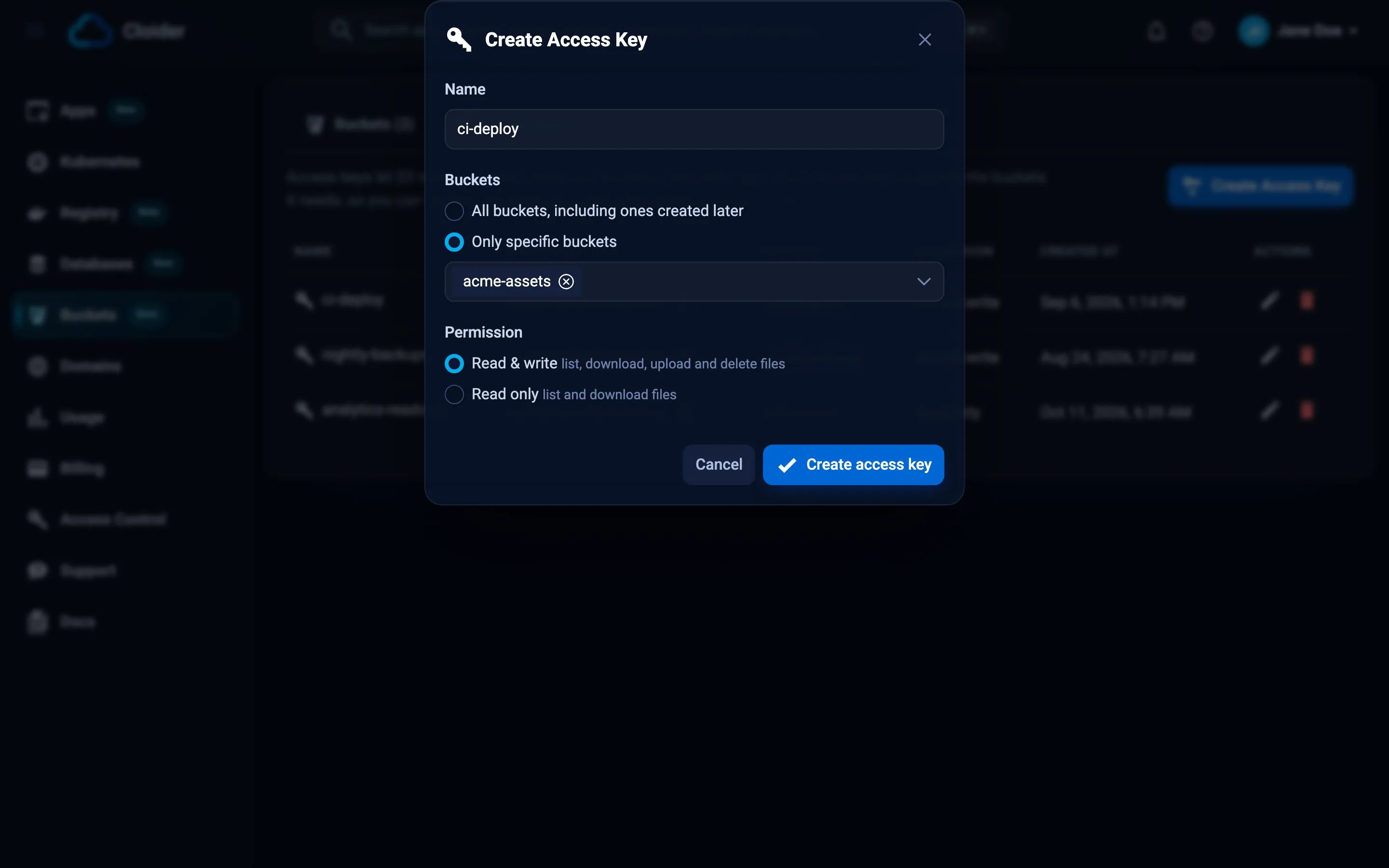
- Enter a Name that says where the key is used, for example
ci-deploy,laptoporbackups. Up to 64 characters. - Under Buckets, choose All buckets, including ones created later, or Only specific buckets and pick the buckets.
- Under Permission, choose Read & write or Read only.
- Click Create access key.
- The Access key created dialog shows the Access key, the Secret key, the Endpoint and the Region, plus an AWS CLI profile snippet. Click a row to copy it. Store the secret key in your password manager or secret store now.
- Click I've saved the secret key.
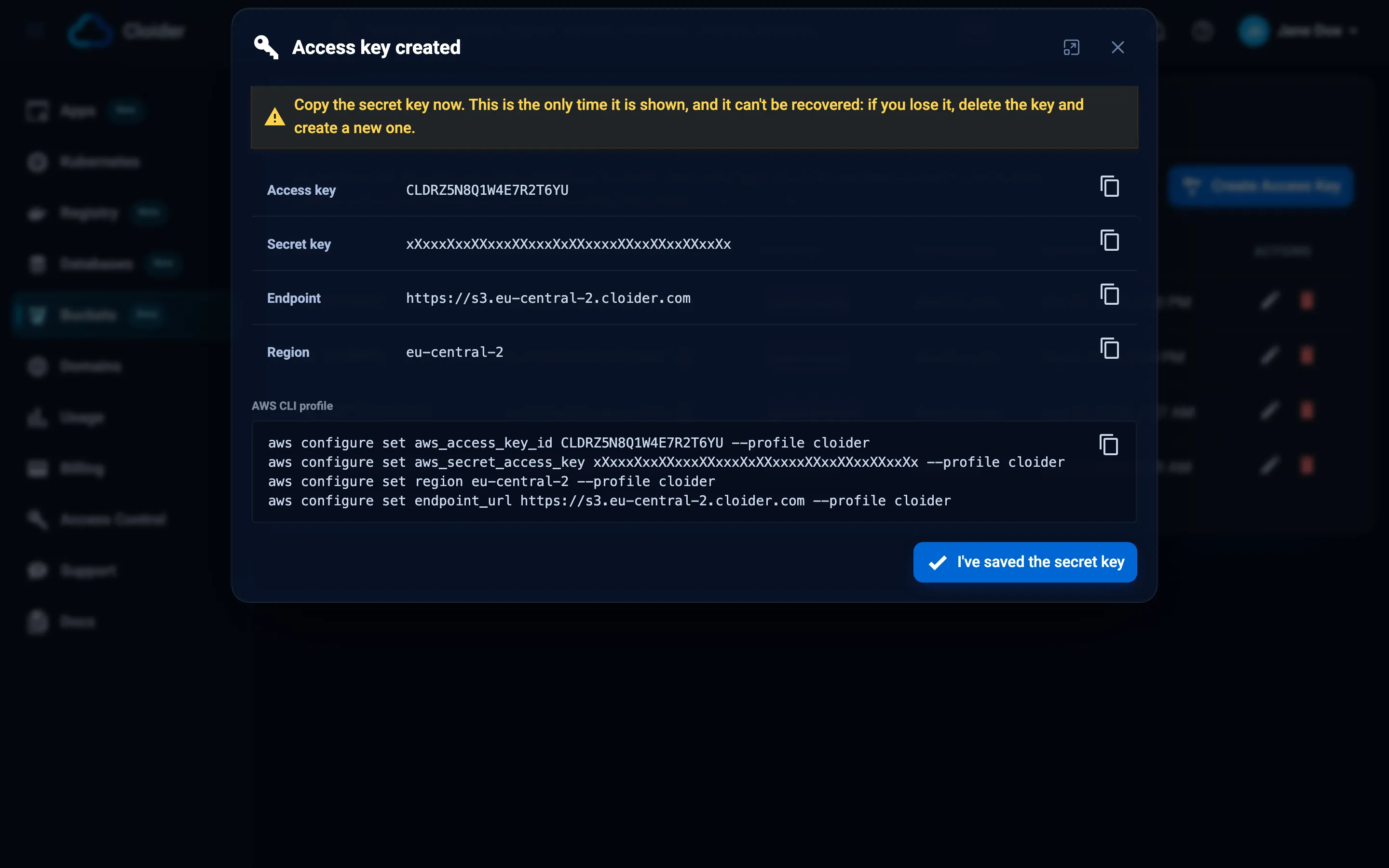
The AWS CLI profile snippet in the dialog configures a cloider profile in one paste:
aws configure set aws_access_key_id CLDRZ8Q4M2X7KD1PLW0B --profile cloider
aws configure set aws_secret_access_key 7hT2kV9qWm4LxR8zNc3PbY6sJd1FgA5eUo0iKlMn --profile cloider
aws configure set region eu-central-2 --profile cloider
aws configure set endpoint_url https://s3.eu-central-2.cloider.com --profile cloider
A read and write key for one bucket:
cloider bucket key create --label ci-deploy --bucket acme-assets
✓ Created access key ci-deploy
Access key:  CLDRZ8Q4M2X7KD1PLW0B
Secret key:  7hT2kV9qWm4LxR8zNc3PbY6sJd1FgA5eUo0iKlMn
Endpoint:    https://s3.eu-central-2.cloider.com
Region:      eu-central-2
Buckets:     acme-assets
Permission:  Read & Write
! The secret key is not shown again, keep it now.
The flags:
| Flag | Meaning |
|---|---|
--label <label> | What the key is for. Required |
--bucket <bucket> | A bucket the key opens, by name or id. Repeat it for several buckets |
--all | Open every bucket of the account, including ones created later. This is also what happens without --bucket |
--read-only | Only read, never write or delete |
--print-env | Print the key as shell export lines instead |
A read only key for every bucket:
cloider bucket key create --label backup-reader --read-only
--print-env prints the credentials as environment variables the AWS CLI and most SDKs read, so you can use the key in the same shell right away:
eval "$(cloider bucket key create --label sync --bucket acme-assets --print-env)"
aws s3 sync ./dist s3://acme-assets
The printed lines are:
export AWS_ACCESS_KEY_ID=CLDRZ8Q4M2X7KD1PLW0B
export AWS_SECRET_ACCESS_KEY=7hT2kV9qWm4LxR8zNc3PbY6sJd1FgA5eUo0iKlMn
export AWS_ENDPOINT_URL=https://s3.eu-central-2.cloider.com
export AWS_REGION=eu-central-2
-q prints only the access key id and the secret key, one per line, and -o json prints the API's answer (below).
resource "cloider_bucket" "assets" {
  name = "acme-assets"
}

# Reads and writes one bucket
resource "cloider_bucket_key" "deploy" {
  label   = "ci-deploy"
  buckets = [cloider_bucket.assets.id]
}

# Reads every bucket, those created later included
resource "cloider_bucket_key" "backup_reader" {
  label       = "backup-reader"
  all_buckets = true
  read_only   = true
}

output "s3_access_key" {
  value = cloider_bucket_key.deploy.access_key
}

output "s3_secret_key" {
  value     = cloider_bucket_key.deploy.secret_key
  sensitive = true
}
terraform apply
terraform output -raw s3_secret_key
Set either buckets (bucket ids) or all_buckets = true. The secret key is stored in the Terraform state, so treat the state as sensitive. A key brought in with terraform import has no secret_key, because Cloider can't show it again. See cloider_bucket_key.
curl -X POST https://cloider.com/api/bucket-keys \
  -H "Authorization: Bearer $CLOIDER_TOKEN" \
  -H "Content-Type: application/json" \
  -d '{
    "label": "ci-deploy",
    "all_buckets": false,
    "buckets": ["b7r2xw"],
    "read_only": false
  }'
{
  "key": {
    "hashed_id": "k3m8vd",
    "label": "ci-deploy",
    "access_key": "CLDRZ8Q4M2X7KD1PLW0B",
    "all_buckets": false,
    "read_only": false,
    "buckets": ["b7r2xw"],
    "status": "Ready",
    "created_at": "2026-10-20T09:31:12Z"
  },
  "secret_key": "7hT2kV9qWm4LxR8zNc3PbY6sJd1FgA5eUo0iKlMn"
}
The body fields:
| Field | Type | Meaning |
|---|---|---|
label | string | What the key is for, 1 to 64 characters. Required |
all_buckets | boolean | true to open every bucket, including later ones |
buckets | array of strings | Bucket ids (hashed_id) the key opens, when all_buckets is false. At least one |
read_only | boolean | true for a read only key |
secret_key is in this response only. See Bucket keys API.
Ask your agent:
Create a read only S3 access key called backup-reader for the bucket acme-backups.
It calls the create_bucket_key tool:
{"label": "backup-reader", "buckets": ["acme-backups"], "read_only": true}
Without buckets, the key opens every bucket of the account. With "print_env": true, the tool answers with export lines for AWS_ACCESS_KEY_ID, AWS_SECRET_ACCESS_KEY, AWS_ENDPOINT_URL and AWS_REGION. The secret key is in the tool's answer, so it ends up in the conversation: create keys for production systems in the dashboard instead if that matters to you.
Cloider shows the secret key only in the answer to creating the key. It can't be displayed again. If you lose it, create a new key, switch your tools to it, and delete the old one.
Use the key
Every S3 client needs four values:
| Setting | Value | Common names |
|---|---|---|
| Access key id | CLDRZ8Q4M2X7KD1PLW0B | AWS_ACCESS_KEY_ID, aws_access_key_id, access_key_id, accessKeyId |
| Secret access key | the 40 character secret | AWS_SECRET_ACCESS_KEY, aws_secret_access_key, secret_access_key |
| Endpoint | https://s3.eu-central-2.cloider.com | AWS_ENDPOINT_URL_S3, endpoint_url, endpoint |
| Region | eu-central-2 | AWS_REGION, region |
As environment variables, which the AWS CLI and the AWS SDKs read on their own:
AWS_ACCESS_KEY_ID=CLDRZ8Q4M2X7KD1PLW0B
AWS_SECRET_ACCESS_KEY=7hT2kV9qWm4LxR8zNc3PbY6sJd1FgA5eUo0iKlMn
AWS_REGION=eu-central-2
AWS_ENDPOINT_URL_S3=https://s3.eu-central-2.cloider.com
AWS_REQUEST_CHECKSUM_CALCULATION=when_required
AWS_RESPONSE_CHECKSUM_VALIDATION=when_required
S3_BUCKET=acme-assets
The two checksum variables keep newer AWS CLIs and SDKs from sending upload checksums that Cloider's storage doesn't accept. See S3 tools, SDKs and Use buckets from apps and clusters.
List access keys
- Dashboard
- CLI
- Terraform
- API
- MCP
Open Buckets > Access Keys, or Access Control > S3 Credentials. The table shows each key's Name, Access Key (click it to copy), Buckets, Permission and Created at. A key that is still being created or deleted shows its status instead of the edit and delete buttons.
cloider bucket key list
ACCESS KEY            LABEL          BUCKETS       PERMISSION    STATUS  CREATED
CLDRZ8Q4M2X7KD1PLW0B  ci-deploy      acme-assets   Read & Write  Ready   2026-10-20 11:31
CLDR4N7TQ2WB9XK0HJ3E  backup-reader  all buckets   Read          Ready   2026-10-18 16:02
-o wide adds each key's id. Commands that take a key accept its access key id, its label or its id.
Terraform tracks the keys it created as cloider_bucket_key resources. terraform state list shows them. There is no data source that lists every key of the account: use the CLI or the API for that.
curl https://cloider.com/api/bucket-keys \
  -H "Authorization: Bearer $CLOIDER_TOKEN"
[
  {
    "hashed_id": "k3m8vd",
    "label": "ci-deploy",
    "access_key": "CLDRZ8Q4M2X7KD1PLW0B",
    "all_buckets": false,
    "read_only": false,
    "buckets": ["b7r2xw"],
    "status": "Ready",
    "created_at": "2026-10-20T09:31:12Z"
  },
  {
    "hashed_id": "p2w7qa",
    "label": "backup-reader",
    "access_key": "CLDR4N7TQ2WB9XK0HJ3E",
    "all_buckets": true,
    "read_only": true,
    "buckets": [],
    "status": "Ready",
    "created_at": "2026-10-18T14:02:55Z"
  }
]
Secrets are never part of the list.
Which S3 access keys does the account have, and which buckets can each one reach?
It calls the list_bucket_keys tool, which takes no arguments.
Change a key
You can change a key's name, its buckets and its permission at any time. The access key id and the secret stay the same, so tools using the key keep working with the new scope. Changes apply within moments.
- Dashboard
- CLI
- Terraform
- API
- MCP
- Open Buckets > Access Keys (or Access Control > S3 Credentials).
- Click the pencil (Edit) button of the key.
- Change the Name, Buckets or Permission.
- Click Save changes.
Give ci-deploy access to two buckets, replacing the ones it had:
cloider bucket key update ci-deploy --bucket acme-assets --bucket acme-site
✓ Updated access key ci-deploy
Open every bucket and allow writes:
cloider bucket key update ci-deploy --all --read-only=false
Only the flags you pass change. --bucket replaces the key's bucket list, --all switches to all buckets, --read-only or --read-only=false sets the permission, and --label renames it.
Change the attributes and apply. label, buckets, all_buckets and read_only all change in place, and the secret stays the same:
resource "cloider_bucket_key" "deploy" {
  label     = "ci-deploy"
  buckets   = [cloider_bucket.assets.id, cloider_bucket.site.id]
  read_only = false
}
PUT takes the whole form, not just the changed fields:
curl -X PUT https://cloider.com/api/bucket-keys/k3m8vd \
  -H "Authorization: Bearer $CLOIDER_TOKEN" \
  -H "Content-Type: application/json" \
  -d '{
    "label": "ci-deploy",
    "all_buckets": false,
    "buckets": ["b7r2xw", "m4t9cs"],
    "read_only": false
  }'
The response is the account's list of keys, as GET /api/bucket-keys returns it.
Make the ci-deploy access key read only.
It calls the update_bucket_key tool, which keeps what isn't given:
{"key": "ci-deploy", "read_only": true}
Rotate an access key
Rotating a key means replacing it with a new one, for example on a schedule, when a team member leaves or when a secret may have leaked. Cloider can't regenerate the secret of an existing key, so rotation is done with two keys:
- Create a new key with the same buckets and permission as the old one, for example
ci-deploy-2026-10. - Update every place that uses the old key: CI secrets, app environment variables, Kubernetes Secrets,
~/.aws/credentials, rclone configs. - Check that nothing still uses the old key. Redeploy or restart the apps that read it, and run your jobs once.
- Delete the old key. Anything still using it gets
InvalidAccessKeyIdfrom then on.
With the CLI, the whole rotation for a CI pipeline looks like this:
# 1. New key, printed as exports
cloider bucket key create --label ci-deploy-2026-10 --bucket acme-assets --print-env > new-key.env

# 2. Put the values from new-key.env into your CI secrets, then remove the file
rm new-key.env

# 4. Once the pipeline runs with the new key, delete the old one
cloider bucket key delete ci-deploy --yes
With Terraform, run terraform apply -replace=cloider_bucket_key.deploy: Terraform deletes the old key and creates a new one, and every resource that reads cloider_bucket_key.deploy.secret_key (for example a Kubernetes Secret) gets the new secret in the same apply. Changing label, buckets or read_only doesn't rotate a key, those change in place.
Delete the key immediately rather than rotating it gently. Anyone holding a read and write key can read, overwrite and delete every file in the buckets it opens. Then create a new key for your tools.
Delete an access key
Deleting a key revokes it right away: anything still using it loses access. Deleting a key never deletes buckets or files.
- Dashboard
- CLI
- Terraform
- API
- MCP
- Open Buckets > Access Keys (or Access Control > S3 Credentials).
- Click the trash (Delete) button of the key.
- Confirm with Delete in the Delete Access Key dialog.
cloider bucket key delete ci-deploy
This permanently deletes access key CLDRZ8Q4M2X7KD1PLW0B.
Type CLDRZ8Q4M2X7KD1PLW0B to confirm: CLDRZ8Q4M2X7KD1PLW0B
✓ Deleted access key ci-deploy
In scripts, add --yes to skip the confirmation. cloider bucket key rm is the same command.
Remove the cloider_bucket_key resource from the configuration and apply, or run:
terraform destroy -target=cloider_bucket_key.deploy
curl -X DELETE https://cloider.com/api/bucket-keys/k3m8vd \
  -H "Authorization: Bearer $CLOIDER_TOKEN"
The response is the remaining list of keys.
Delete the access key ci-deploy.
It calls the delete_bucket_key tool:
{"key": "ci-deploy"}
Clients that ask before destructive tools will ask you to confirm.
Best practices
- One key per app, tool or person. A key named
laptop-mariaorapi-productiontells you what breaks when you delete it. - Smallest scope. Limit keys to the buckets they need, and make keys read only when the tool only reads (backups being restored, CDNs, analytics).
- Keep secrets out of code. Store them in your CI's secret store, in app environment variables marked as secret, or in a Kubernetes Secret. Never commit them. Access key ids start with
CLDR, which helps secret scanners spot a leaked key. - Rotate regularly and whenever someone with access leaves.
- Combine with bucket policies for rules a key's scope can't express, such as write access to one prefix only. See Bucket policies.
Troubleshooting
| Message | Cause and fix |
|---|---|
Name must not be empty | Give the key a name (--label on the CLI) |
Name must not exceed 64 characters | Shorten the name |
Choose at least one bucket | You chose Only specific buckets without picking any. Pick one, or choose all buckets |
One of the buckets doesn't exist any more, reload and try again | A picked bucket was deleted meanwhile, or isn't in this account |
An account can have up to 50 access keys, delete one you no longer use! | The account has 50 keys. Delete unused ones |
The access key must be ready to be changed. | The key is still being created or deleted. Wait a moment |
The access key is busy, try again in a moment! | The key is being created or deleted. Wait a moment |
--all and --bucket don't go together (CLI) | Pass one or the other |
InvalidAccessKeyId from an S3 tool | The key was deleted, or the access key id is mistyped |
SignatureDoesNotMatch from an S3 tool | The secret key is wrong, or the client signs for the wrong endpoint. See Troubleshooting |
AccessDenied from an S3 tool | The key doesn't open this bucket, is read only, or a bucket policy denies the action. See Troubleshooting |
Next steps
- Configure the AWS CLI, rclone and other S3 tools.
- Use the key in your code.
- Restrict a key further with a bucket policy.
- Hand the key to an app or a Kubernetes workload.
Frequently asked questions
Can I see the secret key of an existing access key again?
No. Cloider shows the secret key only once, in the answer to creating the key, and can't display it again. If you lost it, create a new key, update your tools, and delete the old key.
What is the difference between an access key and an API token?
An access key is an S3 credential: S3 clients such as the AWS CLI, rclone and the SDKs use it to read and write files in buckets. An API token authenticates the cloider CLI, Terraform, the REST API and the MCP server to manage Cloider resources, such as creating buckets and keys. Each is useless for the other's job.
Does a key for all buckets include buckets I create later?
Yes. A key created with All buckets, including ones created later (or the CLI without --bucket) opens every bucket of the account, and new buckets are added to it as soon as they are created.
How many access keys can an account have?
Up to 50 access keys per account.
Can an access key create or delete buckets?
No. Access keys read and write objects. Creating and deleting buckets, changing visibility and setting bucket policies are done with the dashboard, the cloider CLI, Terraform, the REST API or the MCP server.
What happens to an access key when its bucket is deleted?
The bucket drops out of the key's list of buckets. The key keeps working for its other buckets. A key whose buckets were all deleted shows None left and opens nothing until you add buckets to it.